2.7.49 impMNTB
Contents
Menu Information
Data: Import from File: Minitab (MTW, MPJ)
If you do not see this file type, choose Data: Import from File: Add/Remove File Types...
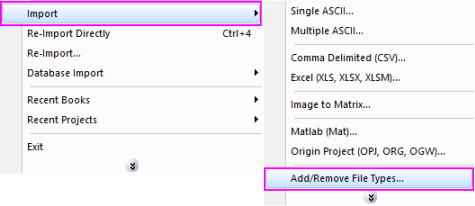
 | To add drag & drop support for a file type, see Import Filter Manager. |
Brief Information
Import Minitab (MTW) or project (MPJ) files prior to Minitab 13
Command Line Usage
1. impMNTB;
2. impMNTB fname:="horse.mtw";
3. impMNTB fname:="testp.mpj";
4. impMNTB fname:=" horse.mtw" orng:=Col(1);
X-Function Execution Options
Please refer to the page for additional option switches when accessing the x-function from script
Variables
| Display Name |
Variable Name |
I/O and Type |
Default Value |
Description |
|---|---|---|---|---|
| File Name | fname |
Input string |
|
The file(s) to be imported. Click the browse button beside the list box to open one or more files. Then the file names will be listed in the box. |
| File Info | trFiles |
Input TreeNode |
|
This is used in the dialog for displaying the basic information of the file. Only the size of the data file will be displayed.
|
| Import Options | options |
Input TreeNode |
|
This is the TreeNode for the import filter, which is hidden from the GUI. Users are not advised to use this variable.
|
| Output | orng |
Output Range |
|
The range for where the data should be imported into. See the syntax here. |
| Header Info | finfo |
Output TreeNode |
|
This is for outputting the header information, which is hidden from the GUI. Users are not advised to use this variable.
|
Description
This X-Function is capable of importing Minitab file (MTW) or project (MPJ). It supports the version prior to Minitab 13.
Details on Some Dialog Options
- Import Options(options)
- Please see this page for more details.
Examples
- The following example imports a Minitab data from the dialog:
- a. From the Origin menu, select Data: Import from File: Minitab (MTW, MPJ) or type
impMNTB -d. This will open the Open File dialog for you to choose the import file. - b. Browse to the folder where your data file is. Select the file and click the Add File(s) button. Click OK to close the dialog box.
- c. In the impMNTB dialog box, use the range selector to select the range for data imported into. Click Ok to close the dialog.
- a. From the Origin menu, select Data: Import from File: Minitab (MTW, MPJ) or type
- The following script command imports a Minitab file (C:\Sample.MTW) without opening the dialog:
#:fname$="c:\Sample.MTW";
#:impMNTB;
- The following example will use script to import all Minitab files under a specific folder (assume it is C:\MinitabData\).
#:cd C:\MinitabData;
#:findFiles ext:="*.MTW";
#:impMNTB;