2.6.5.4 imgResize
Contents
Menu Information
Resize
Brief Information
Resize image
Command Line Usage
1. imgResize lock:=1 unit:=pixel w:=50;
2. imgResize lock:=1 unit:=percent h:=120 interpolate:=resample;
3. imgResize lock:=0 w:=120 h:=130 interpolate:=normal img:=mat(1) oimg:=mat(2);
X-Function Execution Options
Please refer to the page for additional option switches when accessing the x-function from script
Variables
| Display Name |
Variable Name |
I/O and Type |
Default Value |
Description |
|---|---|---|---|---|
| Lock Proportions | lock |
Input int |
|
Specifies whether or not to keep the aspect ratio of the original image. |
| Unit | unit |
Input int |
|
This variable works with two other variables, w and h. It specifies the units for them. Option list
|
| Width | w |
Input/Output double |
|
Specifies the width of the output image. |
| Height | h |
Input/Output double |
|
Specifies the height of the output image. |
| Input Matrix | img |
Input Image |
|
Specifies the source image to be manipulated. The default input is the active image. |
| Output Image | oimg |
Output Image |
|
Specifies the output image. By default, it is the same as the input image. See the syntax here. |
| Interpolation | interpolate |
Input int |
|
Specifies the interpolation method which is used when the image is resized. Option list
|
Description
This X-Function can be used to resize the input image to any size.
Examples
In this example, we use the imgResize function to resize the input image. We change its width to 300 pixels and its height to 200 pixels:
- 1. Create a new matrix and import car.bmp under \Samples\Image Processing and Analysis folder into it.
- 2. From the Origin menu, select Matrix: Set Dimensions. We can see the dimension of the image is 500*375.
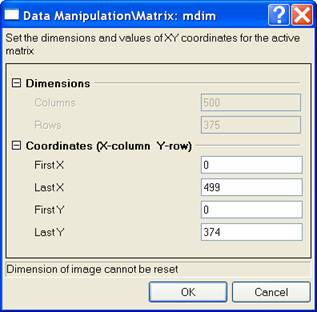
Click Cancel to close the dialog.
- 2. From the Origin menu, select Matrix: Set Dimensions. We can see the dimension of the image is 500*375.
- 3. Make the input image is active and select Image: Geometric Transform: Resize. This opens the dialog of the imgResize X-Function.
- 4. In the imgResize X-Function dialog, change the settings as the screenshot below and click OK to close the dialog.
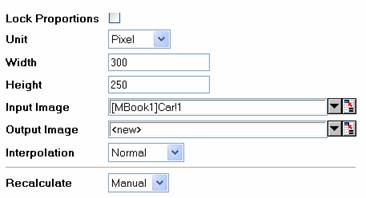
A new image is created.
- 4. In the imgResize X-Function dialog, change the settings as the screenshot below and click OK to close the dialog.
- 5. When the new image is active, choose Matrix: Set Dimensions from the Origin menu to view the dimension of this image.
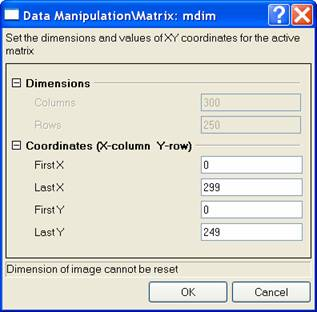
- 5. When the new image is active, choose Matrix: Set Dimensions from the Origin menu to view the dimension of this image.
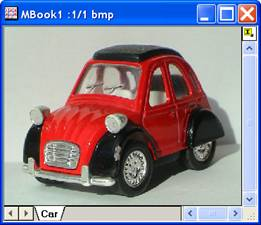

The original image The output image
Algorithm
The resizing is implemented with L_SizeBitmap() function from LEADTOOLS Main API. Please refer to the LEADTOOLS Main API Help file, Version 14 and read the L_SizeBitmap topic.
References
LEADTOOLS Main API Help file, Version 14