2.6.1.13 imgLevel(Pro)
Contents
Menu Information
Image: Adjustments: Leveling
Brief Information
Adjust image levels
Additional Information
This feature is for OriginPro only.
Command Line Usage
1. imgLevel option:=contrast w:=20 b:=30;
2. imgLevel img:=1 option:=contrast w:=20 b:=30 oimg:=mat(2);
3. imgLevel img:=[Mbook1]Msheet1 oimg:=<new>;
X-Function Execution Options
Please refer to the page for additional option switches when accessing the x-function from script
Variables
| Display Name |
Variable Name |
I/O and Type |
Default Value |
Description |
|---|---|---|---|---|
| Input Matrix | img |
Input Image |
|
Specifies the image to be manipulated. The default input is the active image. |
| Level Option | option |
Input int |
|
Specifies the leveling type.
|
| WhiteClip(%) | w |
Input double |
|
Specifies the percentage of white pixels to clip from the input image. |
| BlackClip(%) | b |
Input double |
|
Specifies the percentage of black pixels to clip from the input image. |
| Output Image | oimg |
Output Image |
|
Specifies the output image. By default, the output image is the same as the input image. See the syntax here. |
| Level Report | cl |
Output ReportData |
|
Specifies the leveling report.
|
Description
The imgLevel function applies leveling to an image. It makes the dark values darker and the light values lighter. It enhances the contrast and intensity by using the histogram of the image and a color distribution-based algorithm. There are three Leveling types in OriginPro:
- Level
- Contrast
- Intensity
This function allows you to choose the Leveling type, specify the percentage of white pixels and the percentage of black pixels. Choosing Level Report in the Leveling dialog can create a report for this function.
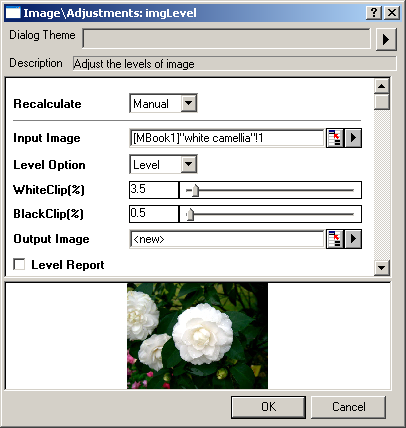
Another function named imgAutoLevel also can apply leveling to an image, but the percentage of white pixels and black pixels to clip from the input image is set as 5% automatically.
Examples
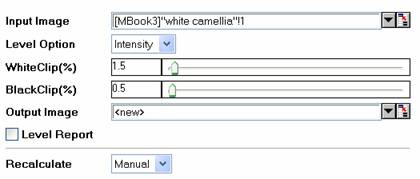
In this example, we use the imgLevel function to increase the contrast of the input image:
- When the input image is active, select Image: Adjustments: Leveling. This opens the dialog of the X-Function.
- In the X-Function dialog, change the settings as the screenshot below and click OK to close the dialog.
A new image is created. We can see that the contrast is improved.

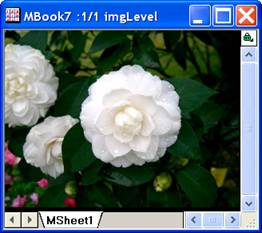
The original image The output image
Algorithm
The computation uses L_AutoColorLevelBitmap() function from LEADTOOLS Main API. Please refer to the LEADTOOLS Main API Help file, Version 14 and read the L_AutoColorLevelBitmap topic.
References
LEADTOOLS Main API Help file, Version 14