2.6.1.11 imgHue
Contents
Menu Information
Image: Adjustments: Hue
Brief Information
Adjust image hue
Command Line Usage
1. imgHue a:=20;
2. imgHue a:=30 img:=mat(1) oimg:=mat(2);
X-Function Execution Options
Please refer to the page for additional option switches when accessing the x-function from script
Variables
| Display Name |
Variable Name |
I/O and Type |
Default Value |
Description |
|---|---|---|---|---|
| Change | a |
Input double |
|
Specifies the angular amount to change the hue, in degrees. Valid range is [0, 360]. The default is 0. |
| Input Matrix | img |
Input Image |
|
Specifies the source image to be manipulated. The default input is the active image. |
| Output Image | oimg |
Output Image |
|
Specifies the output image. By default, the output image is the same as the input image. See the syntax here. |
Description
Hue is what the color is. For example, it could be red, purple, and orange, etc. The imgHue X-Function allows the user to adjust the hue of an image, by specifying an angle to rotate the color wheel. Note that rotating the color wheel by 180 degree will get the complement color.
Examples
In this example, we use the imgHue function to change the color of the input image:
- When the input image is active, select Image: Adjustments: Hue. This opens the dialog of the X-Function.
- In the X-Function dialog, change the settings as the screenshot below and click OK to close the dialog.
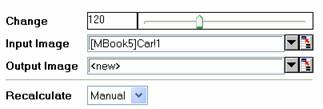
A new image is created. We can see that the color of the car has been changed from red to green.
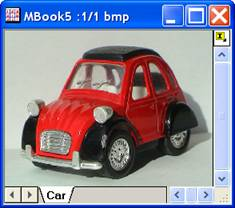
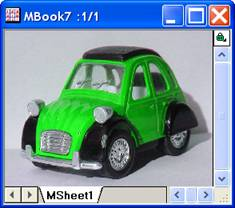
The original image The output image
Algorithm
The computation uses L_ChangeBitmapHue() function from LEADTOOLS Main API. Please refer to the LEADTOOLS Main API Help file, Version 14 and read the L_ChangeBitmapHue topic.
References
LEADTOOLS Main API Help file, Version 14