2.6.6.4 imgGaussian
Contents
Menu Information
Gaussian
Brief Information
Apply Gaussian filter to image
Command Line Usage
1. imgGaussian r:=20 img:=mat(1) oimg:=mat(2);
2. imgGaussian r:=10 oimg:=<new>;
X-Function Execution Options
Please refer to the page for additional option switches when accessing the x-function from script
Variables
| Display Name |
Variable Name |
I/O and Type |
Default Value |
Description |
|---|---|---|---|---|
| Radius | r |
Input int |
|
Specifies the size of the neighborhood on which the Gaussian filter is applied. This value cannot be less than 1. |
| Input Matrix | img |
Input Image |
|
Specifies the source image to be manipulated. The default input is the active image. |
| Output Image | oimg |
Output Image |
|
Specifies the output image. By default, the output image is the same as the input image. See the syntax here. |
Description
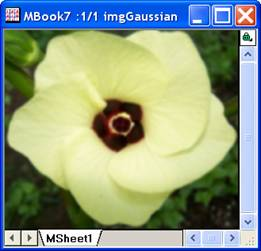
The imgGussian function applies a Gaussian filter to the input image. The filtered image is blurred and looks smoother than the input image.
User can specify the radius of the filtering neighborhood. Generally speaking, a larger radius will result in a smoother image compared to a smaller radius.
Examples
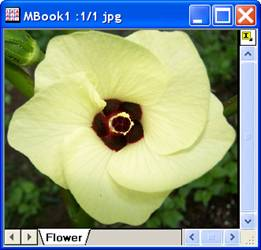
In this example, we use the imgGaussian function to blur the input image:
- When the image is active, select Image: Spatial Filters: Gaussian to open the dialog of the X-Function.
- In the dialog, change the settings as the screenshot below and click OK to close the dialog.
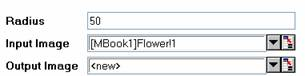
A new image is created. It is the filtered image.
The original image The output image
Algorithm
The computation uses L_GaussianFilterBitmap() function from LEADTOOLS Main API. Please refer to the LEADTOOLS Main API Help file, Version 14 and read the L_GaussianFilterBitmap topic.
References
LEADTOOLS Main API Help file, Version 14