2.6.1.8 imgGamma
Contents
Menu Information
Image: Adjustments: Gamma
Brief Information
Apply gamma correction to image
Command Line Usage
1. imgGamma a:=1;
2. imgGamma a:=2.3 img:=mat(1) oimg:=mat(2);
X-Function Execution Options
Please refer to the page for additional option switches when accessing the x-function from script
Variables
| Display Name |
Variable Name |
I/O and Type |
Default Value |
Description |
|---|---|---|---|---|
| Gamma | a |
Input double |
|
Specifies the gamma value. It can be any number greater than 0. |
| Input Matrix | img |
Input Image |
|
Specifies the source image to be manipulated. The default input is the active image. |
| Output Image | oimg |
Output Image |
|
Specifies the output image. By default, the output image is the same as the input image. See the syntax here. |
Description
The imgGamma function adjusts the intensity of colors in a bitmap by changing the gamma constant that is used to map the intensity values. Note that a gamma value greater than 1 will in general lead to an intensity increase, while a gamma value less than 1 will cause the intensity to be reduced.
Examples
In this example, we use the imgGamma function to increase the intensity of the input image:
- When the input image is active, select Image: Adjustments: Gamma. This opens the dialog of the X-Function.
- In the X-Function dialog, change the settings as the screenshot below and click OK to close the dialog.
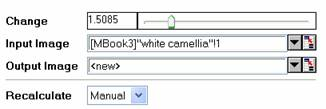
A new image is created. We can see that it is brighter than the original image.
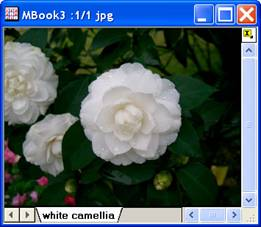
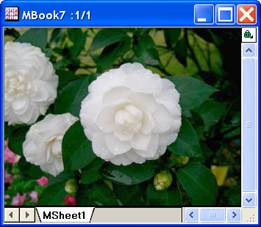
The original image The output image
Algorithm
The computation uses L_GammaCorrectBitmap() function from LEADTOOLS Main API. Please refer to the LEADTOOLS Main API Help file, Version 14 and read the L_GammaCorrectBitmap topic.
References
LEADTOOLS Main API Help file, Version 14