2.6.5.1 imgCrop
Contents
Brief Information
Crop image to a rectangle area
Command Line Usage
1. imgCrop x:=0 y:=0 w:=100 h:=100;
2. imgCrop x=:10 y=:10 w:=50 h:=50 img:=mat(1) oimg:=mat(2);
X-Function Execution Options
Please refer to the page for additional option switches when accessing the x-function from script
Variables
| Display Name |
Variable Name |
I/O and Type |
Default Value |
Description |
|---|---|---|---|---|
| X Coordinate | x |
Input int |
|
Specifies the X coordinate of the top-left corner of the rectangle area to be kept. |
| Y Coordinate | y |
Input int |
|
Specifies the Y coordinate of the top-left corner of the rectangle area to be kept. |
| Width | w |
Input int |
|
Specifies the width (in pixels) of the rectangle area to be kept. |
| Height | h |
Input int |
|
Specifies the height (in pixels) of the rectangle area to be kept. |
| Input Matrix | img |
Input Image |
|
Specifies the image to be manipulated. The default input is the active image. |
| Output Image | oimg |
Output Image |
|
Specifies the output image. By default, the output image is the same as the input image. See the syntax here. |
Description
The imgCrop function crops the image to a specified rectangle area. You can use it to extract useful part and remove unneeded parts from the image.
Examples
In this example, we use the imgCrop function to cut an rectangle area that contains only one cell from the input image:
- Create a new matrix and import cell.jpg under \Samples\Image Processing and Analysis folder into it
- When the image is active, type the following script command in the Command Window:
imgCrop x:=120 y:=240 w:=260 h:=260 imgo:=<new>
A new image is created. It is a rectangle area from the input image.
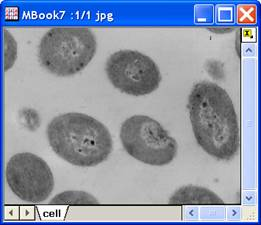
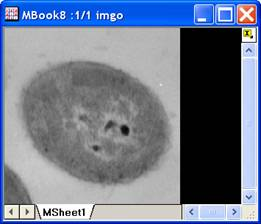
The original image The output image
Algorithm
The computation uses L_TrimBitmap() function from LEADTOOLS Main API. Please refer to the LEADTOOLS Main API Help file, Version 14 and read the L_TrimBitmap topic.
References
LEADTOOLS Main API Help file, Version 14