2.14.2.3 changeUFF
Contents
Menu Information
Preferences: Options: System Path(tab): User Files Folder: Change(Button)
Brief Information
Change the path of User Files Folder
Additional Information
Minimum Origin Version Required: 8.1 SR0
Command Line Usage
changeUFF path:="c:\My User Files" copy:=0;
X-Function Execution Options
Please refer to the page for additional option switches when accessing the x-function from script
Variables
| Display Name |
Variable Name |
I/O and Type |
Default Value |
Description |
|---|---|---|---|---|
| New User Files Folder | path |
Input string |
|
Specify a path for the new User Files Folder. |
| Copy All Files From Original | copy |
Input int |
|
Specify whether to copy all files from the original User Files Folder to the new User Files Folder. When this is selected, the files in the original User Files Folder will overwrite the ones with the same names in the new specified User Files Folder. |
Description
This X-Function is capable of changing the User Files Folder. Restarting Origin is needed before using the new User Files Folder. This X-Function allows you to copy all the files from the original User Files Folder to the new one. If you want to choose what files to be copied, you can uncheck the Copy All Files From Original check box and then restart Origin. After restarting , you can copy your files using Preference: Transfer User Files... from Origin main menu.
Examples
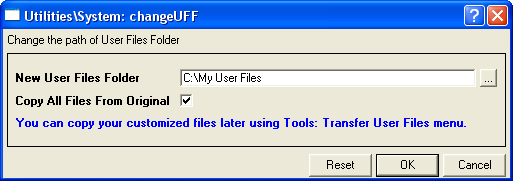
The following example shows how to change the User Files Folder and copy all the files in original folder to the new one at the same time.
- Select Preference: Change User Files Folder... from the Origin main menu to bring up the changeUFF dialog.
- In the dialog, type C:\My User Files in the New User Files Folder text box. Select the Copy All Files From Original check box.
- Click the OK button, and then click the OK button again on the pop-up Attention! message box.
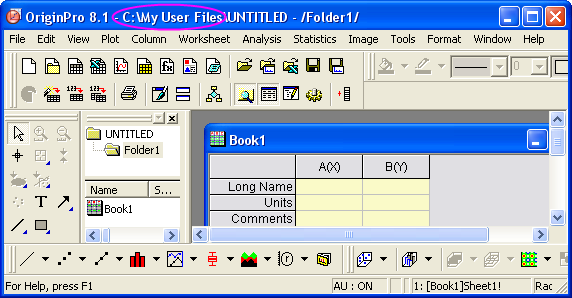
- Restart Origin. Notice that the new User Files Folder is in use.
Keywords:UFF