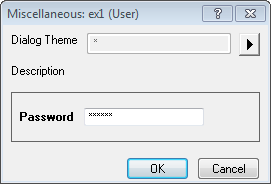
If the control string is empty, then the control is set to be Edit.
We can use the control string:
set the control to password edit box, in which input is enciphered.
An example in a dialog:
We can use the following control string to set the DynaCtrl to Slider in X-Function Dialog.There are two types slider decided by whether we can type into precise value in Origin.
For example, slider:0|100|100 will create a slider with start value as 0 and end value as 100 and the step as 100/100=1.
You can see the slider in the Dialog:
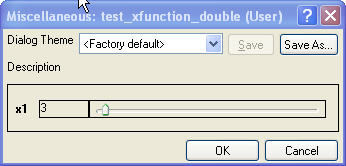
You can see the slider in the Dialog:
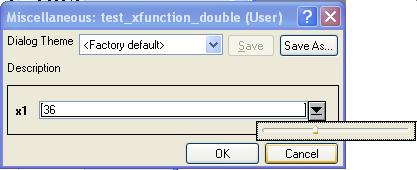
There are two types ComboBox: Editable ComboBox and UnEditable ComboBox.
We can use the following control string to set the DynaCtrl to Editable ComboBox in X-Function Dialog and the default value is 0.
We can use the following control string to set the Control to UnEditable Combobox in X-Function Dialog.
Note: the control string Value must be double value.
You can set the default data in Data field of the X-Function Bulider.
| Variable Data | Input | Output | Input/Output |
|---|---|---|---|
| <unassigned> | The default value set to be missing Value. | do nothing | The variable value is set to be empty value. |
| Splicified value | The default value set to be the splicified Value. | do nothing. | Set the the splicified value as input. |
| LabTalk Variable Name | The default value set to be the LabelTalk variable value. | The variable result value will be put into LabTalk variable. | The variable value can be got from the Labtalk Variable Name. After Execution, the result value will be put into the Labtalk Variable. |
| Range string | The default value is set to be the Range string value(convert to vector). | The variable result value will be put into the Range. | The variable value can be got from the range. After Execution, the result value will be put into the Range. |
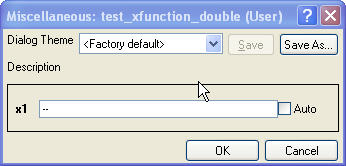
We can control whether the input data is auto-calculated by using the option string:
If the Value is 0, then user must input the value.Else, the value can be auto-calcualated.
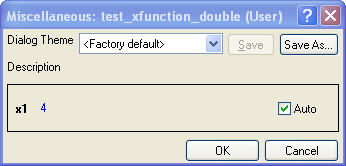
This option can be used to control whether the output variable is needed, i.e. the output variable is optional. With specifying this option, a checkbox will be added beside the output variable. If it is checked, the variable will be outputted, otherwise it will be not. By default, it is equivalent to U:1 when it is not specified.
You can see more details in How to Use Output checkbox.
You can see the more detailes in Option Strings