1.2.4 Creating Tab-based Dialog
The following example shows how to create a tab-based X-Function dialog, as well as an event1 function to catch when tab is changed.
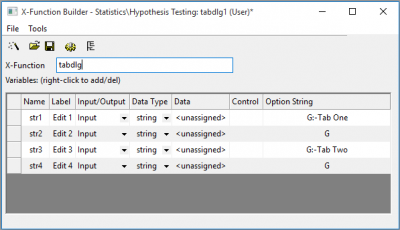
- Press F10 to open X-Function Builder. Type "tabdlg" into the X-Function edit box as the X-Function name.
- In the Variables panel, Click on x to change name to str1. Change Data Type to string. Change Option String to G:-Tab One. Right click on the grey area in the panel and add three variables and change the properties of the variables as shown below. Click Save to save this X-Function.
- Open the X-Function in Code Builder, and add the following line of code at the beginning.
#include <event_utils.h>
Put the following code in TabDialog_event1.
//Codes for tab change
if ( GETNE_ON_ACTIVE_TAB_CHANGE == nEventID )
{
	int nLastTabIndex = -1;
	if ( !trGetN.GetAttribute(STR_LAST_TAB_INDEX_ATTRIB, nLastTabIndex) )
		nLastTabIndex = -1;
	printf("TabChanged: Old=%d, New=%d\n", nLastTabIndex, nRow);
	trGetN.SetAttribute(STR_LAST_TAB_INDEX_ATTRIB, nRow);
}
Put the following code in TabDialog_before_execute.
if ( is_xf_startup(nGetNDialog, dwCntrl) )
{
	STATS_GETN_GROUPED_SUBNODES_AS_TABS; //Show the branches in tab
	GETN_ENABLE_TABCHANGE_EVENT(trGetN, true); //Enable event for tab change
}
- Click the
 button.
 - Run tabdlg -d in the Command window to open the dialog. Switching between the tabs will trigger the event and print out messages like "TabChanged: Old=-1, New=2".