1.1.4 Creating Graph Preview GetN Dialog
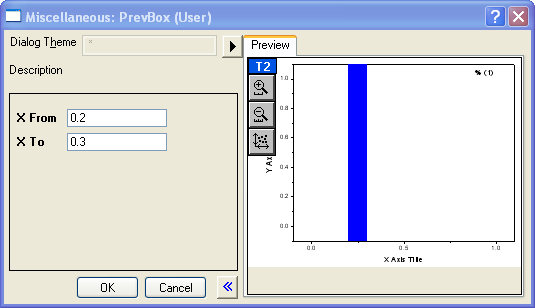
This section shows how to create an X-Function graph preview GetN dialog , including how to initialize a preview graph, how to update the preview graph on a GUI change, and how to update the GUI on the rectangle moving on the graph.
Contents
Create an Empty GetN Graph Preview Dialog
- Select Tools: X-Function Builder... menu to open the builder.
- Enter PrevBox as the X-Function name.
- Add a second variable by right-clicking on in the table and choosing Add variable.
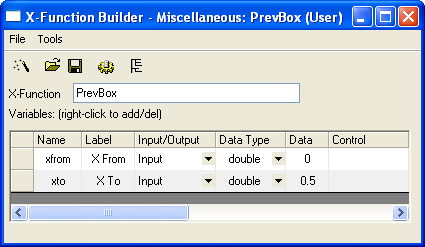
- Change the variable names, labels, and other values as the image below
- Click Tree View button
 . Expand Usage Context -> Menu branch and set Auto GetN Dialog to GetNGraphBox with Preview.
 - Click the Save button to save this X-Function under X-Functions-> Miscellaneous subfolder.
- Close X-Function Builder, and run prevbox -d in Command window. A GetN dialog with graph preview shows.
Coding X-Function in Code Builder
- The most straightforward way to start coding is by loading the X-Function in the X-Function Builder dialog and then clicking the Code Builder button there. The corresponding XFC file is loaded with Compile and Return to Dialog button on top. But you can also load the X-Function directly in Code Builder window.
- In Origin, select View: Code Builder... menu or click Code Builder button to open the Code Builder window.
- In Code Builder, select File: Open... menu and navigate to the corresponding X-Function subfolder, e.g. User Files -> X-Functions -> Miscellaneous subfolder and select PrevBox.OXF.
- Check the Add to Workspace check box. Click OK button.
- PrevBox.XFC is added to the User folder in Origin C Workspace and shows as active tab.
- Add the additional header file after the line //put additional include files here. For example:
//put additional include files here
#include <..\Originlab\grobj_utils.h>
Initialize Preview Graph
- Go to the GetNGraphPreview_OnInitGraph function, which is used to initialize a preview graph. Copy the following codes and paste them into the blank area of the function body.
// cast pgTemp from PageBase class object to GraphPage object
GraphPage gp(pgTemp);

// load this template to the graph in order to contain zoom
// in/out button on the graph. If this is not required,
// remove this line.
page_load(gp, "CurvePreview");

// get active graph layer in the graph page
GraphLayer gl = gp.Layers();

// add a rectangle, set x position reference to xfrom and xto
// variables
GraphObject go;
add_rect(gl, go, trGetN.xfrom.dVal, 0, trGetN.xto.dVal, -1,
    SYSCOLOR_BLUE, 2, LN_VERTICAL, true, false);
Update Preview Graph on GUI Change
- To cause the preview graph to be updated, you need to include the UPDATE_GRAPH_CHANGED bit in the dwUpdateGraph variable in the GetNGraphPreview_OnChange function. For example:
// include the bit to call GetNGraphPreview_OnUpdateGraph
// to update graph
if( !(dwUpdateGraph & UPDATE_GRAPH_CHANGED) )
	dwUpdateGraph |= UPDATE_GRAPH_CHANGED;
- Add the following code into the GetNGraphPreview_OnUpdateGraph function to update the graph. Click the Compile button and run "PrevBox -d" in the Command window.
// cast pgTemp from PageBase class object to GraphPage
// object
GraphPage gp(pgTemp);

GraphLayer gl = gp.Layers(); // get active graph layer
GraphObject go = gl.GraphObjects("Rect");

double x0 = trGetN.xfrom.dVal;
double x1 = trGetN.xto.dVal;

// update x position of rectangle on GUI
vector vv(4);
vv[0] = x0; vv[1] = x1; vv[2] = x1; vv[3] = x0;

Tree tr;
tr.Root.Data.X.dVals = vv;
go.UpdateThemeIDs(tr.Root);
go.ApplyFormat(tr, true, true);

// refresh graph window
gp.Refresh(TRUE);
Update GUI on Graph Object Event
If you want to update the GUI when you move/resize the rectangle on the preview graph, you need to:
- Add the following to the GetNGraphPreview_OnInitGraph function after the add_rect function.
// set event script to notify preview dialog when rectangle
// is moved or resized. For other event types see the GRCT_*
// in oc_const.h file.
set_LT_script(go, "run -oc notify_dlg_on_move_obj;",
              GRCT_SIZEMOVE);
- Add the following code to GetNGraphPreview_OnChange to update the new position of the rectangle to the GUI. Click the Compile button and run "PrevBox -d" in the Command window.
if( bChangedByGraph )
{
	// get rectangle x from/to and update GUI
	GraphPage gp(pgTemp);
	GraphLayer gl = gp.Layers();
	GraphObject goRect = gl.GraphObjects("Rect");

	Tree tr;
	tr = goRect.GetFormat(FPB_DATA, FOB_ALL, TRUE, TRUE);

	vector vv;
	vv = tr.Root.Data.X.dVals;

	trGetN.xfrom.dVal = vv[0];
	trGetN.xto.dVal = vv[1];

	// to include UPDATE_GRID_* bits to update GUI
	if( !(dwUpdateGrid & UPDATE_GRID_SIMPLE) )
		dwUpdateGrid |= UPDATE_GRID_SIMPLE;
}
Add Preview buttons
To add a Preview button and an Auto Preview check box, please see X-Functions: Customizing an X-Function: Adding Custom Button on Dialog: Show Preview Button on Graph Preview GetN Dialog