10 Graphing
Contents
- 1 Creating a Graph
- 2 Plotting without Using Column Plot Designations
- 3 Manipulating Data Plots
- 3.1 Changing Plot Type
- 3.2 Exchanging Data Plots
- 3.3 Adding, Removing and Hiding Data Plots
- 3.3.1 Adding Data by Drag and Drop
- 3.3.2 Adding Data with Insert: Plot to Layer
- 3.3.3 Adding and Removing Data with the Layer Contents Dialog Box
- 3.3.4 Adding, Removing, Replacing or Hiding Data Plots with the Plot Setup Dialog Box
- 3.3.5 Adding Data by Direct ASCII Import
- 3.3.6 Adding Data by Copying and Pasting a Plot
- 3.3.7 Removing or Hiding Plots with the Object Manager
- 3.3.8 Removing or Hiding Data with Plot Details
- 3.3.9 Deleting Plots using the Delete Key
- 3.3.10 Editing Plot Range
- 3.3.11 Rescaling after Adding/Removing Data Plots
- 3.4 Grouping Data Plots
- 3.5 Speed Mode
- 4 Publishing Your Graph: Copy/Paste, Image Export, Slide Shows and Printing
- 5 Origin Graph Types
- 6 Topics for Further Reading
Creating a Graph
Graphs can be created from both hard data and from mathematical functions. With Origin, you can create over 100 graph types using Origin's built-in graph templates. Each of these graphs has been specifically chosen for its applications in various technical fields.
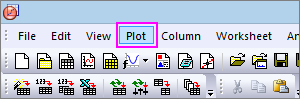
All graph types are accessible from the Plot menu. Note that while most graph types also have a corresponding 2D Graphs or 3D and Contour Graphs toolbar button, some do not. Until you've had time to familiarize yourself with available toolbar buttons, the Plot menu should be your "go to" place for creating graphs.
Creating most graphs involves just two steps.
- Select your data.
- Select the plot type.
Some Origin graph types have very specific data requirements. Other graphs can be created from multiple data arrangements. See the Origin Graph Types section for specific requirements.
Creating Graphs from Worksheet Data
Origin's most generic graph types -- line, column/bar, pie -- plus a lot of the more specialized types, are created from worksheet data. The following quick tutorial demonstrates importing an ASCII data file and creating a simple graph.

|
Tutorial: One click to create graph with selected data
|
We were able to quickly create two different graphs using the same data. The chapter Customizing Graphs discusses customizing graphs and saving templates in more depth.
We are also able to create 3D plot types from worksheet data. The following tutorial demonstrates creating a 3D surface plot, then overlaying it with a 3D scatter plot.
|
|
Tutorial: 3D Surface Plot from XYZ Data
Your graph should look like this:
|


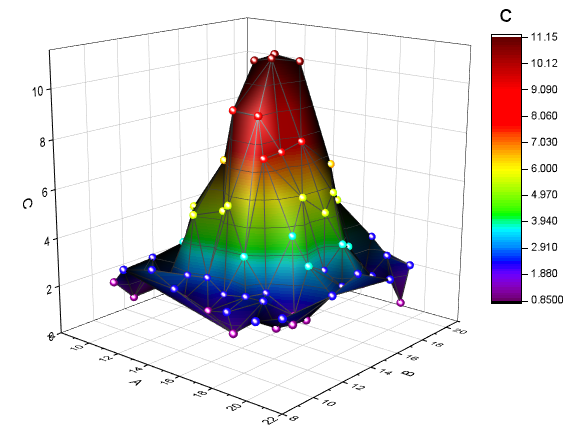
 | You can hold down the R key on your keyboard and use the mouse to freely rotate the 3D surface. With the pointer tool active, click on the layer for additional controls to move, stretch and rotate the surface. |
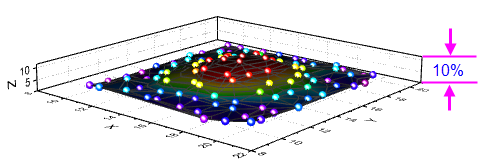
| The minimum Z axis length of 3D graph is 10% (Plot Details layer level, Axis tab). |
Worksheet Column Plot Designations
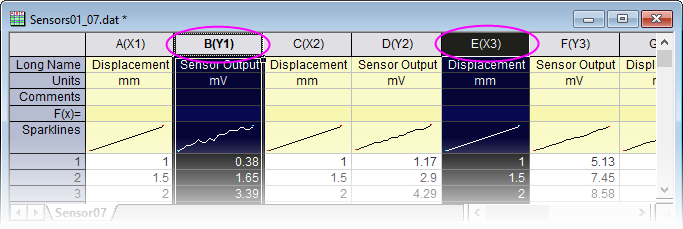
The labels (X), (Y), (Z), etc. in column headings are referred to as the Column Plot Designation. Columns can also be designated as Label, Disregard, Y Error or X Error. Each plot type has certain data requirements (e.g. a simple line plot requires one X and one Y dataset) and column plot designations work in concert with settings saved in the graph template, to allow you to quickly create a graph.
To set the Column Plot Designation, select a column or multiple columns, then from the menu choose Column: Set as:<option>; or right-click and choose an option from the Set As: context menu.
In the 1st tutorial above, we plotted 2D graphs, which require Y data from one or more worksheet columns. The Y data were automatically plotted against the X column data to their left. In 2nd tutorial, we plotted a 3D graph using Z data. The Z data were plotted against X and Y data columns to the left of the Z data column.
| Note: For more information on Column Plot Designations and how they affect plotting behavior, see Plot Designation, in documentation for the Column Properties Dialog Box. |
Selecting Worksheet Data
Various ways to select data for plotting:
- Single column: Click on the column heading, e.g. B(Y)
- Multiple columns: To select a small number of contiguous columns, click on the first column heading and drag the pointer to the last column heading. To select a large number of contiguous columns, click on the first column heading, use the scroll bar at the bottom of the worksheet to locate the last column, then press the SHIFT key and click on the last column heading. To select non-contiguous columns, press the CTRL key while clicking on the desired column heading.
- A range in a column: Click on the first cell of the range and drag to the last cell of the range.
- Multiple ranges within a column: Select one range. Press the CTRL key while selecting each range. When plotting, each range will be treated as a separate data plot in a plot group.
- Ranges across multiple columns: If cells are contiguous, click on the first cell and drag to the last cell. If cells are not contiguous, press the CTRL key while selecting each range. Each range selection will be treated as a separate data plot in a plot group.
- Range(s) across all columns: Click on the first row heading and drag to the last row heading, to select multiple rows. This will select data in all columns in the worksheet. Press the CTRL key while selecting row headings for non-contiguous rows. Each range selection will be treated as a separate data plot in a plot group.
- Entire worksheet: Press CTRL+A to select the entire worksheet; or mouse over the bottom-right corner of the blank cell in the upper-left corner of the worksheet. When the pointer becomes a downward-pointing arrow, click to select the entire worksheet.
- Specific columns: To select columns by data in column label rows (header rows); or to select columns using a pattern, choose Edit: Select.
| As noted in the Worksheet Column Plot Designations section just above, if you select Y or Z columns, Origin defaults to plotting the Y column against the nearest X column to the left; or plots the Z column against the nearest X and Y columns to the left. But in the case of simple XY 2D plots (line, line + symbol, etc.), you can ignore this rule and plot by selecting XY columns whether or not the selected X is to the left or right of Y.
|
Creating a Graph from Matrix Data
As discussed in the Matrixbook, Matrixsheets and Matrix Objects chapter, a matrix is a dataset of Z values arranged as an array of columns and rows which are linearly mapped to X (column) and Y (row) values. Matrix data is used to create 3D, contour and heatmap graphs -- all of which require require "3D" data. In earlier versions of Origin you had to have your data in a matrix to create such plot types but this is no longer the case (see discussion of the Virtual Matrix below). A few graph types such as a color-filled surface with error bars still require matrix data.
There are still many situations in which you will be creating 3D plots from matrix data. If data are stored in a worksheet and for one reason or another, you need to convert it into a matrix form, see Converting Worksheets to Matrixes.
Once your data are in a matrix form, plotting matrix data is simple: activate the matrix window then select your plot type using a Plot menu command or corresponding 3D and Contour Graphs toolbar button. Since you cannot plot only a portion of the matrix, data selection isn't necessary. You can, however, choose a subset of the data plot to display once the graph is created. See Editing Plot Range, below.
The Virtual Matrix
The Virtual Matrix concept was covered in the Matrixbook, Matrixsheet and Matrix Object chapter of this Guide. To recap, a virtual matrix is a block of worksheet cells which contain Z values, with X and Y coordinates in the first row or column label row, and first column. X and Y coordinates don't have to be evenly spaced and can even contain text or date/time data.
When selecting and plotting virtual matrix data to 3D, Contour and Heatmap graph types, the worksheet's Column Plot Designations are ignored. Instead, a dialog box is opened where you designate your X and Y coordinates. The intersecting data points are then treated as Z values.
|
|
Tutorial: Contour Plot from Virtual Matrix
|
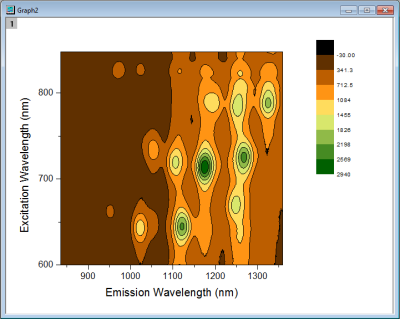
| Once you customize your contour levels and colors, you can save your settings as a Theme, or simply copy-paste your customizations from one graph to another. To save a Theme, right-click on the graph and choose Save Format as Theme; or use the Colormap Theme controls on the Colormap/Contours tab of the Plot Details dialog box. |
2D and 3D Function Plots
Unlike plots from worksheet data or plots from matrix data, parametric plots are not plots of actual data. Instead, they are plots of mathematical functions.
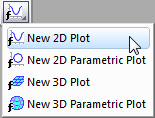
To create function plots and parametric function plots, select File: New: Function Plot menu. There are four options to choose from:
| Type | Function Form |
|---|---|
| 2D Function Plot | y = f(x) |
| 2D Parametric Function Plot | x = f1(t) y = f2(t) |
| 3D Function Plot | z = f(x, y) |
| 3D Parametric Function Plot | x = f1(u, v) y = f2(u, v) z = f3(u, v) |
These plot types are also accessible from the function plot buttons on the Standard toolbar.
|
|
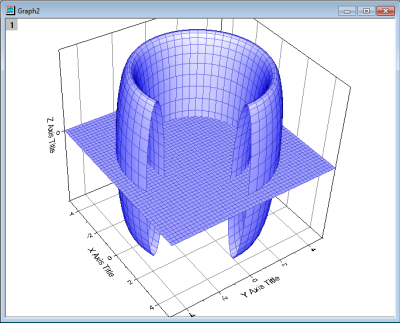
Tutorial: 3D Function and 3D Parametric Function in Same Layer
|
- Some function plot dialogs provide sample formulas. Click the arrow button beside Theme at the top of the dialog box to access them. You can download more examples at http://originlab.com/3dfunctions.
- For 2D parametric, 3D, and 3D parametric function plots, data is generated when the function plot is created. To create data for 2D function plots, right-click the plot and choose Make dataset copy of Function or if on the Function tab in Plot Details, click the Workbook button.
- You can exclude function plots from the graph legend by right-clicking on the selected legend object and placing a check mark beside Legend: Hide Legend for Function Plots (To add them back to the legend, clear the check mark).
- Besides function plots, you can also create graphs with all built-in and user-defined nonlinear curve-fitting or surface-fitting functions. From the menu, choose Analysis: Fitting: Simulate Curve... or Simulate Surface.... You can even add noise to the plot. Corresponding data is created as well.
Adding Function Plots to Existing Graphs
You can add function plots to existing graph windows containing other plot types. See FAQ-171, specifically the section entitled Add Function Plot to an Existing Graph.
Plotting without Using Column Plot Designations
While worksheet Column Plot Designations are always used when creating graphs from the Plot menu or one of the graph toolbars, the Plot Setup dialog box does not make use of them. With Plot Setup, you assign column designations on an ad hoc basis, allowing you to overcome some of the restrictions of template-based plotting.
However, to make use of the Plot Setup dialog box, you need to have some familiarity with the hierarchy of objects contained in the Origin graph window.
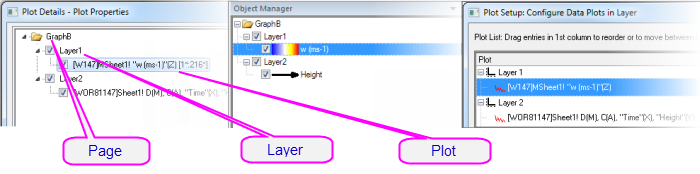
Pages, Layers, Plots and the Active Plot
Each Origin graph window is comprised of a single, editable graph page. The graph page is defined by the white area inside the graph window. Anything that lies outside the page is not printed or exported. By default, the dimensions of the graph page are defined by the printable area of your default printer driver; without adjusting settings, a printed graph should fill the printed page.
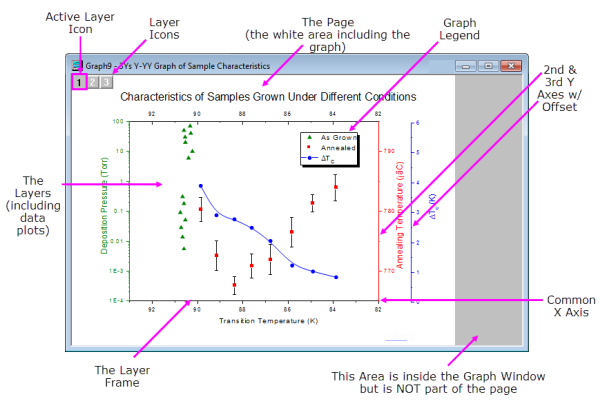
- The graph page must contain at least one, and may contain as many as 1024, graph layers.
- Each graph layer generally contains one or more data plots (graphical depictions of datasets). Note that the graph in the image above contains three graph layers, represented by the three non-printing layer icons in the upper-left corner of the graph page. Note that there is one layer icon which is highlighted, indicating that this is the active layer.
- Just as there is only one active layer, there is only one active plot in a graph. Usually, the active plot is the first plot in the active layer. To verify which plot is active, click on the Data menu while the graph is active. The active plot will have a check mark beside it.
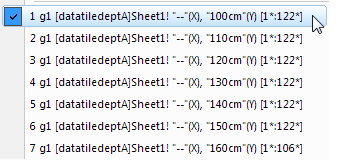
The hierarchical structure of the graph page can be seen in these places:
- The Plot Details Dialog Box (Format: Page ...)
- The Object Manager (View: Object Manager)
- The Plot Setup Dialog Box (Graph: Plot Setup...)
The Plot Setup Dialog Box
The Plot Setup dialog box is a flexible all-in-one plotting tool for creating graphs and manipulating the data plots in an existing graph.
- Creating graphs without regard to Column Plot Designations
- Creating graphs from a combination of data sources: multiple worksheets, workbooks, matrixbooks, loose datasets, etc.
- Creating graphs combining multiple plot types.
- Adding, removing, replacing data plots.
- Grouping or ungrouping data plots.
- Reordering data plots in a layer or moving data plots to another layer.
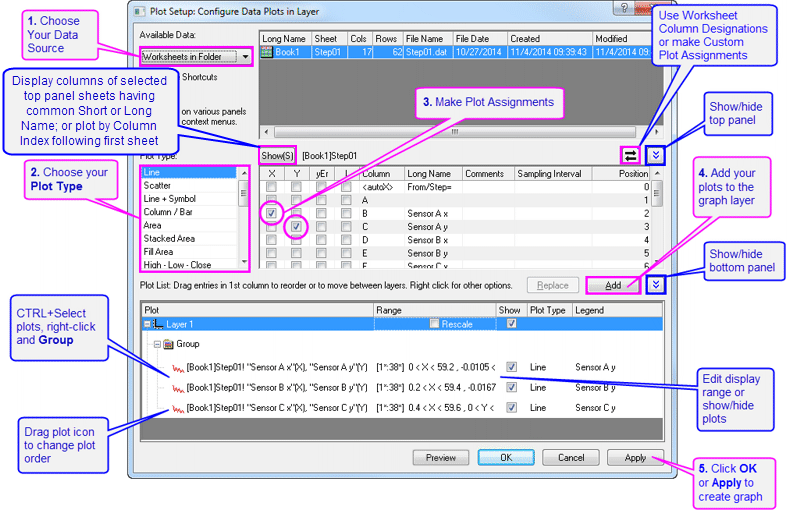
To create a graph with the Plot Setup dialog, make sure no data is selected in the active worksheet and choose the plot type that you want to create (from the Plot menu or by clicking on a toolbar button).
To open the Plot Setup dialog for an existing graph window, right-click on any layer icon in the upper left corner of the graph window and select Plot Setup..., or choose menu Graph: Plot Setup....
|
|
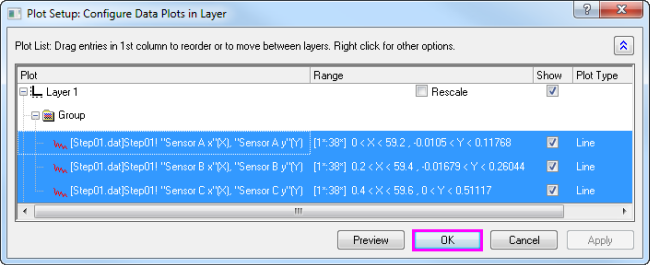
Tutorial: Creating a Simple Line Plot with the Plot Setup Dialog Box
|
|
|
Tutorial: Creating a Graph with Data from Multiple Worksheets
|
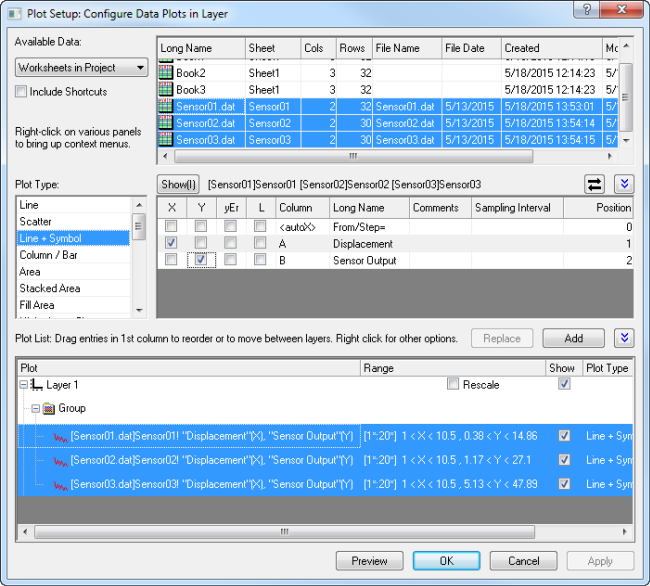
- The Plot Setup middle panel only allows choosing one X column at a time.
- If your worksheet is set up with the correct Column Plot Designations (e.g. XYXY) but you only want columns with same Long Name, click the toggle in the upper-right corner of middle panel so that only plottable columns show (e.g. for 2D plot types, X columns are not shown). Then you can sort the columns and select all columns with same Long Name and plot them together. The Y columns will be plotted against corresponding X columns.
- To change a data plot's type, choose the corresponding plot in bottom panel. Corresponding X and Y columns will show in middle panel. Choose a new plot type in middle panel and click the Replace button.
- All data plots in a group share the same plot type. If you want to change the plot type of a single plot in a group, right-click the Group node in bottom panel and Ungroup first.
- Drag and drop data plots in the bottom panel to move them to different layers.
- If the bottom panel is hidden and you have selected columns in the middle panel, you can directly click the OK button to create your graph.
Manipulating Data Plots
The following sections discuss higher level modifications to existing graphs such as changing plot type, adding or removing plots from the layer and controlling the density of plotted points (Speed Mode). For more detailed plot customizations, including those involving such things as changing plot symbols, colors, and legend customizations, see the Customizing Graphs chapter.
Changing Plot Type
Some Origin plot types (e.g. scatter, line, line+symbol) allow you to interchange the plot type of an existing plot with a few other select plot types. Some examples:
- Scatter, line, line+symbol, column/bar are interchangeable.
- 3D scatter/trajectory/vector, 3D bars, 3D surface are interchangeable.
To change the plot type of an existing plot:
- Right-click on the data plot and choose Change Plot to: Graph Type from the shortcut menu.
- Click on the data plot and choose Format: Plot... and in Plot Details choose from the Plot Type drop-down list.
- Click on the data plot, then click one of the supported graph toolbar buttons.
Note that if you switch plot types and the selected plot is part of a plot group, all plots in the group are switched.
 | A word of caution: This is an old Origin feature, and for a quick change of common plot types in a single-layer graph it works well. Changing plot types in a multi-panel, multi-layer graph can lead to unwanted outcomes. When working with more complex graphs, it is better to create a graph directly using the specified Plot menu command or toolbar button . |
Exchanging Data Plots
You can quickly change the data source (X, Y, or worksheet) of a plot using these context menu commands. Right-click on a data plot, then select one of these options:
- Change X/Y/Z. These menu items allow you to swap the current X,Y or Z data with data from any column in the project.
- Select Columns. This opens the Column Browser where you can select another column in the Current Folder, in the Current Folder (recursive) (includes subfolders) or in Current Project.
- Change Worksheet. This menu item allows you to replace both X and Y with data from another worksheet. The selected worksheet must have the same Short Names, the same Column Plot Designations and the same row index range as the current worksheet.
|
|
Tutorial: Changing X and Y assignment of a data plot
|
| Note: If new data is significantly outside of the current range for X or Y axes, you will be asked if the graph should be rescaled. If data are not significantly different, you may want to manually rescale the graph (Hot key: CTRL+R). |
| If you have performed some analysis on the data plot (e.g. linear regression with Recalculate set to Auto), the fit results will automatically update when you change X/Y or the worksheet. |
Adding, Removing and Hiding Data Plots
Use the following methods to add or remove data plots from a graph.
Adding Data by Drag and Drop
You can add data to a graph by drag and drop. When using this method, Origin relies on worksheet Column Plot Designations to create the plot.
- Select the worksheet data (one or more columns or a range of one or more columns).
- Move the mouse over the left or right edge of the selected range.
- When the pointer looks like this
 , hold down the left mouse button and drag the data to the graph window. Release the mouse.
 - If there are multiple layers in the graph, drag the data to the desired layer, then release the mouse.
| Usually the current plot type is used when plotting by drag-and-drop. To change the global plot type to use when drag and drop, choose Preferences: Options... from the main menu. Go to the Graph tab and change the Drag and drop plot type. |
Adding Data with Insert: Plot to Layer
Use the Insert menu to insert some types of plots to the active graph layer. Choice of plot type depends on the active graph window and the last-activated data source (worksheet or matrix). For instance, if you create a 2D graph, select data in a workbook window, then return to graph window and click Insert: Plot to Layer, your insert choices will be Line, Scatter, Line + Symbol, Column..., Area and Contour....
To use the Insert menu command, you should have an existing graph window:
- Go to the worksheet or matrix window and select your dataset(s).
- Return to the graph window, make sure that the target layer is active layer, then choose Insert: Plot to Layer: Plot Type.
Adding and Removing Data with the Layer Contents Dialog Box
Open the Layer Contents dialog box by double-clicking or right-clicking on the layer icon(s) in the top left corner of the graph page. Controls in the left panel can be used to filter and list available datasets. The right panel lists datasets that are plotted in the active layer.
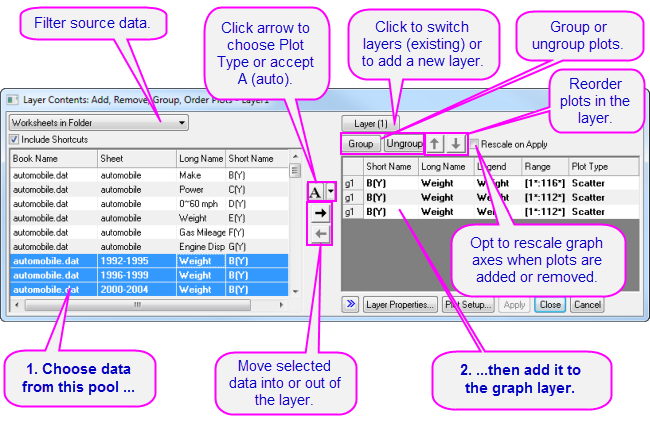
Controls in the center of the dialog box allow you to add or remove plots from the active graph layer. When adding data to the graph, click the list button (downward-pointing arrow) to pre-select the plot type before adding data to the layer. Use controls in the right panel to group or ungroup plots, or re-order plots in the layer.
Adding, Removing, Replacing or Hiding Data Plots with the Plot Setup Dialog Box
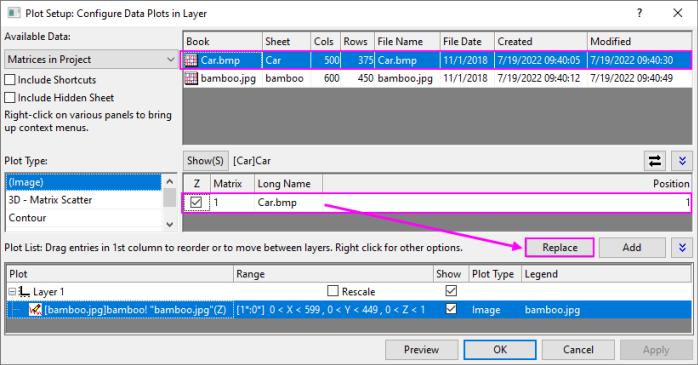
Among other things, the Plot Setup dialog box can be used to add or remove data plots from the graph.
- To add plots to the graph, use the top panel of Plot Setup to identify your source data.
- Use the controls in the middle panel to specify the plot type and how the data selection should be treated (as X, Y, yError or Label).
- In the bottom panel, choose the Layer to which you want to add plots, then click the Add button.
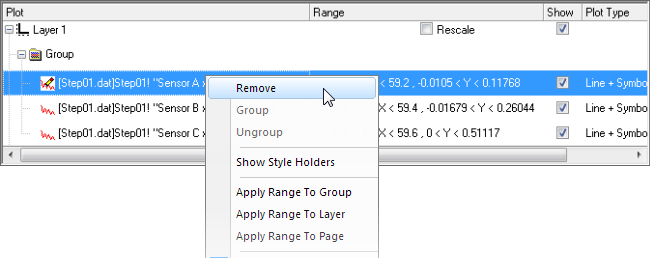
- To remove a plot from the layer, select the plot in the bottom panel, then right-click and choose Remove.
- To hide a plot, uncheck the Show check box for the plot.
- To replace a plot, select the plot in bottom panel, then change the X and Y selection and plot type in middle panel and click the Replace button. Note that replacing one 3D/Contour Plot/Image matrix with another is also supported.
Adding Data by Direct ASCII Import
You can import ASCII files directly into the active graph window using the the Import ASCII toolbar button. Note that this method works only with files having a simple structure and it supports only the simplest of graph types - Line, Scatter, Line + Symbol, Column and Bar charts.
- Click the Import ASCII
 button. This opens the Import ASCII dialog box.
 - Choose a file.
- Click Open.
The file is imported and plotted in the active graph window.
Adding Data by Copying and Pasting a Plot
With many Basic 2D graphs (e.g. Scatter, Line, Line + Symbol, Bubble, etc.), you can copy a plot from an existing graph layer and paste it to another layer in the same window or into a separate graph window. Prior to Origin 2020, this would only produce a black line plot. Origin 2020 expanded copy-paste of plots to other plot types, while preserving plot properties (symbol size, color, etc.).
- Click on the plot to select it and press CTRL+C.
- Click on the target graph and press CTRL+V.
You can also copy a plot by selecting the plot in the graph and clicking on the Copy Plot button on the Mini Toolbar.

| Previous versions also allowed you to select and copy a simple plot (Line, Scatter, Line + Symbol, 2D Column/Bar) and paste underlying data into a worksheet. The default settings no longer support this but you can reverse this by setting LabTalk system variable @CPNP=1. |
Removing or Hiding Plots with the Object Manager
The Object Manager is a dockable panel that allows for easy manipulation of graph layers and data plots. See the section on The Object Manager in this Guide.
To hide or remove plots, right-click on a plot and choose from the shortcut menu:
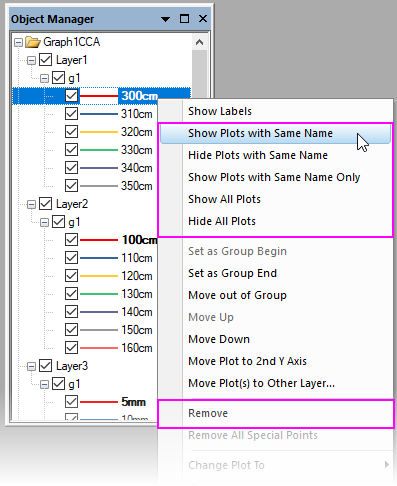
- Show or hide plots of the same Long Name.
- Show all plots.
- Remove a plot from the graph window (hidden plots can be quickly shown again; removed plots must be added back using one of the above methods).
- If the plot is part of a group, you can right-click on an individual plot and remove just that plot or you can right-click on the group icon and remove the entire plot group.
- When you right-click on a plot, you can use Hide Plots with Same Name and Hide All Plots shortcut menu items to quickly hide selected plots in the window without removing them entirely (restore plots by enabling their display in the Object Manager or in Plot Details).
Removing or Hiding Data with Plot Details
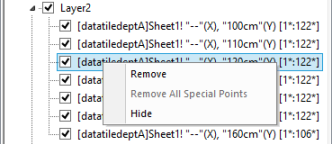
In the left panel of the Plot Details dialog box (Format: Plot...), right-click on a plot and choose Remove or Hide from the context menu. Remove will delete the data plot from the graph so if you just want to temporarily hide a plot, choose Hide. Neither of them will delete data from worksheet or matrix.
Deleting Plots using the Delete Key
Click on a data plot (either in the graph window or Object Manager) and press the Delete key. If the selected plot is part of a group, the entire group is deleted.
Note that this is more sweeping than the Remove shortcut menu command in that it will remove an entire plot group from the graph window. This action does not delete worksheet or matrix data.
To restore the deleted plots, choose Edit: Undo Remove Plot from the main menu.
Editing Plot Range
Once a graph is made, you can edit the plot display range, specifying only a portion of the plotted data:
- Right-click on the plot and choose the Edit Range... shortcut menu command. Edit the From and To values.
- In the right panel of the Layer Contents dialog box (Graph: Layer Contents), turn on the Range column by right-clicking on the column headings and choosing Range. Click on a plot's range values, then click the ... button that appears to the right side of that column.
- In the bottom panel of Plot Setup (Graph: Plot Setup), click on the plot range in the Range column and click the ... button that appears to the right side of that column.
Rescaling after Adding/Removing Data Plots
Adding or removing data plots from a 2D or 3D graph may result in the need to rescale axes.
- Origin will generally ask the user how to handle rescaling.
- Some dialog boxes that are used to add or remove datasets from a plot (e.g. Layer Contents) typically have a rescale check box.
- You can also select the layer beforehand, then click the Mini Toolbar Auto Rescale button, to automatically rescale. This is equivalent to opening the Axis dialog box Scale tab and setting Rescale = Auto.
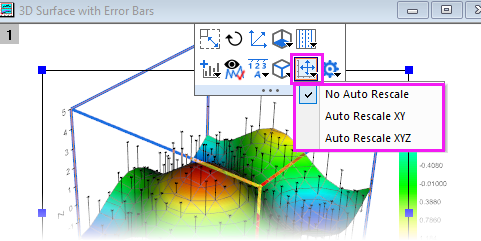
- Choose Graph: Rescale to Show All to rescale the graph after editing the plot range.
Grouping Data Plots
When you make multiple range or column selections, then create a graph, Origin groups the resulting data plots in the graph layer. This applies to most 1D (statistical) and 2D graphs, plus 3D XYY (XYY 3D bar, 3D ribbon, 3D wall, and 3D waterfall plots) and 3D XYZ (3D scatter, 3D bar) graphs.
Grouping provides for quick creation of presentation-ready graphs because each plot in the group is assigned a differentiating set of plot attributes (line color = black, red, green...; symbol shape = square, circle, triangle...; etc.). Assignments are made by cycling through a pre-determined (user-modifiable) increment list of styles. For instance, the first plot of a grouped line plots might be denoted by a black line; the second plot might be denoted by a red line (the second color in the color list), the third plot by a green line (the third color in the color list), and so on.
|
|
Tutorial: Creating a simple grouped data plot
|


|
|
Tutorial: Grouping (or ungrouping) plots manually
|
Speed Mode
With Speed Mode, you can control the number of data points displayed in a graph layer. This option is most used when working with large data sets, though note that there have been improvements in this area and Origin now has Density Dots and Color Dots graph templates specifically for creating scatter plots of large datasets.
Speed Mode can be turned on for any 2D or 3D graph. When Speed Mode is enabled, the layer icon displays in red and a Speed Mode is On banner appears in the layer. The banner is not included when printing, copying, or exporting the graph.
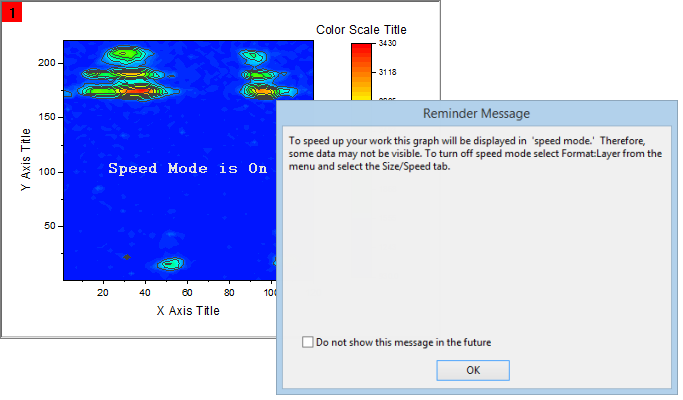
To adjust Speed Mode settings:
- With your graph active, select Format: Layer... from the Origin menu.
- Select the Display/Speed tab.
- For plots created from worksheet data, Select the Worksheet Data, Maximum Points Per Curve check box to enable Speed Mode for all the data plots in the layer that are created from worksheet data. Type the desired value (n) in the associated text box. If the number of data points in a data plot exceeds n, Origin displays a subset of the data plot containing n points, drawn by extracting values at regular intervals from the data set.
- For 3D data plots created from a matrix or for contour data in the layer, Select the Matrix Data, Maximum Points Per Dimension check box to enable Speed Mode. Type the desired value (n, m) in the X and Y text boxes. If the number of data points in a data plot exceeds n or m, Origin displays a subset of the data plot composed of -- at maximum -- n by m points. This subset is drawn by extracting values at regular intervals from the matrix columns (X) and rows (Y).
For broad control, you can select Speed Mode from the Graph menu. This opens the speedmode X-Functiondialog. The dialog lets you specify which windows the settings should apply to ( Target ) and also, offers several levels of data plot thinning from Off to High, plus Custom.
| Click the Enable/Disable Speed Mode |

To turn off the Speed Mode is On banner for all graphs:
- Select Preferences: Options to open the Options dialog box.
- Select the Graph tab and clear the Speed Mode Show Watermark check box and refresh the graph, if needed. Note that this only disables the banner across the graph; it does not disable Speed Mode.
| There is a page-level Mini Toolbar button to toggle the Speed Mode Banner off or on, at the individual graph level. |
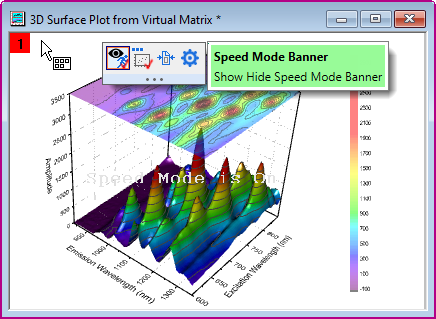
Notes on Speed Mode
- Besides Speed Mode, Origin has another generalized data reduction mechanism for plots with scatter points (e.g line & symbol). The Plot Details's plot-level Display tab has a Data Points Display Control drop-down so that you can systematically skip plotting of points by one of several methods (e.g. Skip Points by Increment).
- LabTalk control of where to begin skipping (e.g. layer.plot1.symbol.skipstart=10, will start skipping at row 10).
- Skip Points and Speed Mode plot the last data point, by default, but this is controlled by system variable @SMEP.
- The Speed Mode controls on the Display/Speed tab of the layer's Plot Details only apply to what you see on screen. They do not apply to graphs that are printed or exported, by default.
- If you wish to skip points in printouts, use controls in the Print dialog. See the discussion of the Skip Points feature as it applies to some graph windows in the Origin Help file.
- If you wish to apply Speed Mode settings to graphic export, please see this discussion of Performance Group controls on the Miscellaneous tab of the Plot Details dialog box or use controls under the Export Settings node in the Graph Export dialog.
- Speed Mode settings are saved with the graph template. If you make changes to Speed Mode settings for a particular graph type, you will have to resave the graph template to make those changes permanent.
- Always exercise judgement when using Speed Mode. Since Speed Mode systematically weeds out a portion of your data points, any graph in which Speed Mode is turned on, may -- or may not -- accurately represent your data, to your satisfaction. Always familiarize yourself with your data and adjust and compare Speed Mode settings to ensure that trends in your data are accurately depicted.
Publishing Your Graph: Copy/Paste, Image Export, Slide Shows and Printing
There are a number of ways to present your finished graph.
- Copy a graph page and paste it in other applications such as Word, Powerpoint, etc.
- Export the graph page as an image file (raster or vector).
- Send Graphs to PowerPoint.
- Printout.
- Slideshow within Origin.
- Create Movies.
Please read details in the Publishing and Export chapter of this User Guide and the "Topics for Further Reading" there.
Origin Graph Types
Origin supports over 100 plot types. Origin's 2D graphs are plotted from Worksheet data. Origin's 3D graph are plotted from Worksheet data (XYY, XYZ), a worksheet arrangement we refer to as a Virtual Matrix or from Matrix data.
| Origin Graph Samples of most 2D and 3D graph types are included with your Origin software. To view graphs, supporting data and guidelines for making the graphs, choose Help: Learning Center(F11). |
The tables below list all Origin graph types, grouped by Plot menu category:
- The Plot menu icon for each graph type precedes the graph name.
- The Notes column provides basic information on data requirements. For more specific data requirements, click on the graph name beside the Plot menu icon.
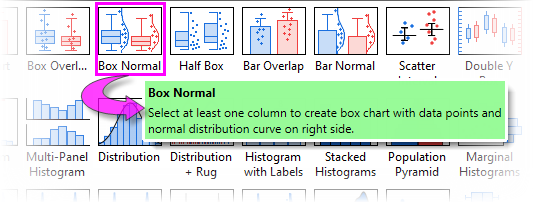
Plot Menu Graphs by Category
| Plot menu templates display basic data requirements on hover. When the cursor hovers over a plot icon, pressing F1 key will pop up the help documentation for that plot, including the plot created by Extended Template and Apps. |
| You can modify the size of the Plot menu icons using the LabTalk system variable @PPS. To find out how to change the value of a system variable, see Customizing Origin Using System Variables. |
Basic 2D
| Graph Types | Notes |
|---|---|
|
|
|
| |
|
|
|
| |
| |
|


Bar, Pie, Area
| Graph Types | Notes |
|---|---|
|
|
|
|
|
|
|


Multi-Panel/Axis
| Graph Types | Notes |
|---|---|
| |
| |
| |
|
|
|
|


1 Layer, 2 Y Axes
It has long been possible to create "Double-Y" plots in Origin. Previously, "2 Y axes" meant "2 layers." Since Origin 2023, Origin introduces support for a new "1 layer, 2 Y axis" plotting mechanism. The new mechanism has general applications for 2D scatter, line, line + symbol (incl. variations such as the "Before-After" graph), column, box, histogram, and area charts. Using new GUI controls, the user can create such a graph using only the basic plot type templates.
Beginning with Origin 2023, the Multi-Panel/Axis category (Plot: Multi-Panel/Axis) has two rows of "Double-Y" templates with the new, single-layer on top and the older, two-layer templates below.
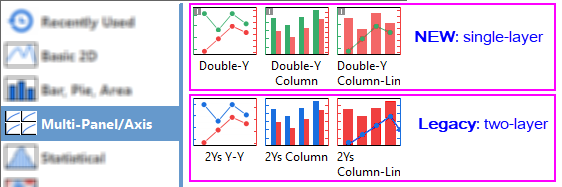
The new and the legacy templates will produce the same graph, the only difference being that the legacy template will create two layers while the new template will create only one. The plotting procedure is the same for both:
- In the worksheet, select 2 columns of "Y" data.
- Click Plot: Multi-Panel/Axis and choose the desired template.
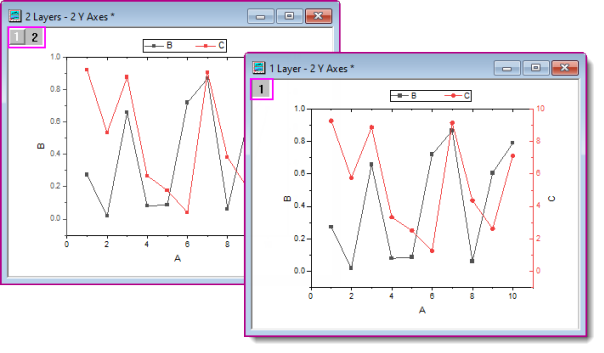
| See Customizing Graphs for an example of creating a "1 Layer, 2 Y Axes" graph. |
Other controls that are added to support this new "1 layer, 2 Y axis" plotting mechanism:
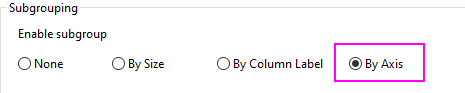
- The Plot Details Group tab now has a Subgrouping = By Axis option. In the graph above, we did not use this setting. Instead, we chose to use a single group and make use of line+symbol template's default increment lists for line color and symbol shape. However, we could just as well have split the left and right Y plots into two separate groups and thus, implement separate Plot Details Group tab behaviors for each group.
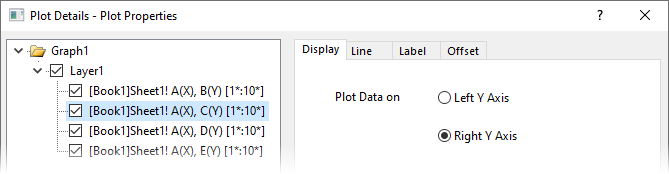
- The aforementioned plot types now include a Display tab at the plot level in Plot Details. Use radio buttons Plot Data on the Left Y Axis or Right Y Axis.
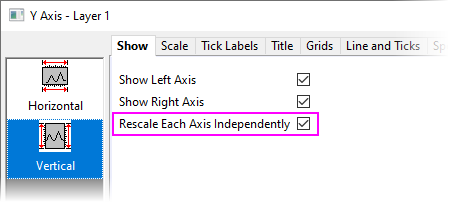
- The Axis dialog box now has a Rescale Each Axis Independently check box that should be enabled for a "double-Y" graph (If for some reason, your two vertical axes don't seem to want to scale independently, check on this setting).
Statistical
| Graph Types | Notes |
|---|---|
|
|
|
|
|
|
| |
|
|
For data requirements and other information on Ridgeline Charts, follow the link in the Graph Types column. |
| |
| |
|
|
|
| |
| |
| |
|


Contour
| Graph Types | Notes |
|---|---|
|
|
|
| |
| |
|
|
|
| |
| |
|


Specialized
| Graph Types | Notes |
|---|---|
| |
| |
|
|
|
|
|
|
|
|
|
|
|
|
| |
| |
|
|
|
|
|
|


Categorical
| Graph Types | Notes |
|---|---|
| |
| |
| |
|
|
|
| |
| |
| |
| |
| |
|
|
|
| |
| |
|


3D
| Graph Types | Notes | ||
|---|---|---|---|
| |||
| |||
| |||
| |||
|
|
| ||
|
|
| ||
|
|
| ||
| |||
| |||
|
|
| ||
| |||
| |||
|


For an overview of Origin's 3D graph types and their source data requirements, see these topics:
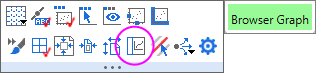
Browser Graph
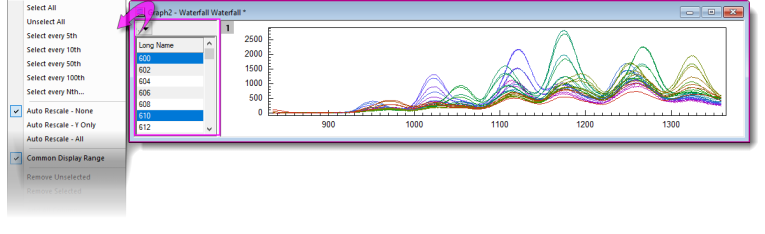
Browser graphs are useful for selectively plotting data from worksheets containing many columns (and rows), into a single graph layer:
- Select a single plot or every Nth column for plotting.
- Easily change column selection.
- Stretch the window in either dimension to obtain the best view.
- Specify automatic rescale and/or common display range for all plots.
- Works with other Origin tools including Gadgets.
- Plots can be further customized via Plot Details dialog box.
- You can export a Browser Graph as a video (GIF, TIFF, AVI):
- Click the menu button
 and choose Flip Through.
 - Click the Export button and set File Type = GIF, TIFF or AVI.
- Modify other settings as needed and click OK. Unless it has been turned off, export will dump a clickable link to the Messages Log.
- Click the menu button
| The page-level Mini Toolbar includes an Add Browser button so that you can add a Browser panel to a regular 2D line plot. |
| Graph Types | Notes |
|---|---|
|
|
|


Function Plot
| Graph Types | Notes |
|---|---|
| |
|


My Templates
| Dialog Box | Notes |
|---|---|
|

Other Graphing Tools
| App | Notes |
|---|---|
| |
| |
|


Topics for Further Reading
- The Page-Layer-Plot Hierarchy
- Page Viewing Modes
- Graph Template Basics
- Creating Graphs from Graph Templates
- The Graph Template Library
- Graph Axes
- Zooming In or Out on the Graph Page
- Creating Multi Layered Graphs
- Adding Data Plots to the Graph Layer
- The Layer Contents Dialog Box
- The Object Manager
- Graph Layers
- Linking Layers
- 3D and Contour Graphing
- Graph with Data Slicer
- Plotting Mathematical Functions
- Batch Plotting
- Appendix 2 - Complete Listing of Origin Graph Types