提示:此部分只提供英文原文,敬请谅解!
9.3.6 Update Graph By Reimport Data From Database
Contents
Summary
 | The database used in this tutorial has been set up on Microsoft Azure. |
This tutorial is a continuation of previous Tutorial Update Database Importing By LabTalk Substitution. It shows how to add a button on graph with LabTalk script to open a GetN dialog to enter company name and reimport database based on the new company name and get updated graph.
The procedure is based on Origin 2023b.
What you will learn
This tutorial will show you how to:
- Add a button on the graph with script.
- How to create a simple dialog to get new input.
Steps
Add Button to Run LabTalk Script
- Right click at bottom-right corner of the graph1 created by the previous Tutorial Update Database Importing By LabTalk Substitution. Choose Add Text.... And type Modify... to create a text label.
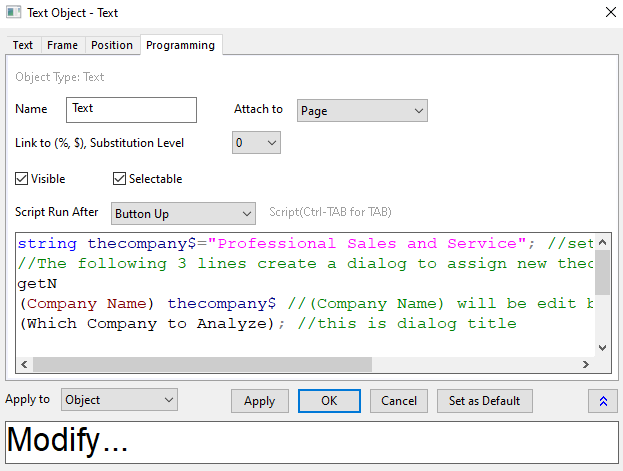
- Right click on the text Update and choose Properties... context menu to open Text Object dialog. Go to Programming tab. Note: In versions before Origin 2017, choose Programming Control... from the menu to open the Programming Control dialog.
- Set Script, Run After to Button Up, and put the following script to the bottom text box. Click OK.
string thecompany$="Professional Sales and Service"; //set first company name
//The following 3 lines create a dialog to assign new thecompany$ string value
getN
(Company Name) thecompany$ //(Company Name) will be edit box label in dialog
(Which Company to Analyze); //this is dialog title

dbimport iw:=[book1]sheet1!; //reimport data of new company from database to Sheet1 of Book1
The text object turns into a button
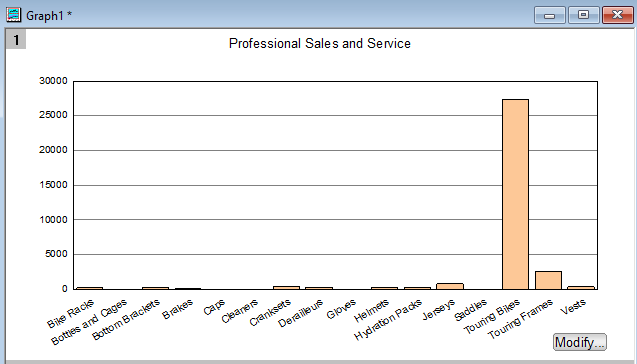
Use Button to Modify the Import
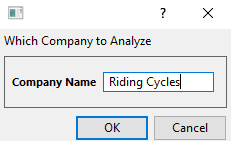
- Click the Modify... button and enter new company name Riding Cycles
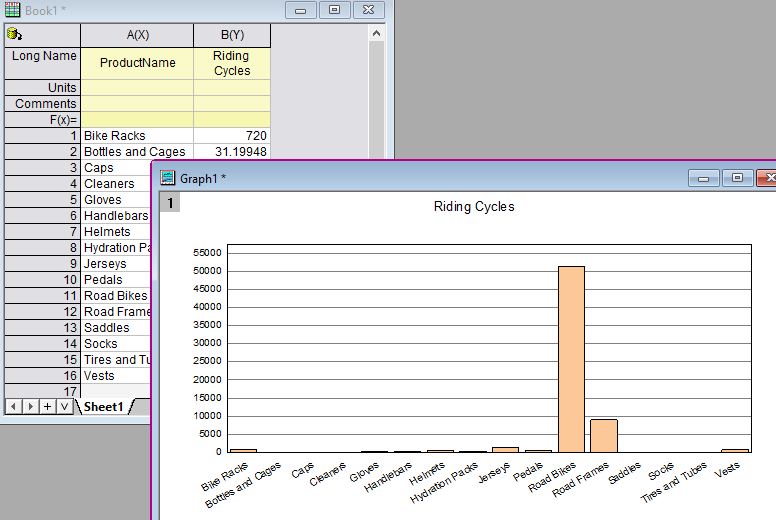
- Click OK. Data will be reimported into sheet1 of Book1 and the graph will be auto updated.
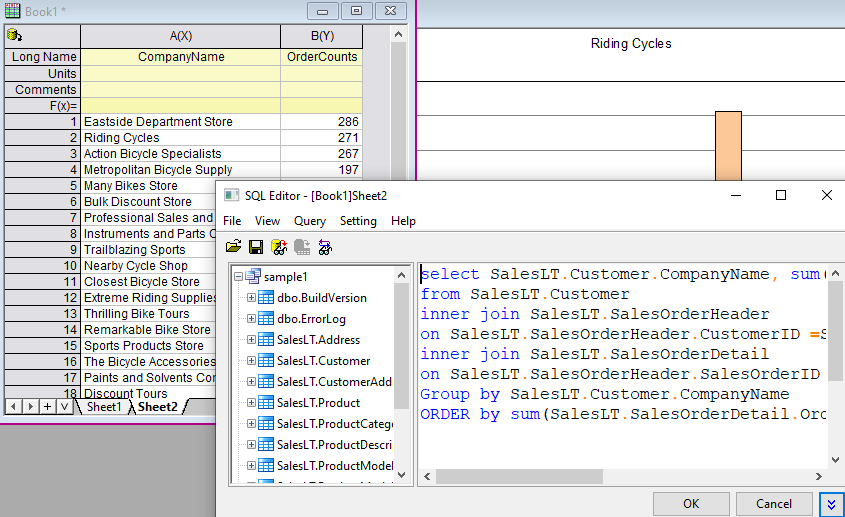
- To see all company names and total number of orders. Right click Sheet1 tab and choose Duplicate Without Data to create Sheet2.
- Click the
 on Sheet2 and choose SQL Editor.
SELECT SalesLT.Customer.CompanyName, SUM(SalesLT.SalesOrderDetail.OrderQty ) AS OrderCounts
FROM SalesLT.Customer
INNER JOIN SalesLT.SalesOrderHeader
ON SalesLT.SalesOrderHeader.CustomerID =SalesLT.Customer.CustomerID
INNER JOIN SalesLT.SalesOrderDetail
ON SalesLT.SalesOrderHeader.SalesOrderID =SalesLT.SalesOrderDetail.SalesOrderID
GROUP BY SalesLT.Customer.CompanyName
ORDER BY SUM(SalesLT.SalesOrderDetail.OrderQty ) DESC
- Click the
- Click OK. All company names and total order numbers show so user can easily refer to this sheet when modifying to another company name to reimport.