Tutorial zum Identifizieren der Datenverteilung
Inhalt
Starthinweise
- Laden Sie die Datei des Beispielprojekts hier herunter und öffnen Sie sie in Origin.
- Starten Sie dieses Tutorial mit der installierten App Statistical Process Control. Wenn Sie die App nicht installiert haben, siehe Apps für Origin, um die App zu finden und zu installieren.
 | Weiterführende Themen: |
Anwenderbericht
Ein Bauherr verfügt über Hausverkaufsdaten aus der Umgebung. Er möchte die Datenverteilung mit der besten Anpassung für die Folgeanalysen ermitteln.
Datenverteilung identifizieren
- Öffnen Sie die Beispielprojektdatei in Origin und gehen Sie zum Ordner 3. Nonnormal mit Hilfe des Projekt Explorers. Aktivieren Sie die Arbeitsmappe House Sold.
- Markieren Sie Spalte B im Arbeitsblatt. Klicken Sie auf das Symbol Statistical Process Control
 im Fenster der Apps-Galerie.
 - Wählen Sie die Registerkarte Datenverteilung identifizieren und klicken Sie auf das Symbol Datenverteilung identifizieren, um den Dialog zu öffnen.
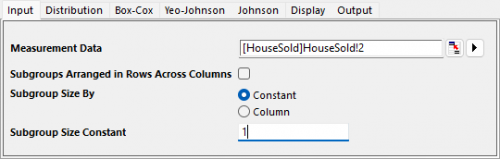
- Auf der Registerkarte Eingabe des geöffneten Dialogs wird Spalte B automatisch als Messdaten ausgewählt. Wählen Sie für Teilgruppengröße nach die Option Konstant und setzen Sie die Teilgruppengrößenkonstante auf 1.
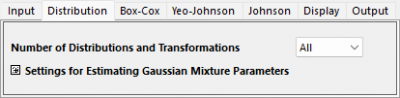
- Behalten Sie auf der Registerkarte Eingabe für die Anzahl der Verteilungen und Transformationen die Option Alle bei.
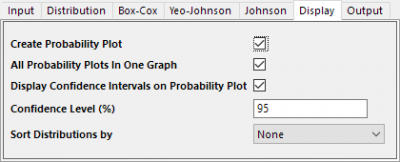
- Aktivieren Sie auf der Registerkarte Anzeige die Option Wahrscheinlichkeitsdiagramm erstellen.
- Klicken Sie auf OK. Das Berichtsblatt wird erstellt.
Ergebnisse interpretieren
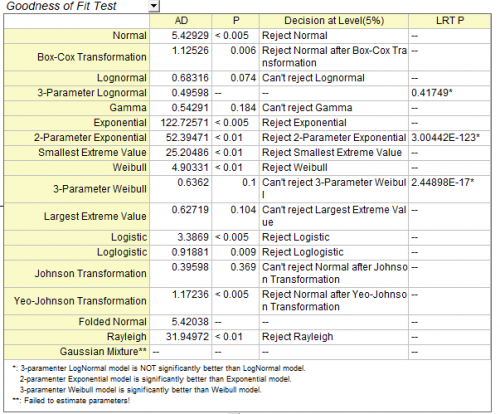
Wir können basierend auf folgenden Ergebnissen ein Anpassungsmodell vergleichen und auswählen:
Das Folgen der Verteilungen ist eine gute Anpassung der Daten. Ihre p-Werte sind größer als 0,05 in der Tabelle Test der Anpassungsgüte. Die Punkte des Wahrscheinlichkeitsdiagramms folgen einer geraden Linie innerhalb der Konfidenzgrenzen.
- Johnson-Transformation (0,369)
- Gamma (0,184)
- Größter Extremwert (0,104)
- Weibull mit 3 Parametern (0,1)
- Lognormal (0,074)
Wahrscheinlichkeitsdiagramm (P-P-Diagramm)
Je näher die Punkte bei der Referenzlinie liegen, desto besser eignet sich die Verteilung für den Datensatz.
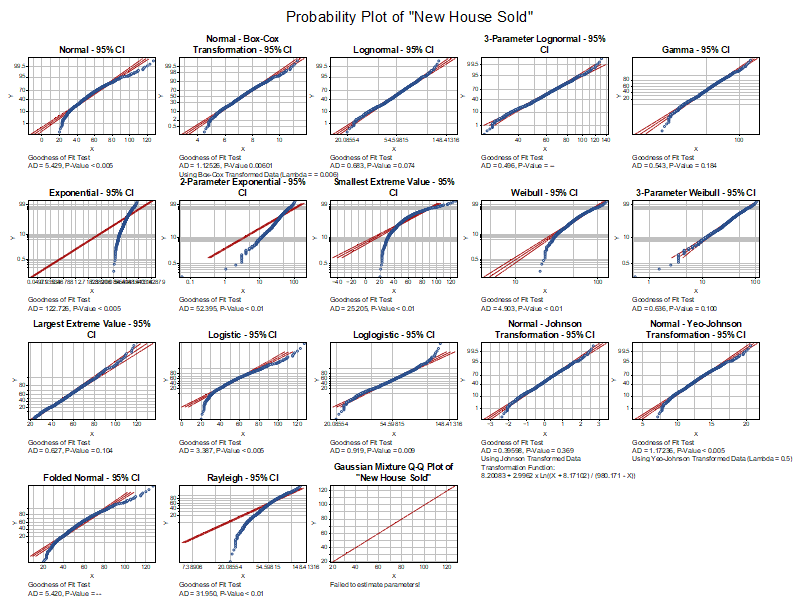
Tabelle Test der Anpassungsgüte