Tutorial for Attribute Agreement Analysis
The Attribute Agreement Analysis app is used to assess if appraisers are consistent with themselves, with each other, and with the known standards.
Sample Data
Five fabric appraisers at a textile dyeing factory rated the color quality of blue fabric. The quality control engineer wants to evaluate the consistency and correctness of the appraisers' ratings.
Please first download the rating sample data. It contains a Origin workbook file, you can unzip it and drag&drop the ogwu file into Origin to open it.
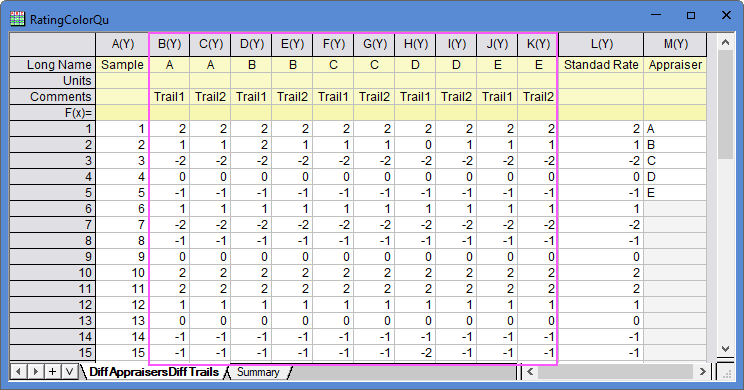
There are two worksheets which indicate two data arrangements this tool supports. In the first sheet, there are 10 columns for rating data, 40 rows for 40 samples.
- Each sample has been rated twice by one appraiser in random order.
- Rating data ranges from -2 to 2, with a total of 5 levels, indicating the color quality of the blue fabrics. Negative ratings indicate lighter colors, and positive ratings indicate darker colors.
- All samples have their standard rating.
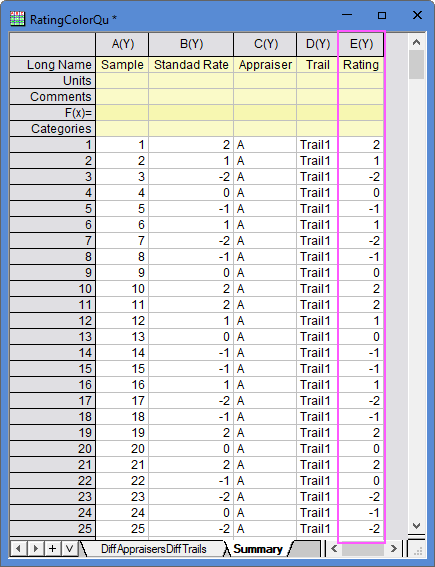
The second sheet also contains all these data but just arrange all rating data into single column.
Download and install the app
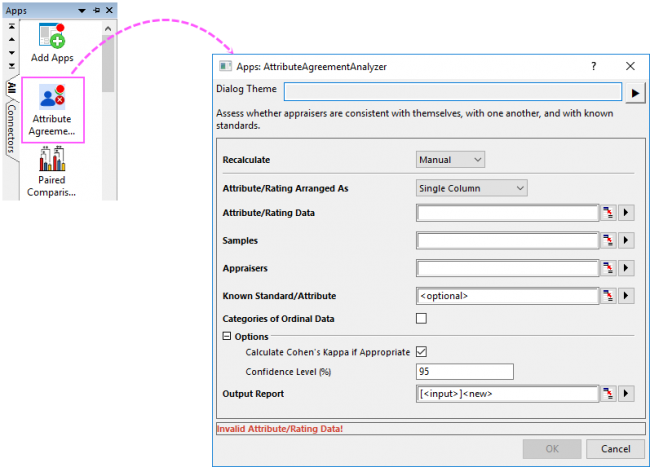
- Click Add Apps button in Apps Gallery to open App Center, search Attribute Agreement Analysis and install the app.
- OR
- Download the App from the OriginLab File Exchange, drag and drop the OPX file to Origin to install it
Steps
Multiple Columns for Rating Data
- Activate the first sheet and then click the app icon
 in App Gallery to open the app dialog.
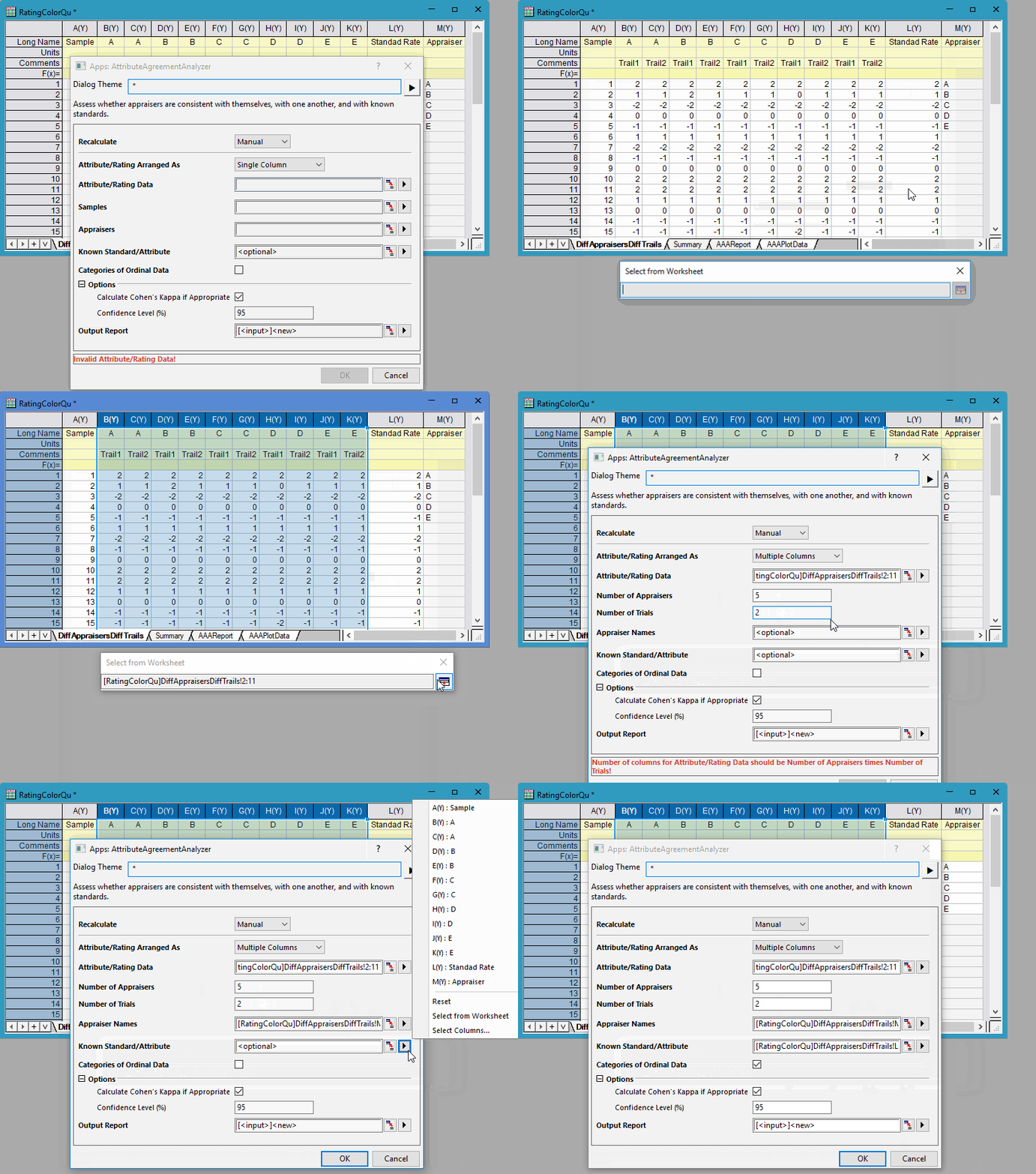
- In this dailog, do settings as below:
- Select Multiple Columns for Attribute/Rating Arranged As drop-down list;
- Select Col(B)~Col(K) as Attribute/Rating Data; set Number of Appraisers to 5 and Number of Trails to 2.
- Note: Number of columns for Attribute/Rating Data should be Number of Appraisers times Number of Trails. In this example, there are 5 appraisers, each appraiser perfrom 2 trails on all samples. So, number of columns for Attribute/Rating Data should be 5*2=10 which matchs the 10-column input data we selected.
- Select Col("Appraiser") as Appraiser Names and Col("Standad Rate") as Known Standard/Attribute.
- Check Categories of Ordinal Data check box as the rank range is -2 to 2.
- Click OK button to perform the analysis. You will get two result sheets.
Single Column for Rating Data
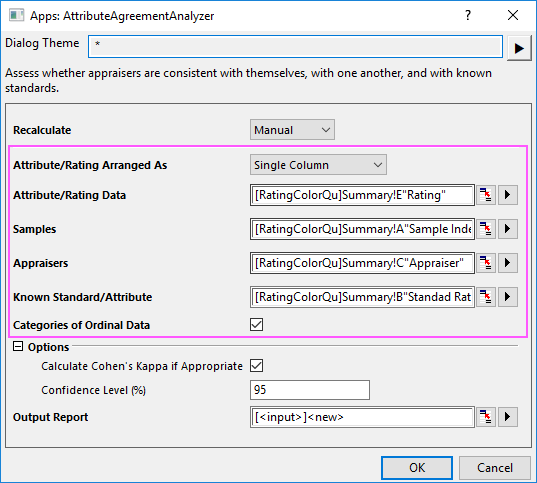
- Switch to the second sheet "Summary" and then click the App icon to open the app dialog.
- In this dialog, do the settings as below:
- Set Attribute/Rating Arranged as to Single Column.
- Select Col("Rating") as Attribute/Rating Data; Col("Sample Index") as Samples; Col("Appraiser") as Appraisers; Col("Standard Rate") as Known Standard/Attribute.
- Check the check box Categories of Ordinal Data. Keep the default settings for Options group.
- Click OK button to create the result sheets.
Analyze the Results
Within Appraisers
This table is used to assess the consistency of responses for each appraiser.
Note: This table indicates whether the appraisers' ratings are consistent himself/herself, but not whether the ratings agree with the reference values. Consistent ratings aren't necessarily correct ratings.
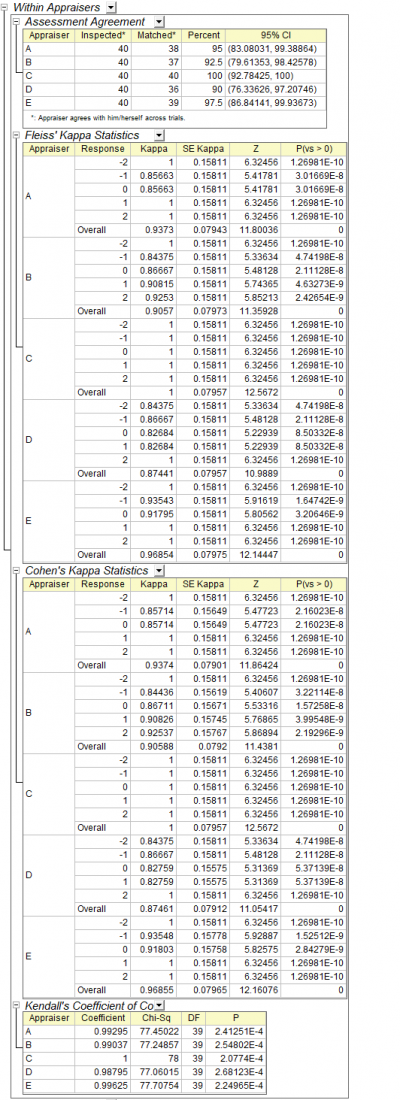
- In the table "Assessment Agreement", we can look at the "Matched" column, which shows the number of times the appraiser agreed with themselves across two trials. We can see that appraiser "C" has the most matches.
- In the "Kappa Statistics" tables, some kappa values are 1, which indicates perfect agreement within an appraiser between two trials. All Kappa values were greater than 0.82, indicating good agreement within an appraiser between two trials overall. The P values were much less than 0.05, meaning that the agreement could not be attributed to chance.
- Since the rating data are ordinal, Kendall's coefficient of concordance values have been outputed. These values are all greater than 0.98, which indicates a very strong association within two ratings for each appraiser.
Each Appraiser vs Standard
This table is used to assess the correctness of responses for each appraiser.
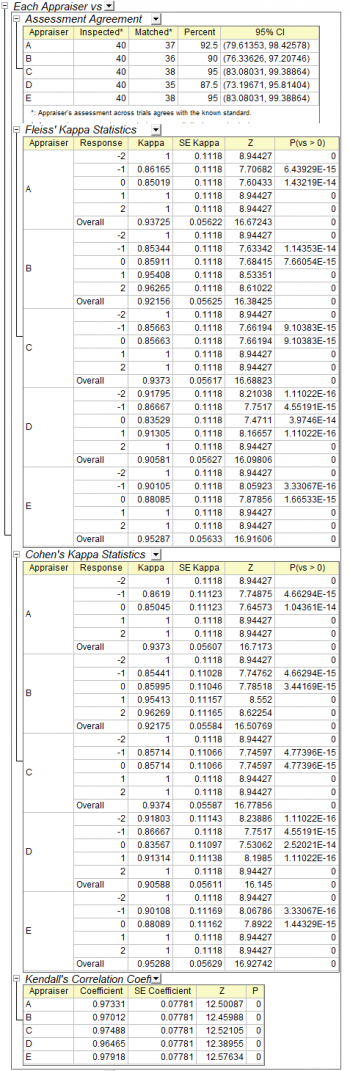
- In the table "Assessment Agreement", we can check the column "Matched" which displays the appraiser's assessment across trials agrees with the known standard. As we can see, appaiser "C" and "E" has maximum which means they have greater correct ratings.
- In the "Kappa Statistics" tables, all kappa values are larger than 0.83, which indicates very good agreement between each appraiser and the standard. P values are much less than 0.05, which means the consistency cannot be attributed to chance.
- Since the data are ordinal, Kendall's coefficient of concordance values have been outputed. These values are all greater than 0.95, which indicate a strong association between the ratings and the standard values.
Between Appraisers
This table is used to assess the consistency of responses between appraisers.
Note: This table indicates whether the appraisers' ratings are consistent with each other, but not whether the ratings agree with the reference values. Consistent ratings aren't necessarily correct ratings.
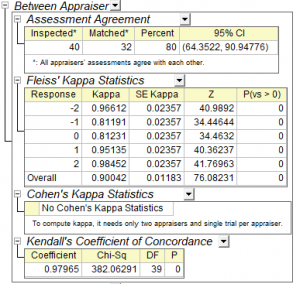
- In the table "Assessment Agreement", we can look at the "Matched" column, which means the appraisers agree with each other on 32 samples across two trails.
- All the kappa values are larger than 0.81, which indicates all ratings have a good agreement betweeen appraisers. The P values were almost 0, meaning that the agreement could not be attributed to chance. The appraisers have the most agreement for samples at level -2 and 2, and the least agreement for samples at level -1 and 0.
- As there are five appraisers and two trails per appraiser which doesn't match the rule to calculate the Cohen's Kappa values, there is not output values in Cohen's Kappa Statistics table.
- Since the data are ordinal, the Kendall's coefficient of concordance (0.97965) is outputed, which indicates a very strong association between the appraiser ratings.
All Appraisers vs Standard
This table is used to assess the correctness of responses for all appraisers.
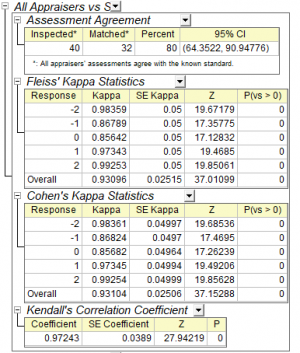
- In the table "Assessment Agreement", we can look at the "Matched" column, which means all appraisers' assessments agree with the known standard on 32 samples.
- The overall kappa value is 0.93096/0.93104, which indicates strong agreement with the standard values. The P values were almost 0, meaning that the agreement could not be attributed to chance.
- Since the data are ordinal, the Kendall's coefficient of concordance (0.97243) is outputed, which indicates a strong association between the all appraisers' ratings and the standard values.
Summary of Assessment Disagreement with Standard
This table list the times of wrong assessment for each appraiser.
As each appraiser will rate each sample twice, so one wrong will get the percent 50% and two wrongs will get 100%.
Assessment Agreement Plot
This branch is used to evaluate the appraiser agreement visually.
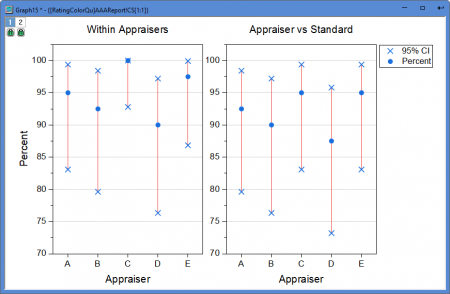
- "Within Appraisers" graph is used to display the consistency of each appraiser's ratings. As you can see, appraiser C has the most consistent ratings and appraiser D has the least consistent ratings. Note: This graph is output only when each appraiser has multiple trials.
- "Appraiser vs Standard" graph is used to display the correctness of each appraiser's ratings. As you can see, appraiser C and E have the most correct ratings and appraiser D has the least correct ratings.