5.5.16.2.5.2 The Taguchi Design Dialog Box
Supporting Information
To open the Response Surface Design dialog
- Select Statistics: Quality Improvement: Design of Experiment from the Origin menu
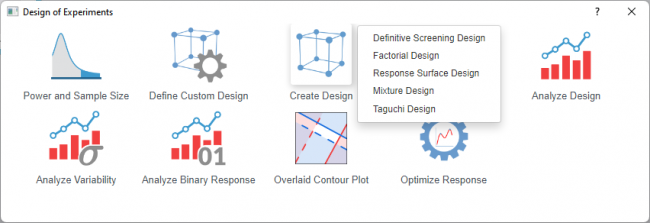
- Select the Create Design icon and choose Taguchi Design from the list
 | Topics for Further Reading: |
Display Available Designs
Click the button for information to select an appropriate design. The table shows the number of factors and runs
Design
| Design Type | Select the level structure for your orthogonal array. Origin provides
|
|---|---|
| Number of Factors | Choose how many control factors you want to study. The available options depend on the Design Type selected |
| Design | After selecting the design type and number of factors, select from the Design dropdown list for the specific orthogonal array (e.g., L9 [3^3], L18 [2^1 × 3^7], L27 [3^13]). |
| Add Dynamic Signal Factor | Check this option to convert a static design into a dynamic response experiment. In a dynamic experiment, the quality characteristic operates over a range of values, and the goal is to improve the relationship between an input signal factor and an output response. When enabled, you can name the signal factor and define its levels in the Factors table below. |
| Interactions | Click the + button to specify which interactions you want to estimate. Origin can assign factors to specific columns of the orthogonal array to allow estimation of selected two-way interactions. Note that Taguchi designs primarily emphasize main effects; only certain arrays (such as L18 or modified L16) support interaction estimation, and higher-order interactions are typically confounded with main effects. |
| Factor Table | Display and define the factor details of the factors you will study. It includes the following columns
If you want to modify the column assignments
|
Dialog Theme
Save and load the settings of the dialog. Use this to store frequently used factor configurations, design options, or output preferences, then recall them for future designs without re-entering all values.