9.2.1 Single ASCII
Contents
 
|
 
|
Summary
The Data: Connect to File: Text/CSV menu allows you to automatically import a single ASCII file where the data columns are delimited orderly and it consists of few header lines (maybe just a short description for the file and then names and units for the columns).
What you will learn
This tutorial will show you how to Import ASCII file by Data Connector.
Steps
Select from Origin menu Helo: Open Folder: Sample Folder to open Windows Explorer to the Samples folder under Origin program folder (by default installed in the Program Files folder). Browse to the \Import and Export subfolder. Open the file S15-125-03.dat in Windows Notepad. You can see that this file includes header lines and data lines. For Single ASCII files, Origin's Data Connector can auto detect file header/subheader and extract this information to the worksheet headers, such as Long Name, Units, etc.
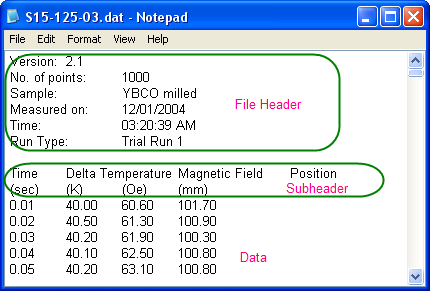
Note: Header lines are lines of text that are not part of the data and do not share the same delimiter formatting as the data. Subheader lines also are not part of the data, but share the same delimiter formatting and therefore correspond to particular columns of data.
To Import this file
- Select Data: Connect to File: Text/CSV from the main menu. In the opened dialog, browse to folder \<Origin grogram folder>\Samples\Import and Export, and highlight the file S15-125-03.dat.
- Double-click this file or click the Open button to open the Import Options dialog, in which you can view and specify the settings for how to import the file.
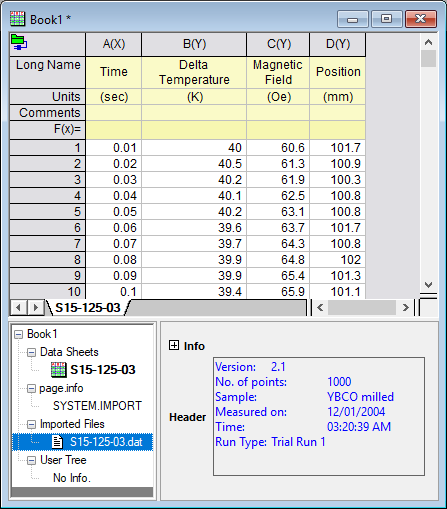
- By default, Origin auto detects the main header, subheader, and data will be imported from subheader. In this example, Origin automatically sets the first line,
Time Delta Temperature Magnetic Field Position
as the column Long Name and the second line,(sec) (K) (Oe) (mm)
as Units.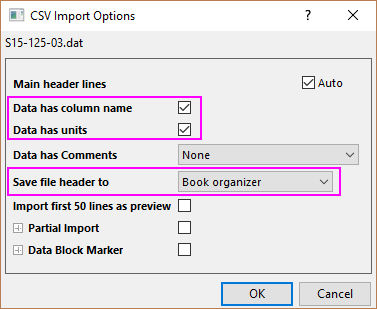
Change Save file header to to Book organizer to save the main header information to info tree of book organzer (open by right clicking on workbook title bar and select Show Organizer) - Click OK to accept these settings and import data into worksheet.
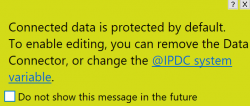
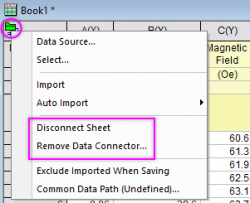
 | Please note that the imported data are protected by default and you can not change it. You may see the hint below To enable data editing
|