9.3.2 Setup Database Connection
Setup-Database-Connection
Summary
 | The database used in this tutorial has been set up on Microsoft Azure.
|
This tutorial will cover how to build the connection to a(n) SQL server with three different methods — the Windows 'Data Link Properties', a Connection String, and the ODBC driver.
The ODBC driver offers the fastest connection performance, but it requires the ODBC driver to be installed on your system.
The procedure is based on Origin 2025b.
What you will learn
This tutorial will show you how to:
- Create a database connection with Windows Data Link Properties
- Create an SQL Query in the SQL Editor and import data.
- Get a Connection String from Origin.
- Use a Connection String to create a database connection.
- Create a database connection with the ODBC driver.
Connection Methods
Create a Connection with the Windows 'Data Link Properties' dialog
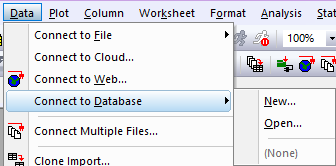
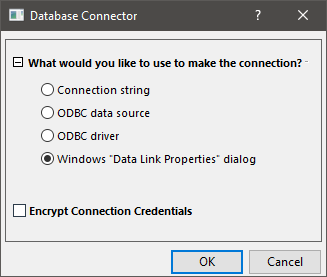
- Start a new worksheet. Select from menu Data: Connect to Database: New.... In the Database Connector dialog, select Windows "Data Link Properties" dialog and click OK.
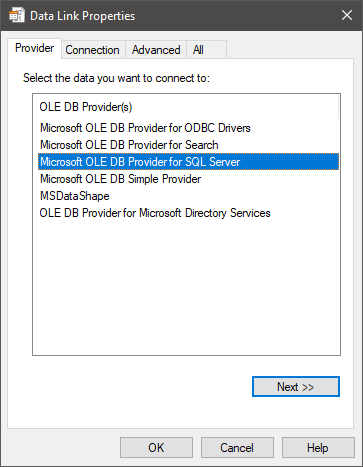
- Select Microsoft OLE DB Provider for SQL Server and click Next.
- Create the connection to a sample database. Specify the server information, log-in user name, and password.
Server name=olab.DATABASE.windows.net
USER Name=Olabts
Password=Origin@2024
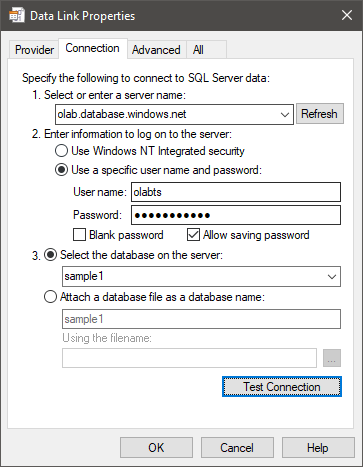
 | Click the Test Connection button to make sure the connection is successful.
|
| Make sure to check Allow saving password to prevent additional password prompts.
|
- Select a database by clicking on the dropdown menu and selecting sample1.
Click the OK button to open the SQL Editor dialog.
- All tables in the database are listed in the left panel.
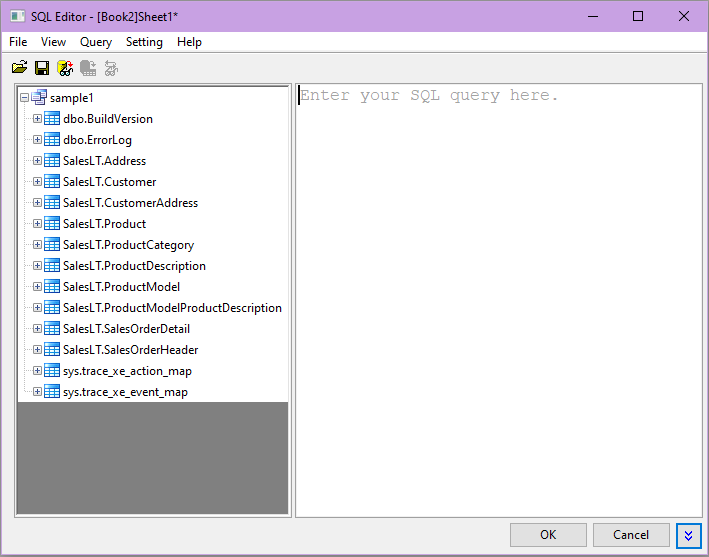
You can extract data by writing your own SQL query or create a query by double-clicking the nodes in the left panel. Click OK to import the data.

Get Connection String
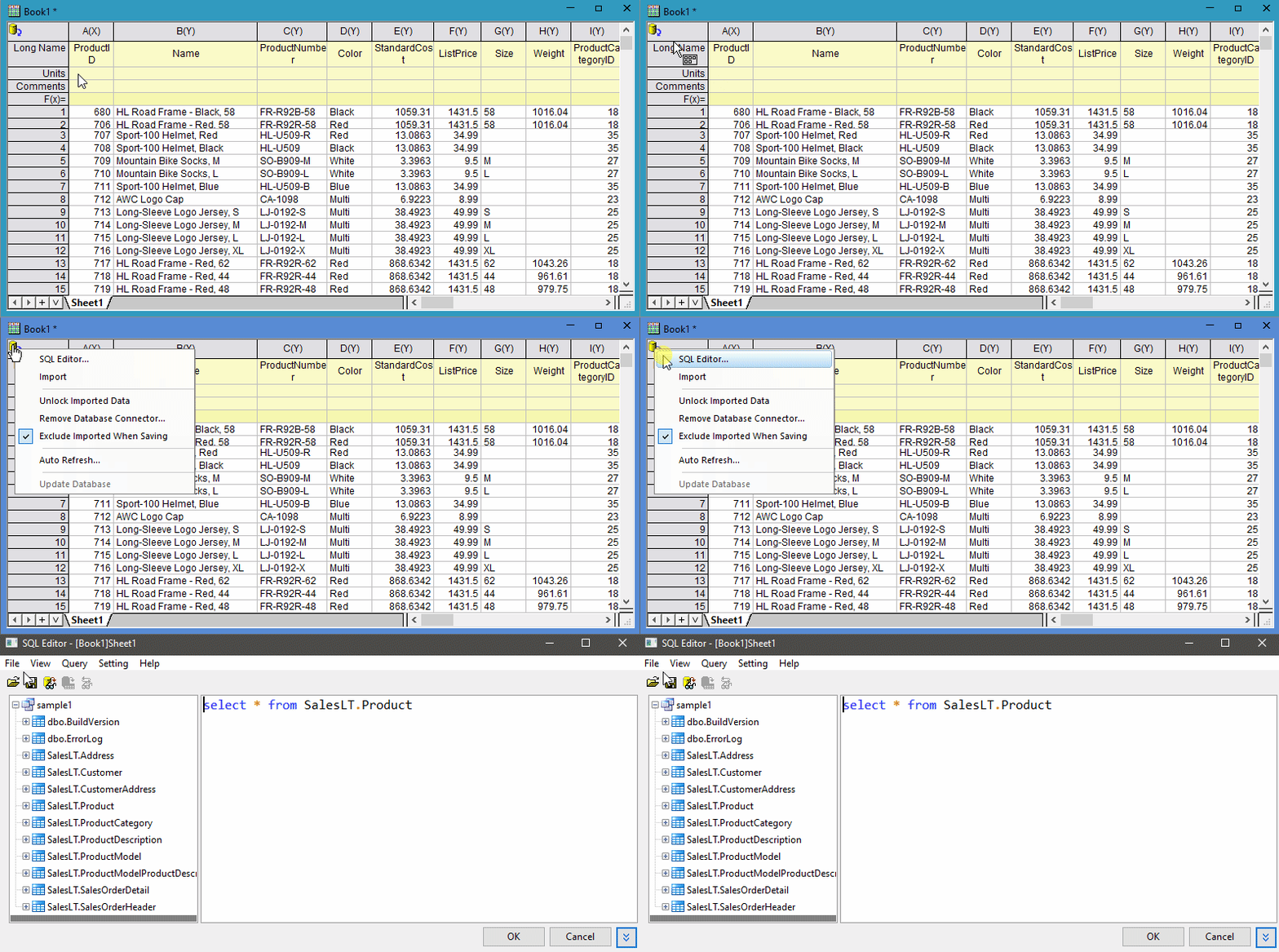
- Click the Database Connector icon and select SQL Editor... to reopen the SQL Editor dialog.
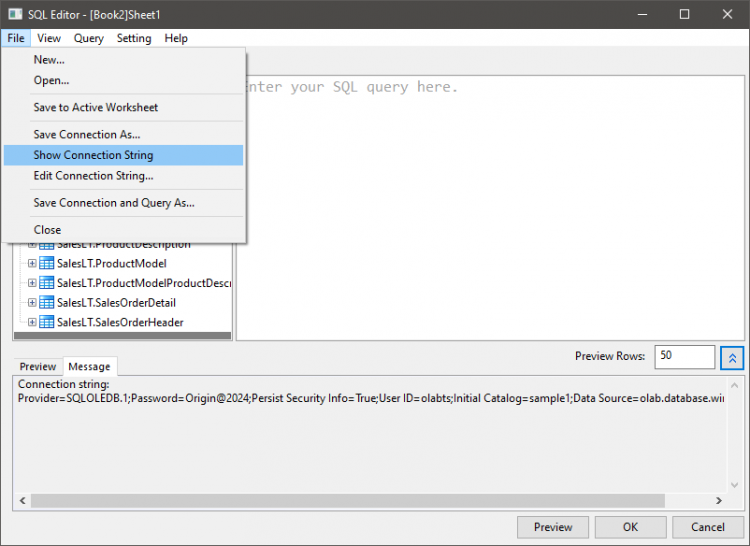
- Select menu File: Show Connection String. The connection string will show at the Message panel below. You can use this connection string in the next step to create the connection.
Create a Connection with a Connection String
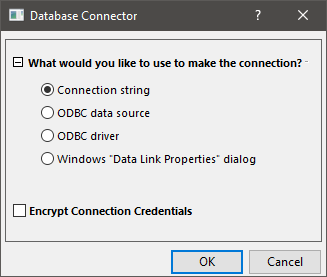
- Start a new worksheet. Select from menu Data: Connect to Database: New.... In the Database Connector dialog, select Connection String and click OK.
- Paste your connection string into the Connection String Editor. You can use the one provided in the previous section or an existing connection string of your own. For this tutorial, we'll use the connection string obtained earlier.
Provider=SQLOLEDB.1;Password=Origin@2024;Persist Security Info=TRUE;USER ID=olabts;Initial Catalog=sample1;DATA SOURCE=olab.DATABASE.windows.net
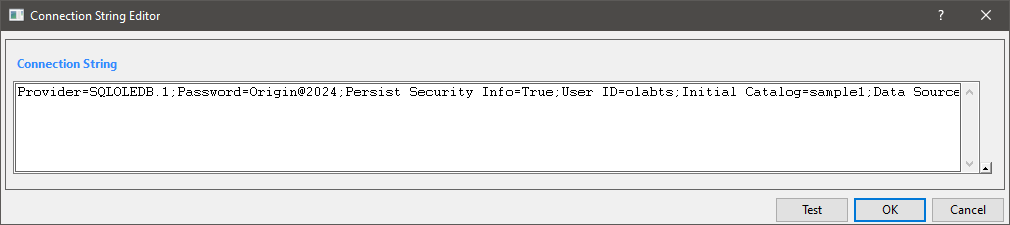
| Click the Test button to make sure the connection is successful.
|
- Click the OK button to open the SQL Editor dialog to query and import.
Create a Connection with the ODBC driver
| The ODBC driver method requires you to have the ODBC driver installed. You can download and install the latest driver here.
|
- Start a new worksheet. Select from menu Data: Connect to Database: New.... In the Database Connector dialog, select ODBC driver and click OK.
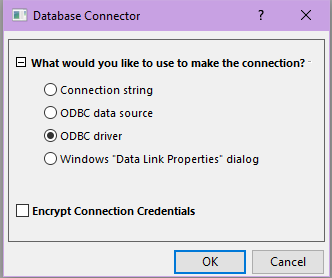
- Create the connection to a sample database. Specify the server information, including the log-in user name and password with the settings below:
Server Driver=ODBC Driver 18 FOR SQL Server
Server=olab.DATABASE.windows.net
Port=1433
USER Name=Olabts
Password=Origin@2024
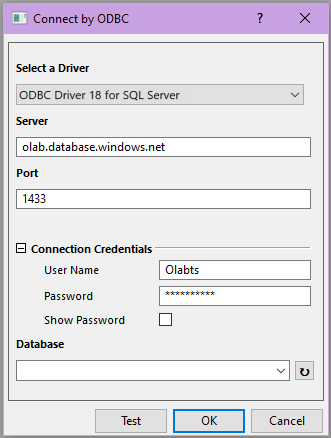
| Click the Test button to make sure the connection is successful.
|
| If it fails to connect to the database, go to this page to download and install the latest ODBC SQL driver.
|
- Click the
 button to the right of the Database entry and make sure database sample1 shows.
- Click the OK button to open the SQL Editor dialog to query and import.