10.2.2 Send Graphs to PowerPoint
Contents
 
|
 
|
Summary
This tutorial will show you how to send a selection of graphs to an existing PowerPoint file. You will insert graphs starting from a specified slide and also copy that slide style, logo, layout, etc. The user will not need to create a Slide Master in PowerPoint beforehand.
Minimum Origin Version Required: 2021b
Note: This tutorial can actually be worked in Origin 2018b and later. Instead of clicking on the Send Graphs to PowerPoint button  to launch the dialog, open the Apps Gallery at the rights-side of your workspace and look for and open the Send Graphs to PowerPoint App. If you don't see this App in the Gallery, press F10 and search on "powerpoint."
What you will learn
This tutorial will show you how to:
- Send specified graphs to existing PowerPoint file.
Steps
This tutorial is associated with the Column and Bar project:<Origin EXE Folder>\Samples\Graphing\Column and Bar.opju and the PPT file: <Origin EXE Folder>\Samples\Import and Export\Column_Plots_in_Sample_OPJ.pptx
We are going to send most graphs in Column and Bar project to the above PPT file which consists of four slides: 1st slide is title; 2nd slide is table of contents; 3rd slide is blank; 4th slide is End page. All the sent graphs will be inserted into this PPT file starting from the 3rd slide and using the same style as starting slide.
- Open the sample project Column and Bar
- Click the Send Graphs to PowerPoint button and open the dialog box.
- Click the Select Graphs button and choose Specified. This opens the Graph Browser.
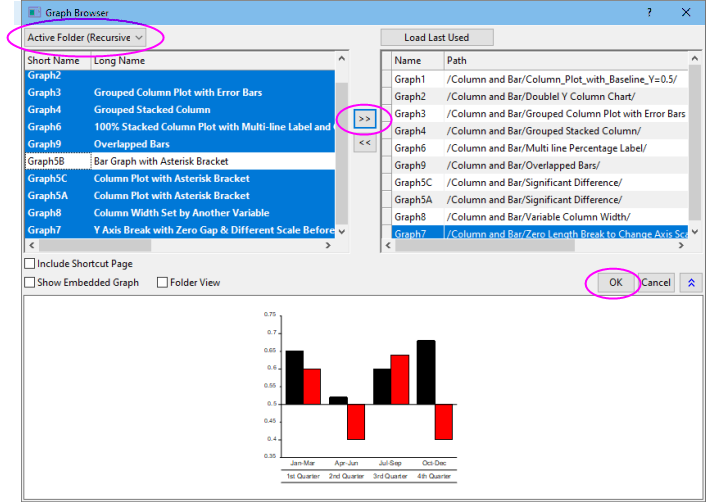
- In this dialog, select Active Folder(Recursive) for the top-left drop-down list, and then select all graph listed in the left panel except Graph 5B, click the right arrow button
 to move them to right panel as below, then click OK:
-
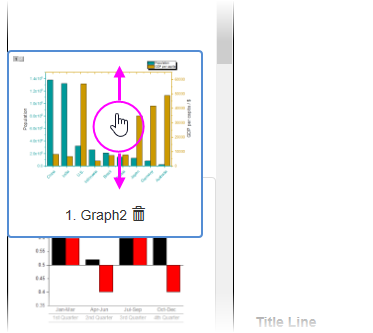
- Selected graphs are listed in the left-panel. Note that you can drag graph thumbnails to change their order.
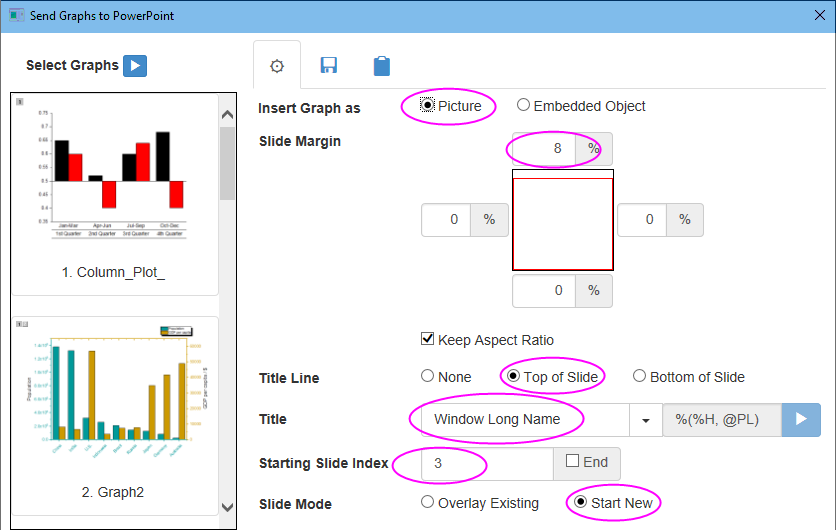
- Recreate the following dialog box settings:
-
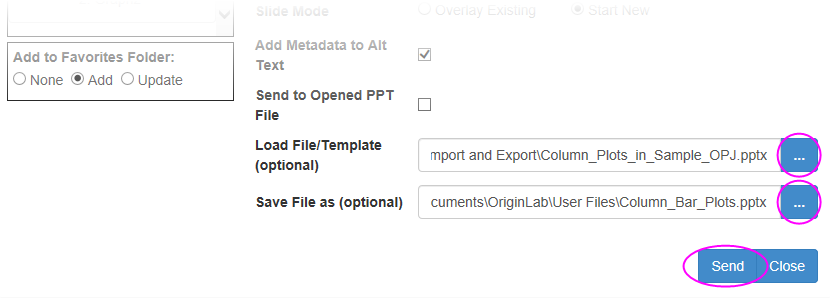
- Click the browse button beside the Load File/Template(optional) box and browse to and select <Origin EXE Folder>\Samples\Import and Export\Column_Plots_in_Sample_OPJ.pptx.
- In the Save File As(optional) box, specify a path to save the new pptx file (your User Files Folder is a convenient location), then click the Send button.
-
- PowerPoint will open momentarily, the slide set will be processed and the program will then close. You can browse to and open the PowerPoint file.
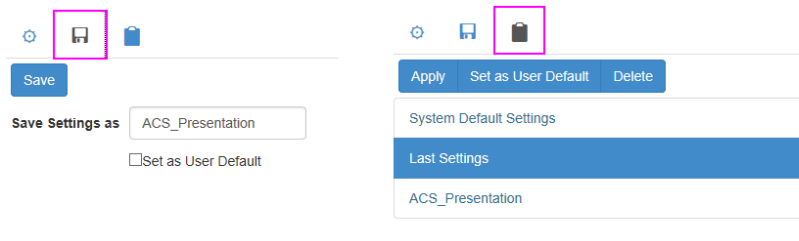
 | At the top of the Send Graphs to PowerPoint App dialog, there are two useful but easily-overlooked tabs. The "Save" tab has controls for naming and saving the current App dialog settings, as well as setting them as default. The "Settings" tab has controls for selecting and applying default settings (System Default Settings) or last used settings, or applying a named group of settings. Additionally, you can delete unneeded settings from this tab. |