



|
|
|
In this tutorial, we will show you how to calculate initial parameters for rational fitting functions using the multiple linear regression method, and perform a fit of the data using calculated initial parameters.
Minimum Origin Version Required: Origin 9.0 SR0
This tutorial will show you how to:
In this tutorial, we will use the following rational function as an example:
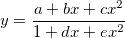
where x is the independent variable, y is the dependent variable, and a, b, c, d, e are fitting parameters.
Multiplying both sides by the denominator on the right side yields:

and the equation can be expressed as:

Substituting fitting data  into the equation gives:
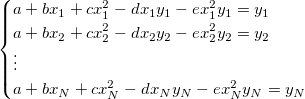
Hence estimating initial parameters for a rational polynomial fitting function becomes a multiple linear regression problem with linear coefficients a, b, c, d, e.
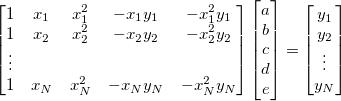
Origin provides a function ocmath_multiple_linear_regression in Origin C for multiple linear regression, which can be called in initialization code.
The fitting function can be defined using the Fitting Function Builder tool.
(a+b*x+c*x^2)/(1+d*x+e*x^2)
Click the Evaluate button, and it shows y=1 at x=1, hence this implies the expression is correct. Click the Next button.
 to the right of the Initialization Code box, and initialize fitting parameters as follows, in terms of the algorithm.
  UINT nOSizeN = x_data.GetSize(); //Number of points
  UINT nVSizeM = 5; //Number of parameters

  matrix mX(nOSizeN, 5);

  //Construct matrix for data points of independent variables
  vector vCa(nOSizeN), vCb, vCc, vCd, vCe;
  vCa = 1;
  mX.SetColumn( vCa, 0 );
  vCb = x_data;
  mX.SetColumn( vCb, 1 );
  vCc = x_data^2;
  mX.SetColumn( vCc, 2 );
  vCd = -x_data*y_data;
  mX.SetColumn( vCd, 3 );
  vCe = -x_data^2*y_data;
  mX.SetColumn( vCe, 4 );

  //Options for multiple linear regression
  LROptions stLROptions;
  stLROptions.UseReducedChiSq = 1;
  stLROptions.FixIntercept = 1; //Fix the intercept at 0.

  FitParameter stFitParameters[ 6 ]; // should be nVSizeM+1
  UINT nFitSize = nVSizeM + 1;

  int nRet = ocmath_multiple_linear_regression(mX, nOSizeN, nVSizeM, y_data,
    NULL, 0, &stLROptions, stFitParameters, nFitSize );

  if( nRet == STATS_NO_ERROR )
  {
    a = stFitParameters[1].Value;
    b = stFitParameters[2].Value;
    c = stFitParameters[3].Value;
    d = stFitParameters[4].Value;
    e = stFitParameters[5].Value;
  }
Click the Compile button to compile the code. And click the Return to Dialog button. Click Finish to close the Fitting Function Builder dialog.
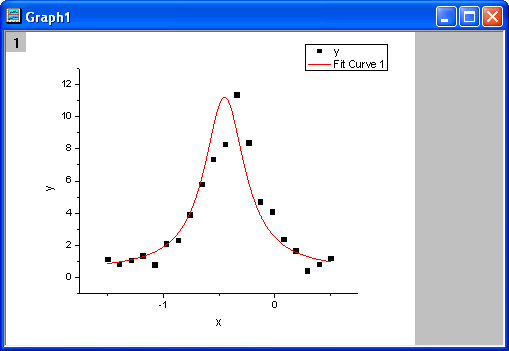
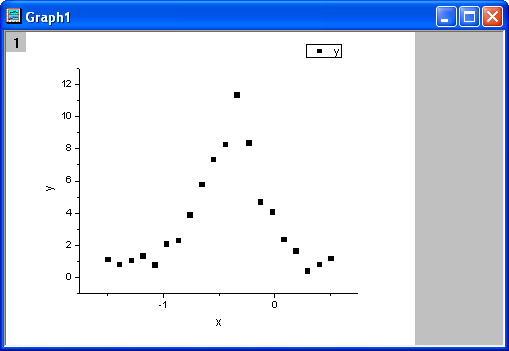
The fitted curve should look like:
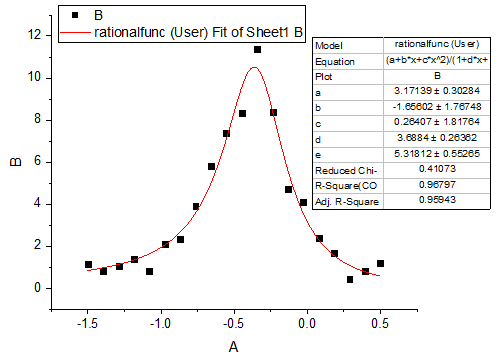
Fitted Parameters are shown as follows:
| Parameter | Value | Standard Error |
|---|---|---|
| a | 3.17139 | 0.30284 |
| b | -1.65602 | 1.76748 |
| c | 0.26407 | 1.81764 |
| d | 3.6884 | 0.26362 |
| e | 5.31812 | 0.55265 |
| x | y |
|---|---|
| -1.5 | 1.13173 |
| -1.39474 | 0.8262 |
| -1.28947 | 1.06999 |
| -1.18421 | 1.37155 |
| -1.07895 | 0.79569 |
| -0.97368 | 2.11346 |
| -0.86842 | 2.32006 |
| -0.76316 | 3.9205 |
| -0.65789 | 5.81904 |
| -0.55263 | 7.38037 |
| -0.44737 | 8.31272 |
| -0.34211 | 11.39718 |
| -0.23684 | 8.39808 |
| -0.13158 | 4.7305 |
| -0.02632 | 4.11105 |
| 0.07895 | 2.39105 |
| 0.18421 | 1.65394 |
| 0.28947 | 0.42953 |
| 0.39474 | 0.83337 |
| 0.5 | 1.18758 |
| Note: You can also use this method to initialize parameters for other rational polynomial fitting functions. |