



|
|
|
The Quick Fit gadget can be used to quickly perform curve fitting within the ROI (Region of Interest) range.
Minimum Origin Version Required: Origin 8.6 SR0
This tutorial will show you how to:
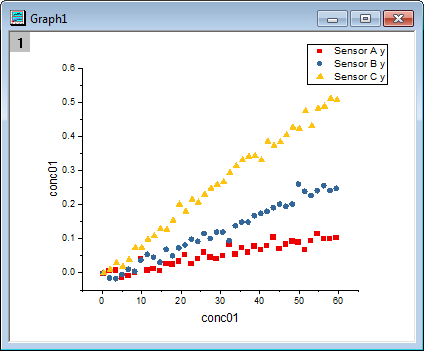
 button to generate a scatter plot.
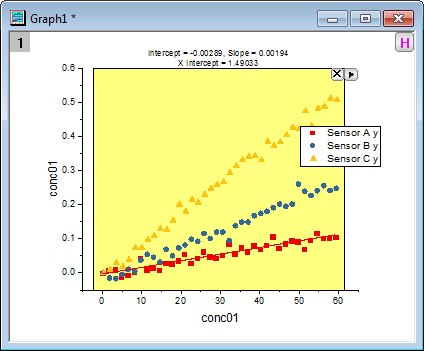
 and select Expand to Full Plot(s) Range from the fly-out menu to expand the ROI box to the full plot range.
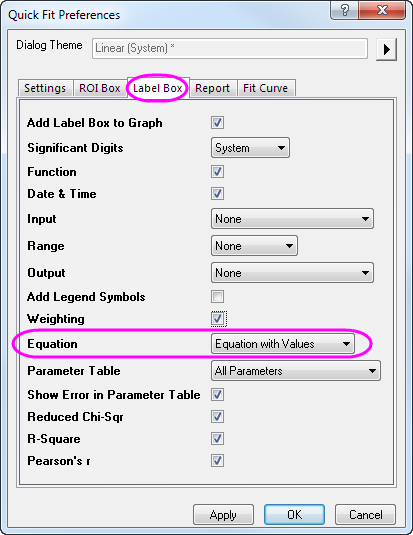
 and select Preferences... from the fly-out menu. This opens the Quick Fit Preferences dialog. In this dialog, go to the Label Box tab, select Equation with Values for the Equation drop-down list.
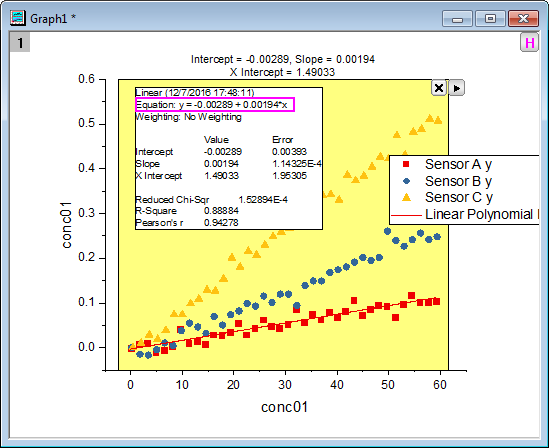
 to select New Output from the fly-out menu. This outputs the plot fitting results "Sensor 01" to the report worksheet and adds a label box to the graph window. The label box reports your analysis results.
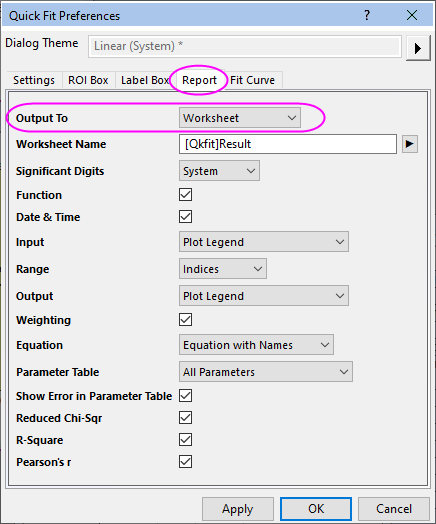
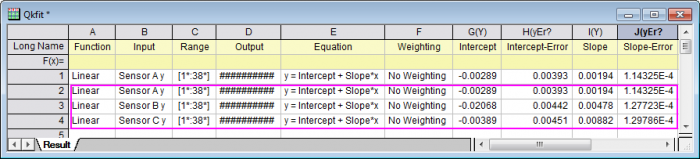
 and select Preferences... from the fly-out menu. This opens the Quick Fit Preferences dialog. In this dialog, go to Label Box tab, uncheck the Add Label Box to Graph check box and click OK. again to select New Output for All Curves(N) from the fly-out menu, so that the customized linear fit process will be performed on all data plots. one more time to select Go to Report Worksheet. You will see the fitting results of all three plots in the report worksheet. Note, the first result row has been created at step 6 above and the last three rows are our current results.
| Note: With the ROI box shown on graph, you can click the arrow button to select Switch to Linear Fit... from the fly-out menu to transfer your current settings to the Linear Fit dialog. Then, you can do further operations in this more powerful dialog to do linear fitting.
|
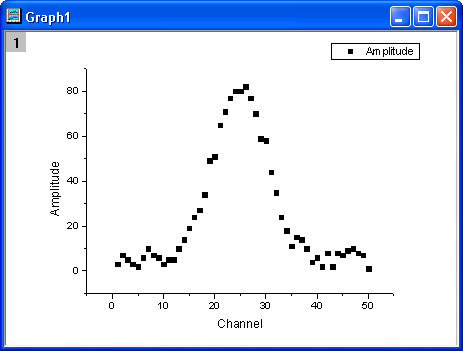
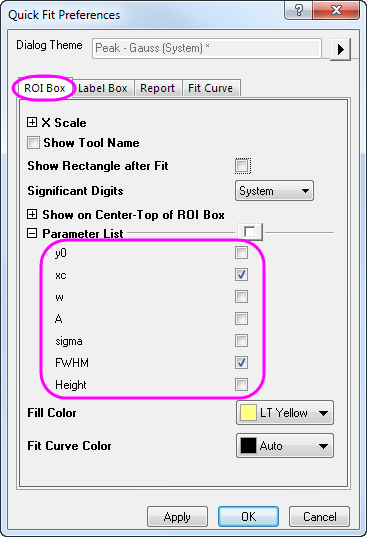
 to select Expand to Full Plot(s) Range from the fly-out menu to expand the ROI box to the full plot range. and select Preferences... from the fly-out menu. This opens the Quick Fit Preferences dialog. In this dialog, go to the ROI Box tab, and set the Parameter List as below.
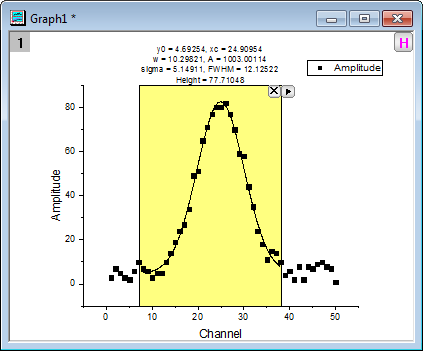
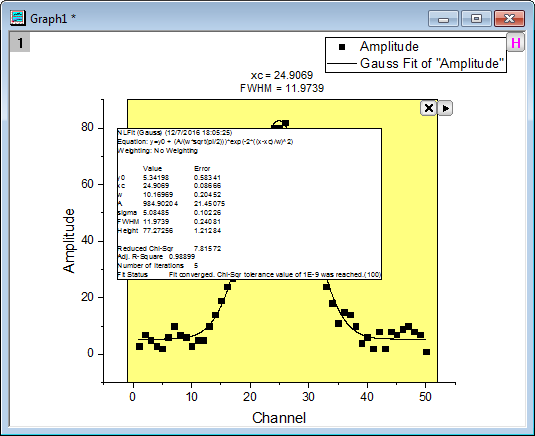
 and select New Output from the fly-out menu. A label box will be added to the graph as shown below.
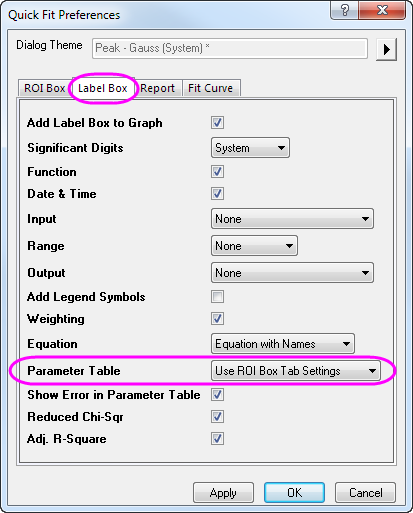
 and select Preferences... from the fly-out menu. This opens the Quick Fit Preferences dialog again. In this dialog, go to the Label Box tab, choose Use ROI Box Tab Settings for Parameter Table. Click OK to close this dialog.
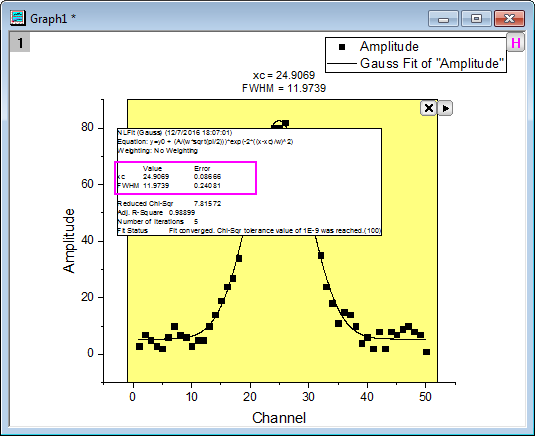
 and select Update Last Output from the fly-out menu. The Label box will be updated and only the parameters "xc" and "FWHM" will be displayed.
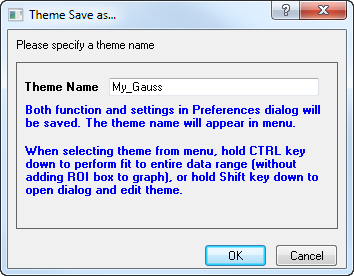
 and select Save Theme from the fly-out menu. In the Theme Save as... dialog, set the Theme Name as My_Gauss and click OK.
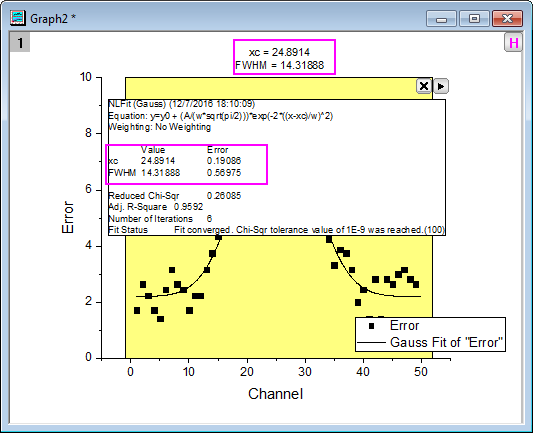
 to select Expand to Full Plot(s) Range from the fly-out menu to expand the ROI box to the full plot range, and then select New Output from the fly-out menu to output the result. You can see that our theme is applied as the label box on the graph only reports the values of parameter "xc" and "FWHM".
| Note: With the ROI box shown on graph, you can click the arrow button to select Switch to NLFit... from the fly-out menu to transfer your current settings to the NLFit dialog. Then, you can do further operations in this more powerful dialog to do nonlinear fitting.
|