5.5.16.3.1 The Select Optimal Design Dialog Box
Supporting Information
To open the Select Optimal Design dialog
- Select Statistics: Quality Improvement: Design of Experiment from the Origin menu
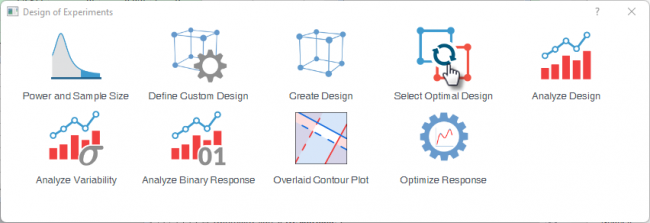
- Select the Select Optimal Design icon
 | The feature is available only for
|
Task
| Task
|
It includes three options
- Select Optimal Design
- Selects the best set of experimental runs from the candidate set based on D-optimality criterion and model. It maximizes the precision of the model's parameter estimates, ensuring you capture the most valuable data possible within a strict run budget.
- Augment Design
- Adds additional runs to an existing design. Use this when you have already run some experiments and need to add more points to improve estimation precision, resolve ambiguities (e.g., add runs to de-alias effects), or extend the design space. The software treats existing runs as fixed and selects new runs to optimize the combined design.
- Evaluate Design
- Assesses the properties of an existing design (one you already have or generated previously) without generating new runs.
|
| Number of Points in Optimal Design
|
Specifies the total number of experimental runs the algorithm will select. it should larger than the number of model terms (including intercept) to make the model estimable.
|
| Model Terms
|
Defines the mathematical model you intend to fit to the data. The optimal design algorithm selects runs specifically to estimate these terms with minimal variance.
To configure model terms:
- Click the + button to open a dialog to select model terms
- Select a predefined model structure from the Generate Terms by Model Type dropdown list
- The selected terms appear in the right panel. Add or remove individual terms manually to customize the model structure.
- Click OK to confirm and return to the Task tab.
|
| Include Blocks in the Model
|
Adds block effects to the model.
|
| Analyze Components in
|
Available only for mixture design
Specifies the coordinate system used for modeling and analyzing mixture components.
- Proportions
- Components are analyzed in their original proportion scale (values between 0 and 1, summing to 1). The model is fit directly on the actual component proportions. Use this when components have no lower bound constraints (or bounds are negligible) and you prefer interpretability in the original measurement units.
- Pseudo-components
- Components are transformed into pseudo-components before analysis. This rescales the constrained mixture space to a regular simplex by removing lower bound constraints. The model is fit on the transformed coordinates, and predictions are converted back to actual proportions for interpretation. Use this when components have nonzero lower bounds that would otherwise create a restricted, irregular design space
|
Method
| Initial Design
|
Specifies how the starting design is constructed before the improvement algorithm begins
- Generated by sequential optimization
- The initial design is built using a sequential (greedy) algorithm that adds points one by one, each time selecting the candidate that most improves the optimality criterion. This tends to produce a better starting point than pure random selection and often leads to faster convergence to a high-quality final design.
- Percentage of design points to be selected randomly
- A specified percentage of points in the initial design are chosen randomly from the candidate set, while the remainder may be filled sequentially or by another rule. Higher randomness increases the chance of exploring diverse regions of the design space and escaping local optima, but may start from a less efficient initial design.
- Number of Random Trials
- Specifies how many independent initial designs are generated and optimized.
- Random Seed
- Enter an integer to control the reproducibility of the random number generator used to create initial designs.
|
| Column to Indicate Initial Design
|
This option appears only when Augment design is selected in the Task tab.
Specifies which column in the source worksheet identifies the runs that belong to the existing (initial) design versus the candidate pool for augmentation.
Workflow
- In your source worksheet, create a column that flags each row as part of the initial design or as a candidate for augmentation.
- Select Augment design in the Task tab.
- In the Method tab, select this column from the Column to Indicate Initial Design dropdown.
- The algorithm locks the indicated initial runs and optimizes only the selection of new runs.
Rule of the Column Values
- -2: The optimal design will have at least 2 replicates of the experimental run.
- -1: The optimal design will have at least 1 replicate of the experimental run.
- 0: The initial design does not include this experimental run. The improved design can include or not include this experimental run.
- 1: The initial design has 1 replicate of this experimental run. The improved design may or may not include it, based on optimality criteria
- 3: The initial design has 3 replicates of this experimental run. The improved design can include or not include this experimental run.
|
| Improvement of Initial Design
|
Specifies the algorithm used to refine the initial design toward the optimal criterion
- Exchange method with number of exchange points
- Iteratively improves the design by adding N candidate points that maximize D-optimality, then removing N existing points that contribute least to the criterion.
- Fedorov's method
- A classical optimal design algorithm that uses a full exchange strategy, evaluating all possible point exchanges and selecting the globally best swap at each iteration.
- None
|
Settings
| Store Selection Indicator in Source Worksheet
|
Select to add new columns to the source worksheet containing the candidate set.
|
| Copy Selected Rows in Columns
|
Specifies which columns from the source worksheet are copied into the generated optimal design output. Values from the selected columns are aligned row-for-row with the experimental runs chosen by the algorithm.
|
Dialog Theme
Save and load the settings of the dialog. Use this to store frequently used factor configurations, design options, or output preferences, then recall them for future designs without re-entering all values.