4.2.2.4 Global Fit for Different Functions with Shared Parameters
Multi-Functions-Global-Fitting
Summary
This tutorial is aimed at solving the following problem: do global curve fitting on two or more curves using different function for each curve, but sharing some parameters, the shared parameter was common to all the datasets. This problem arises in a wide variety of scientific fields such as fiting for anisotropy spectrum.
Minimum Origin Version Required: Origin 2015 SR1
What you will learn
This tutorial will show you how to:
- Select multiple datasets for global fitting.
- Set a switch parameter which connect all functions.
- Perform global fit with parameter sharing for multiple fitting functions.
Steps
-
Create a new workbook by clicking the
 button.
-
Click the
 to import the file MultiFunctionsFit.dat in the <Origin EXE Folder>\Samples\Curve Fitting\ folder.
-
Highlight column A, B and C and select the Analysis: Fitting: Nonlinear Curve Fit menu item to open the NLFit dialog.
The user defined fitting function will be build in next 3 steps, the functions are built based on the quantitative model below:


-
In the Function Selection page, choose the <new...> function from the User Defined category.
-
Enter "GlobalFit" as the function name, and set the Function Model and Function Type follows the graph below:
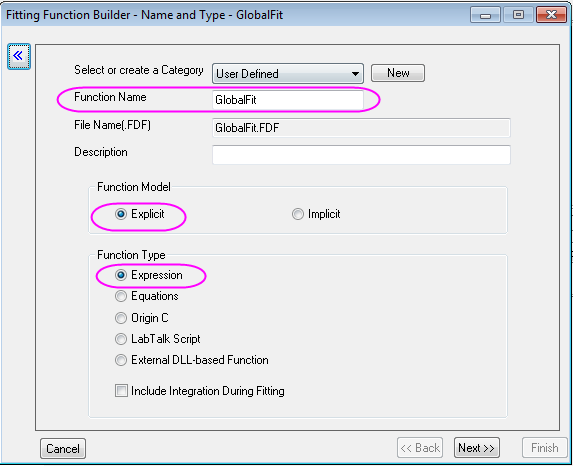
Then, click Next to go to the variables and parameters page.
-
Set the variables and parameters follows the graph below:
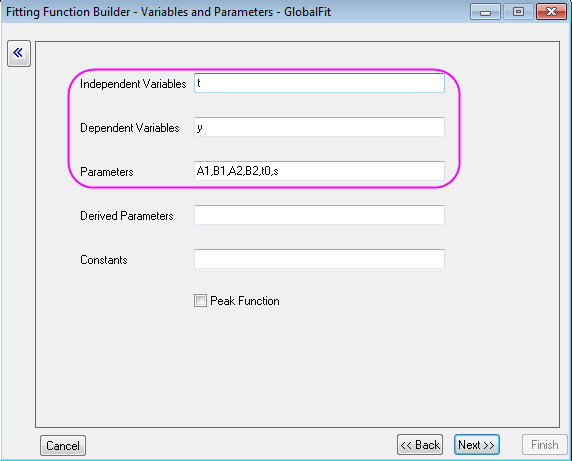
Then, click Next to go to the Expression Function page.
-
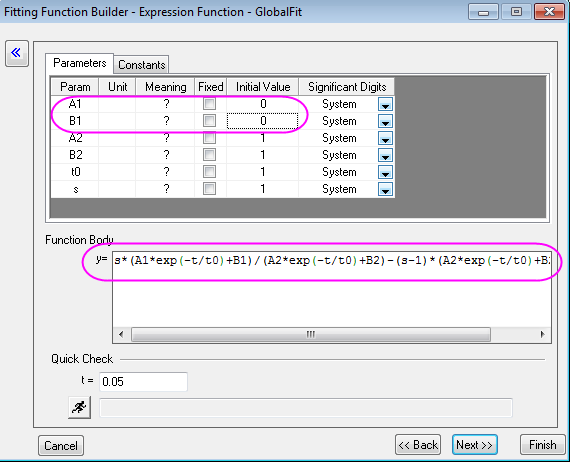
Type the expression which contained forluma of
 and
and  in the function body box:
s*(A1*exp(-t/t0)+B1)/(A2*exp(-t/t0)+B2)-(s-1)*(A2*exp(-t/t0)+B2)
The parameter s is a switch for global fitting, if s=1, the is used for fitting, if s=0, is used for fitting. The value of s will be controled in the following fitting procedure. Set the Initial Value of A1 and B1 to 0. Then, click Finish.
-
Back to NLFit dialog, select GlobalFit function in User Defined Category. Go to the Data Selection Page, Select Global Fit mode from the Multi-Data Fit Mode drop-down list:
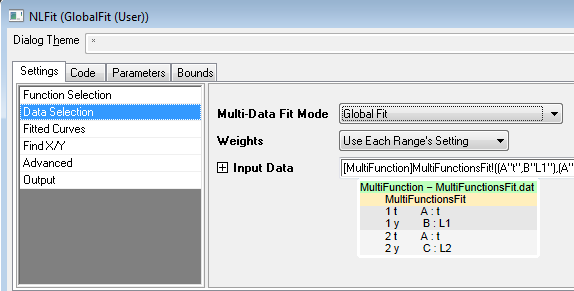
-
Go to the Parameters tab. Check on the Share check box for A2, B2 and t0, then Check on the Fixed box for s and s_2 to fix their values to 1 and 0, respectively. The setting of s will control fitting Col(B) using while fitting Col(C) using .
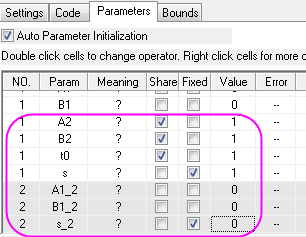
-
Click the Fit button to fit curves. You will get these results from the Parameters table of the report worksheet:
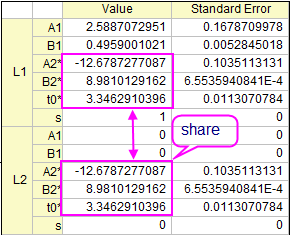
-
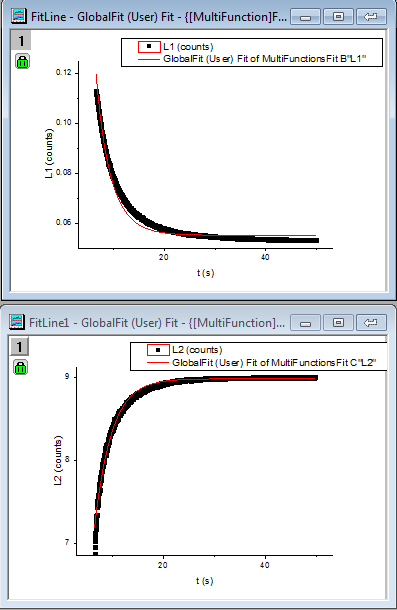
The fitted curves will be added to the graph window. You can check the fitted curve for Col(B)/ and Col(C)/ in Sheet FitNL1 by double clicking the Graphs.