11.3.2 Introduction to X-Functions
Introduce-X-Function
Summary
X-Functions provide a structured programming environment that offers a framework for building Origin tools. Different from the simple GetN box, creating tools by using X-Functions allows the user to focus on the actual data processing code and not have to worry about codes for the user interface.
Most of the dialogs/functions in Origin 8 are X-Functions, and many of them can be run from both menu and command line mode. The flexibility of running X-Functions makes them an attractive approach to customizing Origin
Minimum Origin Version Required: Origin 8.0 SR0
What you will learn
- How to create an X-Function
- How to make the X-Function script accessible
- How to use the X-Funciton in dialog mode
Create an X-Function
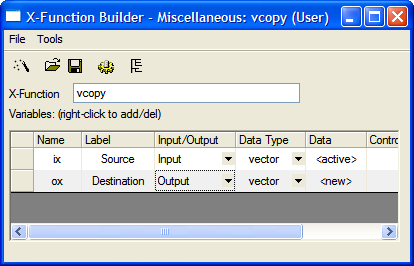
- Select Tools: X-Function Builder or press F10 to open the X-Function Builder dialog
- Set Name, Label and Data of the 1st variable as ix, Source and <active>
- Right click in the list panel and select Add Variables from the context menu.
- Set Name, Label, Input/Output and Data of the 2nd variable as ox, Destination, Output and <new>
- Select File:Save to save the x-function as vcopy
- Click
 to open Code Builder
- Add the following codes in the vcopy function in code builder
void vcopy(const vector& ix, vector& ox)
{

	if (!ix || !ox)
            XF_THROW(CER_NO_DATA);

        ox = ix;

}
Making the X-Function Script Accessible
- Click the Return to Dialog button in Code Builder
- In the X-Function Builder, save your changes

- Open the X-Function in Tree View by clicking

- Open the Usage Context branch. Make sure the Labtalk check box is selected
-
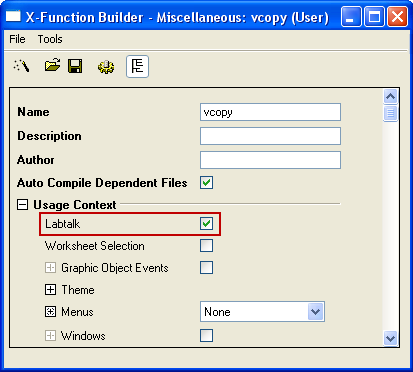
- Save the x-function and close the X-Function Dialog
- Fill column(A) with row numbersw in the active worksheet (Highlight column(A), right-click and select Fill Column with: Row Numbers)
- Type the following script in the command window, Column(A) will be copied to Column(B)
-
vcopy col(a) col(b)
Using the X-Function in Dialog Mode
- Open the X-Function Dialog and open VCOPY.OXF in Tree View
- Open the Usage Context branch
- Open the Menus branch, make sure Simple GetNBox is selected from the Auto GetN Dialog list box
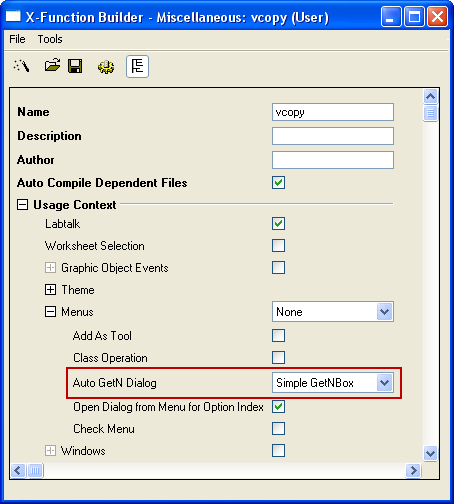
- Save the x-function and close the X-Function Dialog
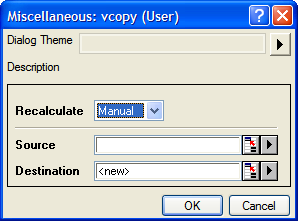
- Type following script in the command window, Dialog of VCOPY.OXF will be opened
vcopy -d