6.12.16 Stack Flattened Surfaces with Certain Z Offset
FlatSurface-Z-Offset
Summary
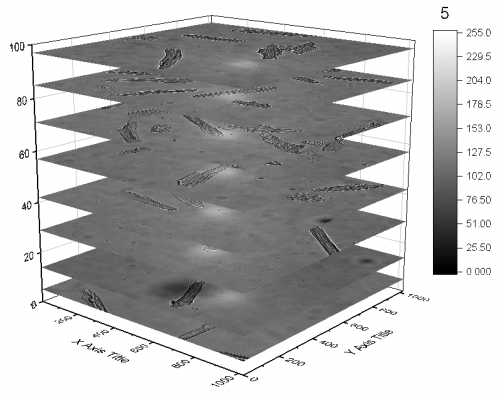
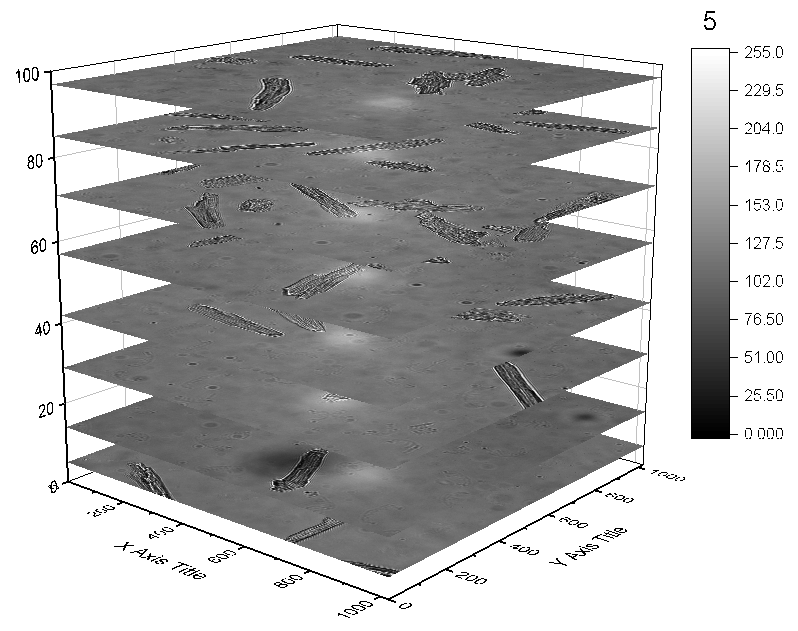
This tutorial will show you how to plot multiple image objects as a stacked flattened surface with Z offset.
What will you learn
- How to import mulitple images into Origin as the matrix objects.
- How to plot image objects as a 3D Stacked Surfaces in a graph layer.
- How to position the flattened images on Z axis.
Steps
- Create a new a matrix and select Data: Import from File: Image to Matrix to import myocyte1~myocyte8 under the \Sample\Image Processing and Analysis folder. In the ImpImage dialog, keep Mulit-File (except 1st) Import Mode as Start New Objects.
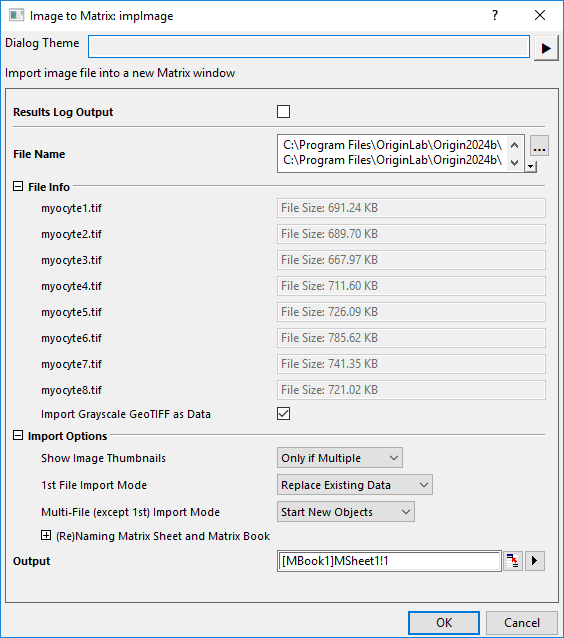
- Click the OK button to import the files to matrix as matrix objects.
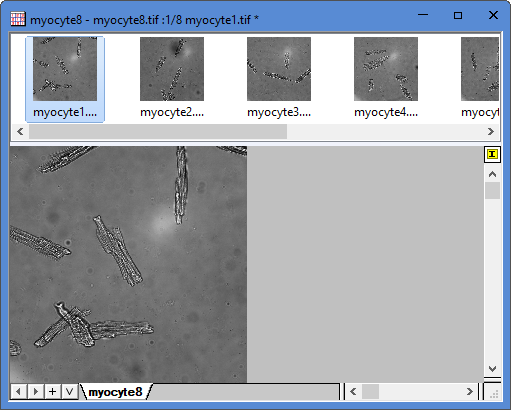
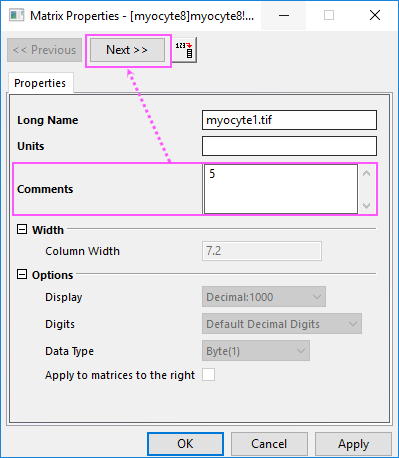
- Right-click on the first object to select Properties context menu to open Matrix Properties dialog. Enter 5, 14, 29, 42, 57, 71, 85 and 97 seperately in Comment box for each object by clicking Next>> button to browse the objects. Click Apply button and OK button to close the dialog.
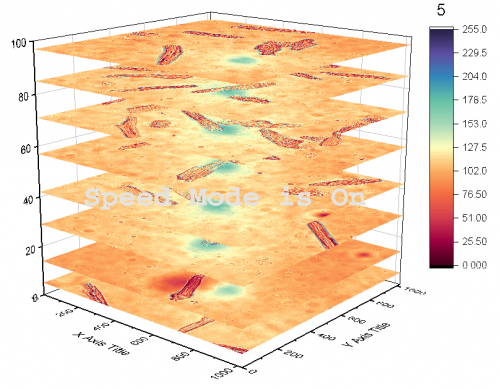
- Select Plot > 3D : 3D Stacked Surfaces from the main menu to plot a stacked flattened surface graph.
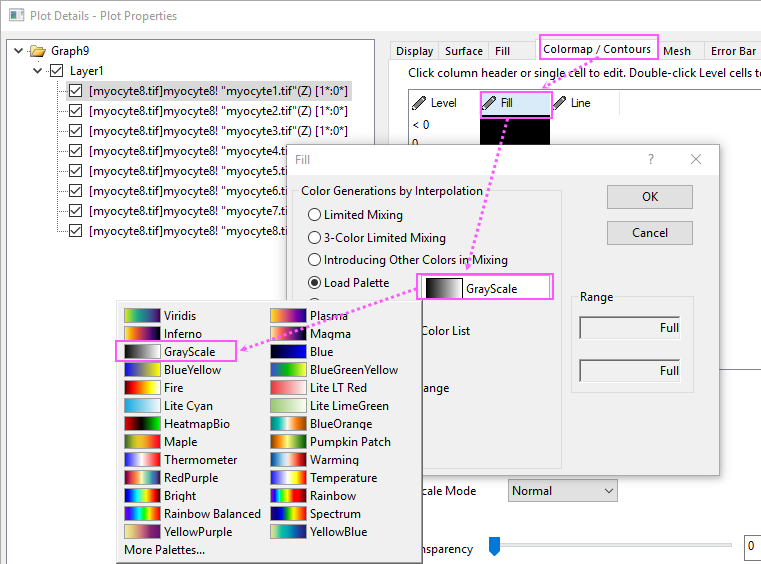
- Double-click on the plot to open Plot Details dialog, go to Colormap/Contours tab, click Fill header to open the Fill dialog and select GrayScale palette.
- Click OK button to close the dialog. Disable Speed Mode by clicking the button
 . You will get the following graph.