4.2.2.3 Global Fitting with Parameter Sharing
Fitting-Global
Summary
The term "global fitting" generally refers to simultaneous curve fitting operations performed on multiple datasets. Because datasets remain distinct, they may or may not "share" parameter values during the fit process. When a parameter is shared, a single parameter value is calculated for all datasets; When a parameter is not shared, a separate parameter value is calculated for each dataset.
By contrast, "concatenated fitting" is performed by combining all datasets into a single dataset. Because curve fitting operations are performed on a single dataset, only a single set of parameter values is returned.
Since 2016 SR2, an new app Sequential Fit has been released to do sequential fitting on multiple datasets. With this app, the fit parameter values obtained from the current dataset will be used to initialize the parameters of the next dataset. This is very applicable for those datasets, the common parameters of which keep changing in turn.
What you will learn
This tutorial will show you how to:
- Select multiple datasets for fitting.
- Select different fitting modes.
- Perform global fit with parameter sharing.
Steps
-
Create a new workbook by clicking the
 button.
- Click the
 to import the file Enzyme.dat in the <Origin EXE Folder>\Samples\Curve Fitting\ folder.
-
Highlight column B and C and click the
 button to generate a scatter plot.
-
Keep the graph window activated and select the Analysis: Fitting: Nonlinear Curve Fit menu item to open the NLFit dialog.
- Set the Recalculate mode to Auto.
- In the Function Selection page, choose the Hill function from the Growth/Sigmoidal category.
- Go to the Data Selection page, click the triangle button next to the Input Data selection box and choose Add All Plots in Active Layer, to add both plots as input data.
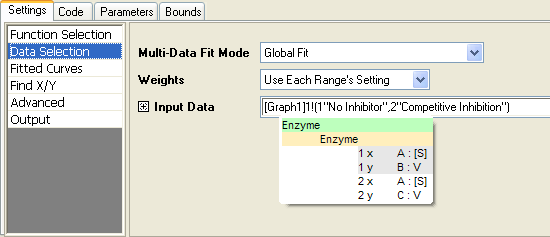
- Select Global Fit mode from the Multi-Data Fit Mode drop-down list:
-
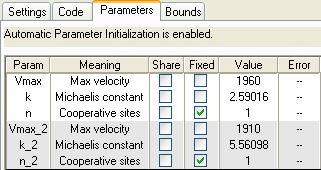
Go to the Parameters tab. Check the Fixed check box for n and n_2 to fix their values to 1.
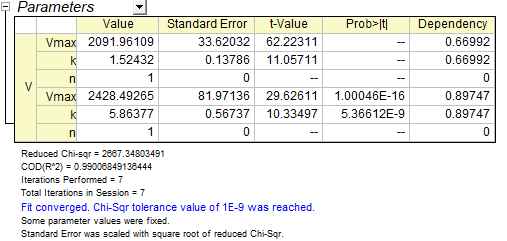
- Click the Fit button to fit curves. You will get these results from the Parameters table of the report worksheet:
- The fitted curves will be added to the original data plot.
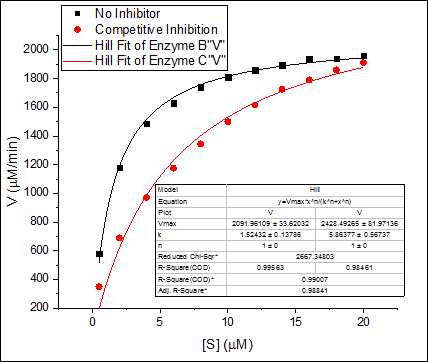
-
In this case, the maximum velocity Vmax may be the same, so we could share this parameter value when fitting.
- Click the green lock icon in the report worksheet and select Change Parameters to bring back the NLFit dialog.
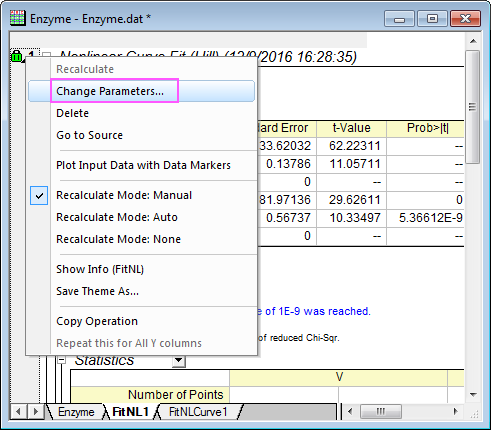
-
In the Parameters tab, check the Share check box for Vmax.
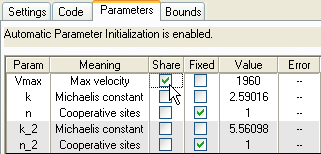
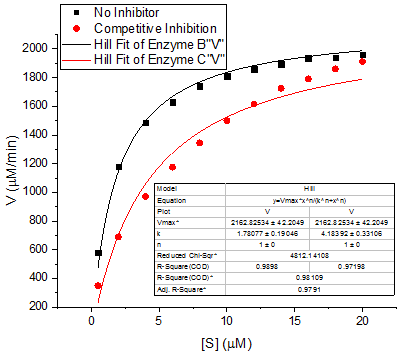
- Click the Fit button again to update results. You can see the Vmax values for both curves are the same. The asterisk in the parameter name indicates that this parameter is shared:
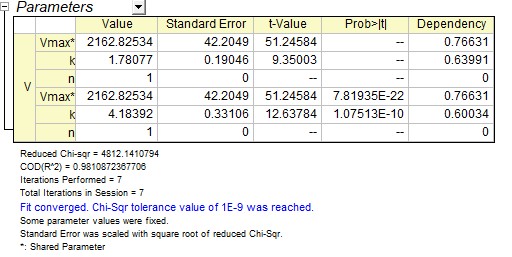
- The fitted curve will automatically update.