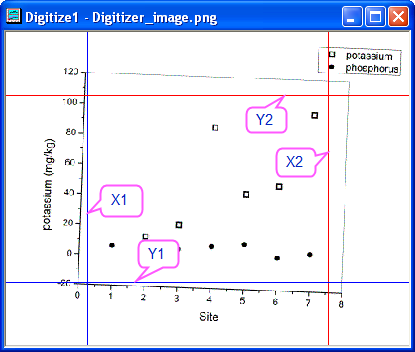
 button on the dialog box toolbar, and select the Digitizer_image.png under <Origin EXE folder>\Samples\Import and Export\ path. The image is imported. Note that there are two pairs of XY axes showing in the image; one red and one blue.
 button (dialog box toolbar), and click the button
  to slightly rotate the image in the counter-clockwise direction. Note that the rotation increment can be specified in << >> Increment (degree) the text box.
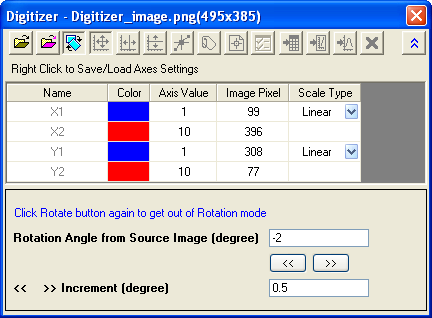
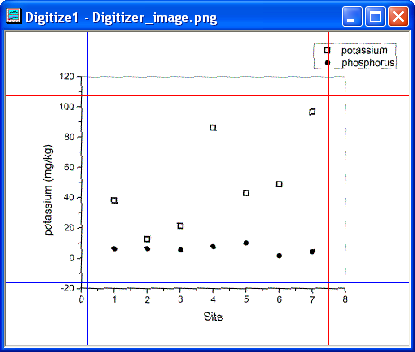
When the graph axes in the image are aligned along the bottom/top and left/right edges, click once more on the Rotate Image
button, to leave Rotation mode.
 button in the dialog. Using your mouse, drag the two pairs of axis lines so that they coincide with minimum and maximum axis values. Note that when a line is selected, its corresponding row in the Digitizer dialog is also selected. Enter the appropriate coordinate value (0, 8, -20, 120) in the Axis Value column.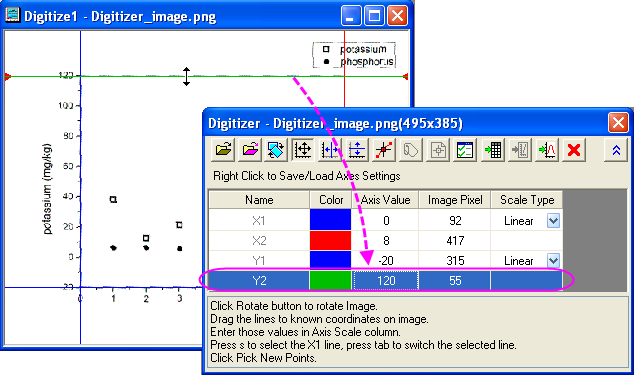
 button. Move the cursor
  sequentially over the points in the phosphorus plot (filled symbol), double-clicking on each point (or single-click and press Enter). The GetPoints dialog displays coordinate values, while the Data Display window shows image pixel values.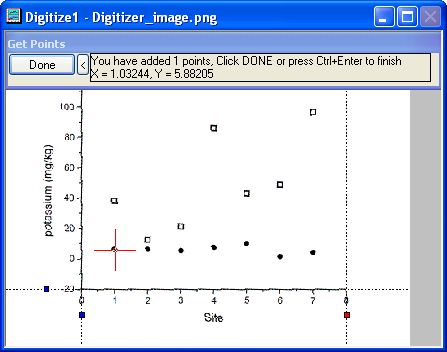
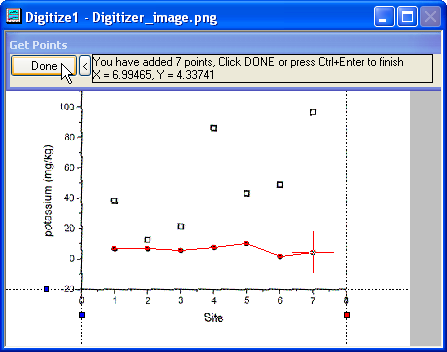
 button to show the resulting worksheet which contains the values of picked data points.
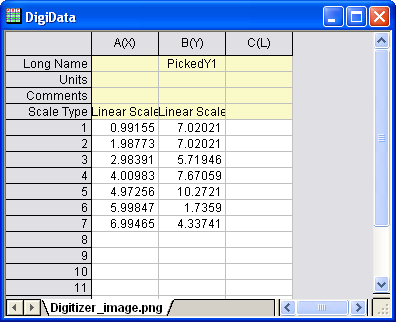
 button to return to the original image. Click on the New Line
  button to start digitizing the second plot (potassium = open symbol). Note that two new columns of data points are created in the result worksheet.
button to get the points for the second plot, repeating the procedures followed in steps 5 and 6.
button and two datasets result shows in the worksheet.
button to start digitizing the second plot (potassium = open symbol). Note that two new columns of data points are created in the result worksheet.
button to get the points for the second plot, repeating the procedures followed in steps 5 and 6.
button and two datasets result shows in the worksheet.
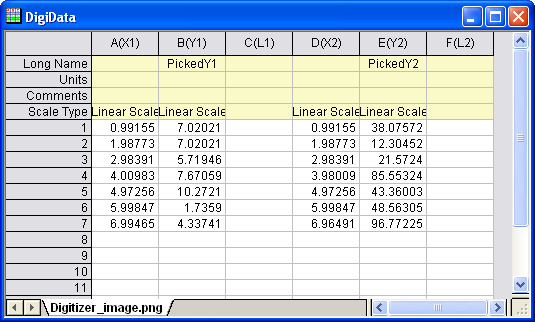 button. This takes you to your imported image file. Click on the Go to Graph
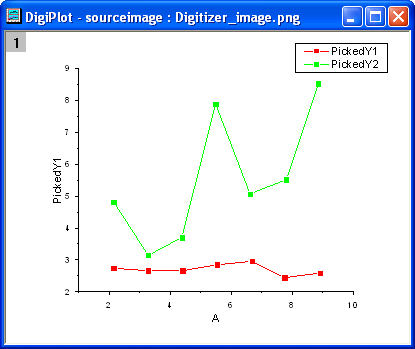
  button and note that this opens a graph window containing plots of your digitized data points.
 button appears on the image. Clicking on the button, you can reopen the Digitizer dialog.

