5.5.16.2.1.1 The Definitive Screening Design Dialog Box
Contents
Supporting Information
To open the Definitive Screening Design dialog
- Select Statistics: Quality Improvement: Design of Experiment from Origin menu
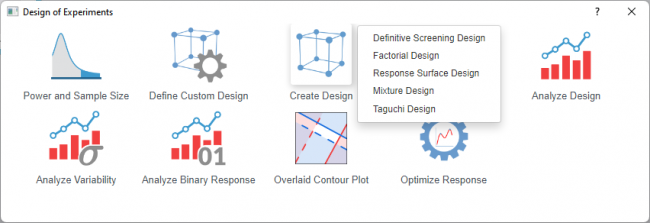
- Select the Create Design icon and choose Definitive Screening Design from the list
 | Topics for Further Reading: |
Display Available Designs
Click the button for information to select an appropriate design. The table shows the number of factors and runs
Factors
| Number of Continuous Factors | Specify the number of continuous factors you want to include in the design |
|---|---|
| Number of Categorical Factors | Specify the number of categorical factors you want to include in the design |
| Continuous Factors table | Change the factor name if needed and specify the low and high levels for each factor. The base design includes 1 center point per replicate. |
| Categorical Factors table | If you select at least 1 categorical factor, the table will be shown. Enter a text factor as either low or high. |
Settings
| Number of Extra Center Points | Available only when no categorical variable in the design
Adding additional center points beyond 1 center point per replicate |
|---|---|
| Number of Replicates | Select the number of replicates. Replicates are multiple runs with the same factor settings. One replicate runs each combination once; two replicates run each combination twice
Adding replicates can increase the statistical power to detect effects but also increase total runs and resource cost. |
| Block on Replicates | Turn the option on means treating each replicate as a separate block. Use this when you suspect systematic differences between replicate sets and want to isolate those effects from the factor effects. |
| Randomize Runs | Randomize the order of all experimental runs. This distributes nuisance factors |
| Random Seed | Enter a non-negative integer to control the random number generator |
Output
| Design Table | The design table shows the factor settings for each experimental run in the design |
|---|---|
| Coded Design | Use the option to display the design in coded units (typically –1, 0, +1), where –1 represents the low level, 0 the center point, and +1 the high level. |
Dialog Theme
Save and load the settings of the dialog. Use this to store frequently used factor configurations, design options, or output preferences, then recall them for future designs without re-entering all values.