5.5.16.1.1 The Define Custom Design Dialog Box
Contents
Supporting Information
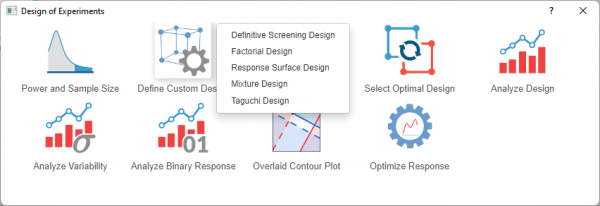
To open the Define Custom Design dialog
- Activate a worksheet with your experimental design data
- Select Statistics: Quality Improvement: Design of Experiment from Origin menu
- Select the icon and choose the desired design from the list
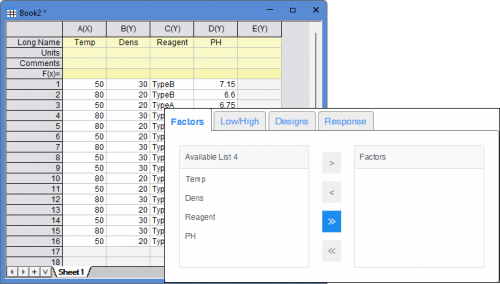
Factors/Components
The Column Long Names from the active worksheet are displayed in the list box. Select the desired factors and add them to the right panel.
Note: For Factorial Design you can select the design you want to define.
| 2-Level Factorial | Define a 2-level factorial design from data in the worksheet. |
|---|---|
| General Full Factorial | Define a general full factorial design from data in the worksheet. |
Process Variables
Available only for Mixture Design.
Move the variables to the right panel to incorporate process variables into your mixture design. Process variables are experimental factors that are not part of the mixture itself but may still influence the response.
Signal Factor
Available only for Taguchi Design.
The Signal Factor tab lets you incorporate a signal factor to convert a static Taguchi design into a dynamic response. With a dynamic design defined, you can analyze using Analyze Taguchi Design (Dynamic) to evaluate signal-to-noise ratios, slopes, and standard deviationsexperiment
| Add Dynamic Signal Factor | Introduce a signal factor into your design, This changes the experiment from static (single target response) to dynamic (response varies with signal input) |
|---|---|
| Signal Factor | Select the column containing the signal factor values. |
Low/High
After defining the factors in the Factors tab, enter design information of factors in the Low/High tab
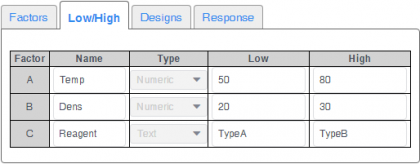
| Type | Factors can be text or numeric. If you want to treat a numeric column as text, right-click the column and select Set as Categorical from the context menu. |
|---|---|
| Low | Display the minimum value of the numeric column or the first text of the categorial/text column by default. You can enter another desired value in it |
| High | Display the maximum value of the numeric column or the second text of the categorial/text column by default. You can enter another desired value in it |
Designs
Click the triangle button to specify which column in the active worksheet will contain the design information. If not specified, a new column will be created automatically in the result worksheet.
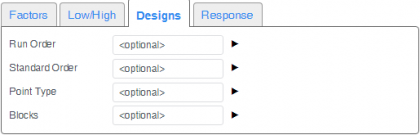
| Run Order | The order that the experimental runs should be done |
|---|---|
| Standard Order | The standard order of the runs |
| Point Type | The type of point
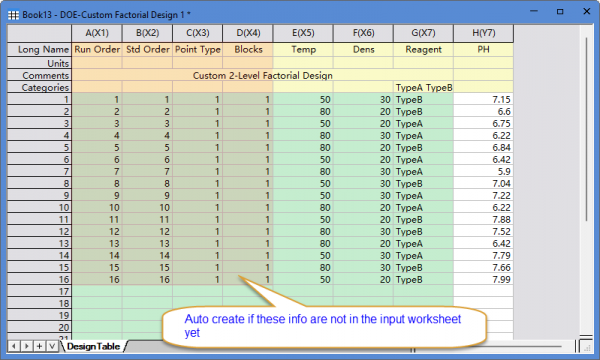
If no column of point type is specified, a column with all values set to 1 will be created automatically. |
| Blocks | If no block column is specified, a column with all values set to 1 will be created automatically, indicating no blocking. |
If keep all options to be <optional>
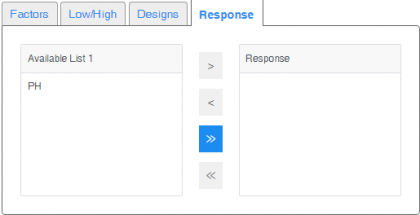
Response
After specifying factors in the Factors tab, the remaining columns will be shown in the available list in the Response tab. Select the desired response and add it to the right panel.