

|
|
|
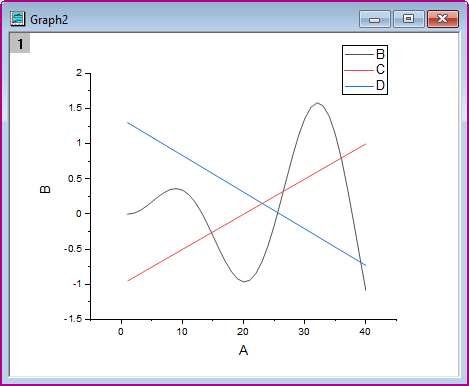
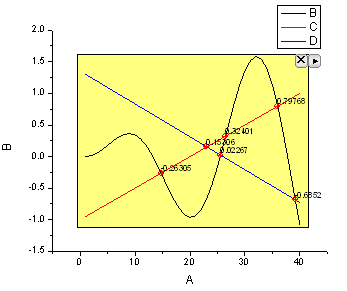
When there is more than one curve in a graph layer, you might want to calculate the intersection data points of these curves. Since Origin 8.6, a new gadget Intersect is available to calculate the intersection points of the input curves on the graph.
Minimum Origin Version Required: Origin 8.6 SR0
This tutorial will show you how to:
This tutorial is associated with <Origin EXE Folder>\Samples\Tutorial Data.opj.
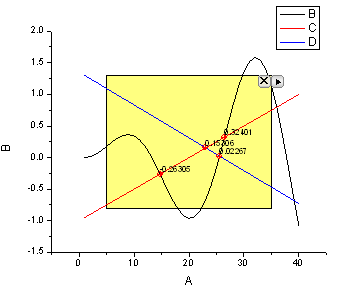
 at the top right of the ROI box, select Expand to Full Plot(s) Range from the context menu. The ROI box will be expanded to cover full plot range as shown below.
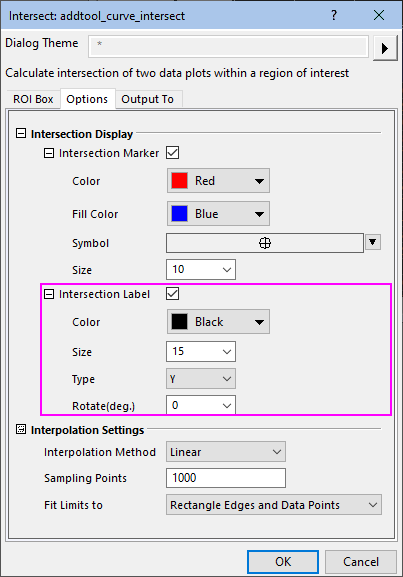
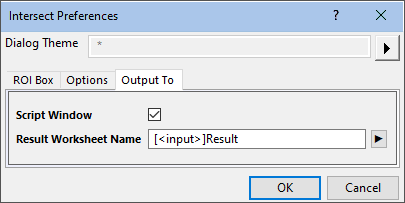
 at the top right of the ROI box. Select Preferences... from the context menu to open the Intersect Preferences dialog. Go to the Output To tab, click the flyout button
  to the right of Result Worksheet Name box and choose Sheet in Input Book.
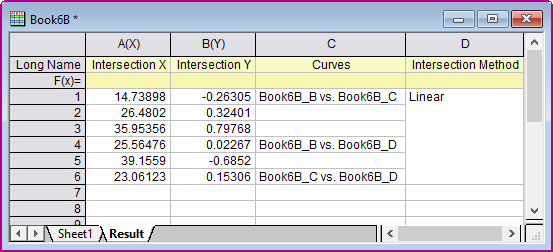
 at the top right of the ROI box, select New Output from the context menu. again, select Go To Report Worksheet from the menu. The X and Y coordinates of the intersection points will be listed in the results worksheet.