提示:此部分只提供英文原文,敬请谅解!
4.6.2 Creating Analysis Templates using Set Column Value
Summary
This tutorial will demonstrate how to add a column, set up Before Formula Script and have that script run whenever data changes in other columns. This technique can be used to create an Analysis Template for repeated analysis of similar data.
Minimum Origin Version Required: Origin 8.0 SR6
What you will learn
- How to use Set Column Values to create an analysis template
- How to select rows via the Go to function
Steps
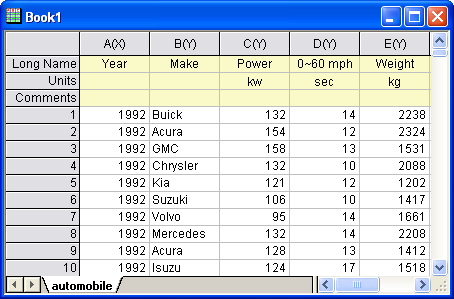
- Import the data from \Samples\Statistics\automobile.dat into a newly created workbook, as below. In this example, we will extract data, according to the Make column, into different worksheets.
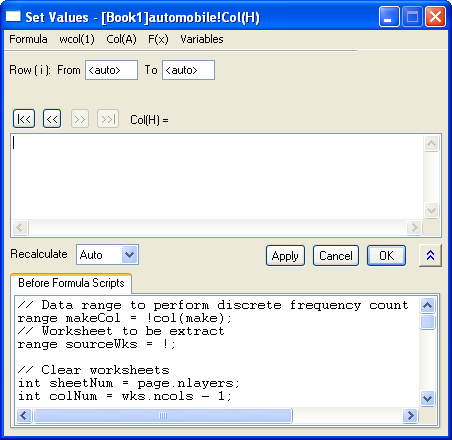
- Add an empty column to the worksheet and bring up the Set Column Values dialog of the column. In the Before Formula Script box, enter the script below.
// Data range on which to perform discrete frequency count
range makeCol = !col(make);
// Worksheet to be extracted
range sourceWks = !;

// Clear worksheets
int sheetNum = page.nlayers;
int colNum = wks.ncols - 1;
if (sheetNum>1)
{
	for (jj=2; jj<=sheetNum; jj++)
	{
		layer -d 2;
	}
}

// Tree variable to hold discfreqs outputs
tree tr;
// Perform discrete frequency count
discfreqs irng:=makeCol rd:=tr;
// String array to get result from tree
StringArray sa;
sa.append(tr.FreqCount1.Data1);

if( sa.GetSize() != NANUM )
{
	// Loop to extract data
	for (ii=1; ii<=sa.GetSize(); ii++)
	{
		string sn$ = sa.GetAt(ii)$;
		// Extract condition string
		string cond$ = "makeCol$ = " + sn$;
		// Create worksheet with different Make name
		newsheet name:=sn$ cols:=colNum outname:=on$ active:=0;
		// Extract data
		wxt test:=cond$ iw:=sourceWks c2:=colNum ow:=on$;
	}
}
This script will first perform a discrete frequency count on the Make column to get distinct values for Make. It will then create a new worksheet for each brand and extract data into these sheets.
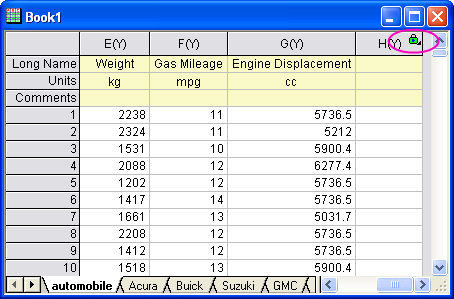
- Make sure the recalculate mode is set to Auto and click OK. The data will be separated into different worksheets. Then the empty column (H) with a green lock icon indicates that this procedure can be updated automatically.
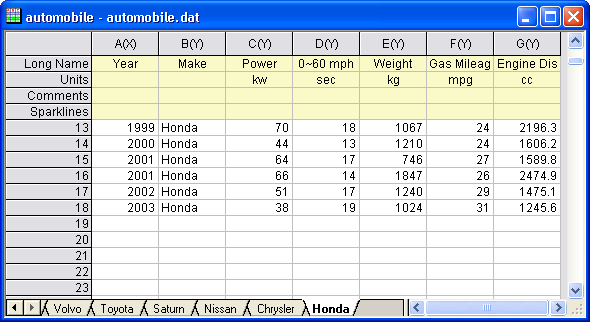
- There are 18 makes of cars in the source data, so 18 new worksheets were created. Now we can check whether auto-update works.
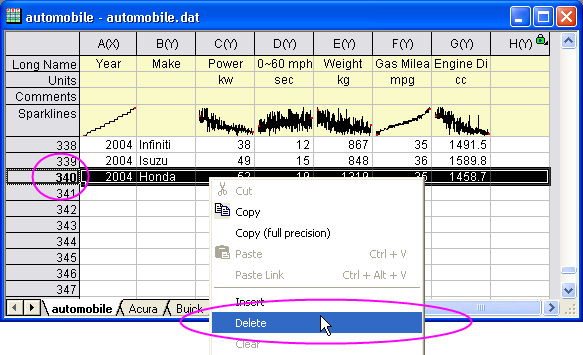
Go to the Honda tab. Notice that there are 19 rows. - Switch to the first sheet. Scroll down and delete the last row.