2.41 FAQ-477 How to add supercripts, subscripts, and special characters in tables and worksheets?
Last Update: 10/11/2019
Adding Superscripts, Subscripts, and Other Formatting to Tables
To apply complex formatting, including adding superscripts and subscripts to a table object, you must enable rich text.
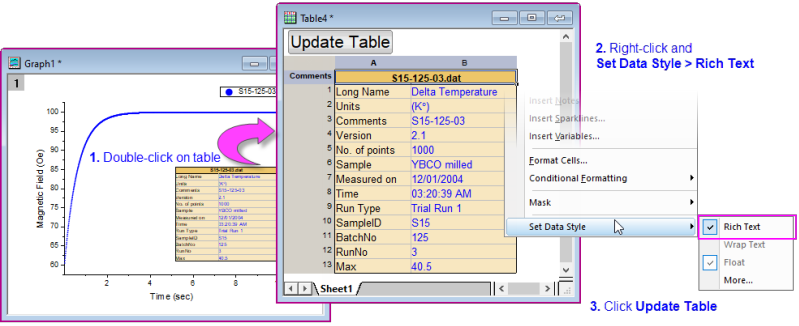
For more information, see Rich Text.
Adding Special Characters to Tables and Worksheet Cells, Versions 2018 and Newer
If no formatting is being applied, you do not need to enable rich text. You can add Unicode characters to tables or to worksheet header or data cells directly by entering codepoints; or by choosing them graphically using Origin's Character Map.
While editing in the cell:
- Enter the 4-character hex code for a (Unicode) codepoint (e.g. 03BB for "λ"), then press ALT+X. The codepoint is inserted.
- Alternately, open the Character Map by pressing CTRL+M, or right-click and choose Character Map. Browse or enter the 4-character hex code for a (Unicode) codepoint and click Insert.
Note: If you want to save a project to the older opj format (e.g. to share it with others who only have Origin2017 and earlier version), you will need to enable rich text and use the Symbol Map dialog, when inserting special characters. See the next section.
Adding Special Characters to Tables and Worksheet Cells, Versions 2017 and Older
Prior to Origin 2018, you had to enable rich text, then use the either the Symbol Map or escape sequences, to enter special characters into tables and worksheet cells (method depends on the version of your software).
For information, see Special Characters, Versions 2017 and older.
Keywords:rich text, subscript, superscript, angstrom, degree, math, German umlaut, diaeresis, acute, tilde, accent mark, macron, circumflex, Planck's Constant, Planck, Pi