6.78 FAQ-1090 Why I see LastErr:1, LastErr:122 or LastErr:401 when activate Origin?
Last Update: 9/25/2025
If you get Error Code LastErr:1, LastErr:122 or LastErr:401 when activate your Origin,
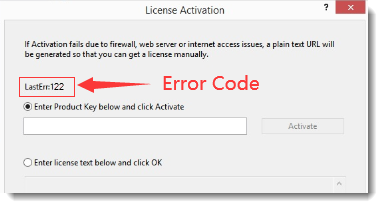
To fix this problem,
- Please first check if Origin's User Files Folder (you can open it by menu Help: Open Folder) is set on a cloud-syncing service such as OneDrive, Dropbox or Google Drive. If so, please move it to a local filepath.
Note: Refer to this page for how to change the User Files Folder. - If the User Files Folder is already set in a local filepath, please try following solution:
- Close Origin if it is still running.
- Open Windows File Explorer to folder:
C:\ProgramData\OriginLab.

- Delete License sub-folder and REGID.lic file.
- Right-click on the Origin icon and select Run as Administrator from context menu to launch Origin as administrator.
- The License Activation dialog will open. Enter product key and click Activate to license your Origin.
Note: There is no need to run Origin as administrator after activating Origin successfully.
- If above solution didn't work, please try to uninstall and reinstall Origin and then activate again.
Learn more about license error code, please refer to this page.
Keywords:license, err code, LastErr 1, LastErr 122, LE, learning edition, learning version, 401, popup