FAQ-275 Wie verberge ich die Analysemarkierungen und Schlösser?
Letztes Update: 26.03.2026
Analysemarkierungen verbergen
Wenn Sie einen Datenteilbereich ausgewählt haben, um eine Analyse mit Hilfe des Datenselektors  durchzuführen, werden Analysemarkierungen erzeugt.
Um die Größe der Analysemarkierungen zu verbergen oder zu ändern, stehen Ihnen vier verschiedene Möglichkeiten zur Verfügung:
- Klicken Sie mit der rechten Maustaste auf den aktuellen Layer (ohne Auswahl des Layers), um die Analysemarkierungen im Kontextmenü auszuwählen.
- Klicken Sie mit der rechten Maustaste auf die Analysemarkierungen, um die Analysemarkierungen auszuwählen.
- Klicken Sie mit der linken Maustaste auf die Analysemarkierungen, um die Analysemarkierungen im Kontextmenü auszuwählen.
- Wählen Sie im Menü Daten: Analysemarker.
Grüne Analyseschlösser verbergen
Wenn Sie eine Analyse für ein Diagramm durchführen oder Daten, die das Ergebnis einer Analyse sind, zeichnen, zeigt ein grünes Schloss im Diagramm den aktuellen Modus zur Neuberechnung. Das Schloss wird nicht exportiert oder gedruckt, ist aber trotzdem manchmal im Weg.
Wir können die Neuberechnungsschlösser im aktivierten Diagramm über die Schaltfläche “Schlösser zeigen” auf Seitenebene der Minisymbolleiste verbergen;
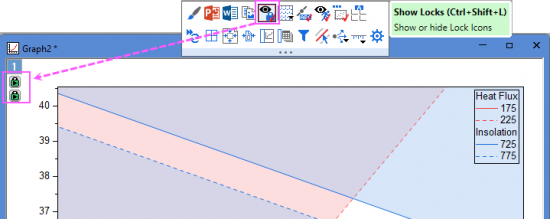
Oder Sie wählen im Menü Ansicht: Zeigen: Schlosssymbole.
Um die Neuberechnungsschlösser global auszuschalten:
- Wählen Sie im Menü Ansicht: Zeigen: Schlosssymbole für alle Diagramme verbergen, um einen Dialog zu öffnen:
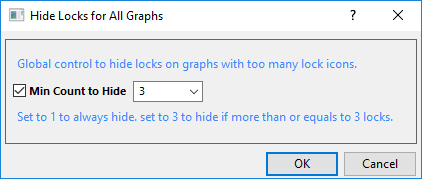
Sie können einen numerischen Wert eingeben. Wenn die Anzahl der Schlosssymbole in einem Diagramm diesen Wert überschreitet, werden alle Schlosssymbole innerhalb dieses Diagramms automatisch verborgen.
Schlüsselwörter:Pink, löschen, Pfeil, Magenta, Violett, Zeichnungen, Diagramme, Daten, Schloss