2.103 FAQ-993 When I paste my Excel time data into Origin, Origin displays 12/30/1899
Last Update: 10/13/2020
| Note: The following information is intended for users of Origin 2020b and earlier. Beginning with Origin 2021, Origin automatically formats date and time data pasted from MS Excel. |
When you copy cells containing time data from MS Excel and paste them into Origin, you will likely see that the data display in Origin as "12/30/1899". This is Excel's "base date". The pasted time data remains but the trick is to get Origin to display it:
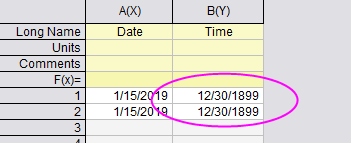
- Click on the time column header in Origin, then right-click and select Properties.
- Change Format to Numeric and click OK. You should now see your time data displayed as a Julian Day number, with an integer part and a decimal part. We need to remove the integer part (which is date) and keep the decimal part (which is time).
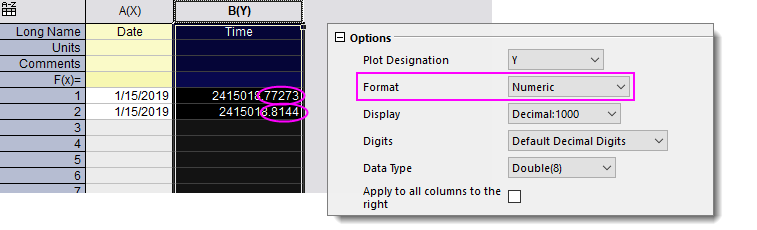
- Double-click on the F(x)= cell directly above your time data column and enter the following, then click out of the cell:
frac(N)
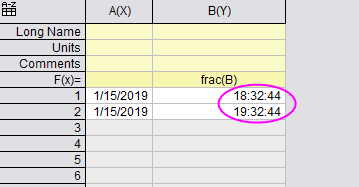
... where N is the column Short Name. The cells in your time column should now display the fractional portion of the previously-displayed Julian Day value. - Select the time column again, right-click and select Properties.
- This time, change Format to Time and set Display to your desired time format (e.g. HH:mm:ss).
- Click OK and you should now see your time data displayed properly.
 | If you import your MS Excel data -- as opposed to copying and pasting -- into Origin, your time data should display properly in the worksheet without performing the above steps. |
Keywords:Microsoft Office, base time, Julian Day, convert, date, date-time