2.141 FAQ-1223 How to create a Google client_id to make use of Origin’s Google Drive Cloud tool?
Last Update: 9/24/2026

Google Drive Cloud tool (Connect to Cloud menu and Open from Cloud button) by default uses Origin's client_id. This is shared among all the Origin users. There is a global limit on the number of access set by Google. It reaches maximum now and Origin cannot increase it yet.
Users who do not access before cannot access it with Origin's client_id (users who ever accessed it successfully can still access).
If you see error message like following
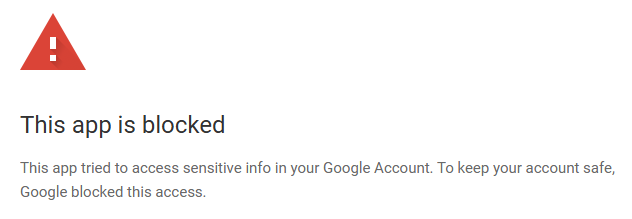
Try solution below:
- Create your own client_id by following steps:
- Log into Google API Console with your Google account (not necessary to be the same as the one you use to log in with Origin’s cloud connector).
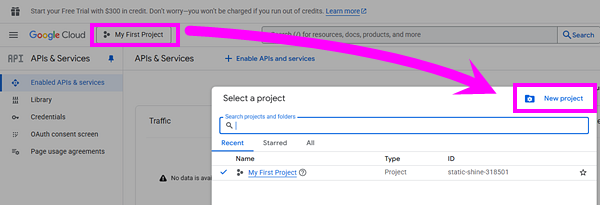
- Click "project" button on the top-left and then click "New project" button on the pop-up dialog to create a new project.
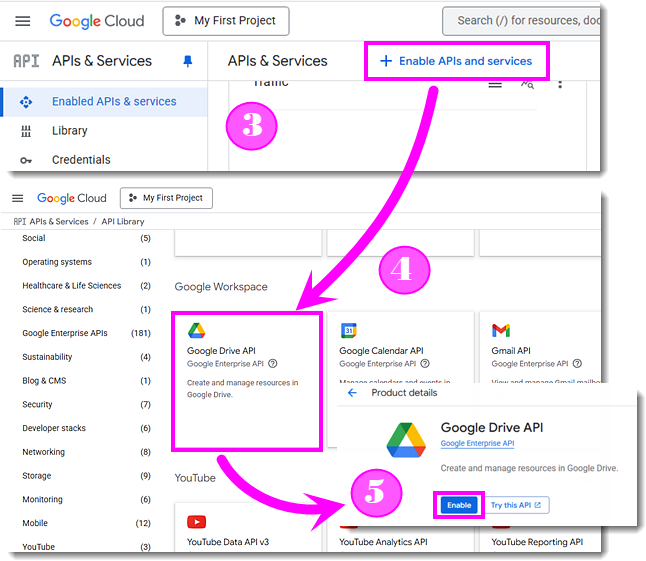
- Click on the left-side menu "APIs & services" > "Enable APIs and services".
- Find the "Google Drive API" in the API Library and click on it.
- On the "Product details" page, click Enable button.
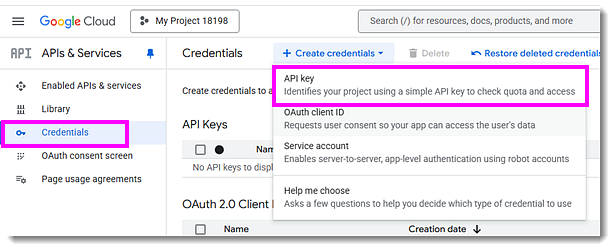
- Click "Credentials" in the left-side panel. Click "+Create credentials" on the top, and then select "API key" from the pop-up menu.
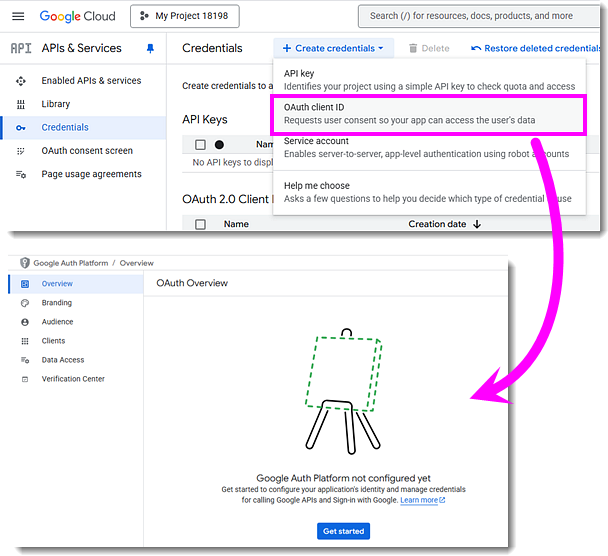
There is an "API key" on the pop-up dialog. Make a note of it. - Click "+Create credentials" again and select "OAuth client ID". Click on "Configure Consent Screen". On the "OAuth Overview" page, click Get started button to set up project configuration.
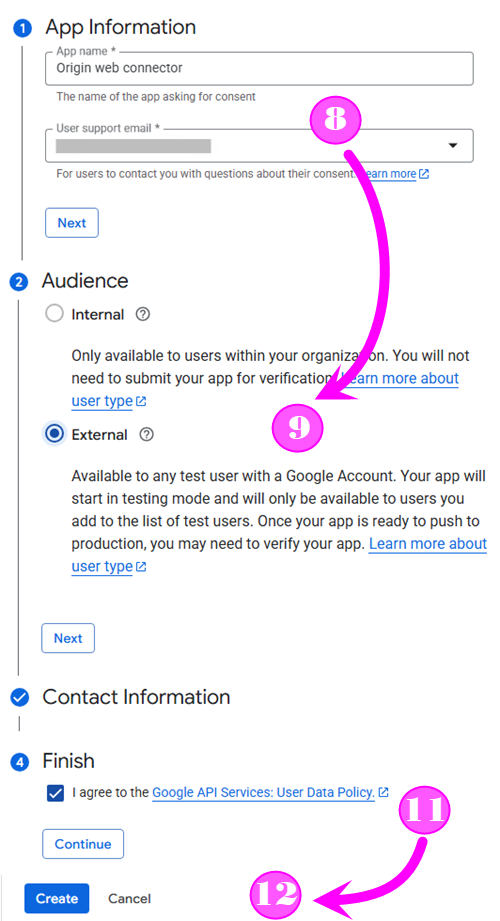
- On the "Project configuration" page, enter an app name such as "Origin web connector". And select the current account in the "User support mail" edit box. Click Next button.
- Select "External" for Audience. Click Next button.
- Enter your e-mail in "Developer contact information". Click Next button.
- Check I agree to the "Google API Services User Data Policy" and click "CONTINUE" button.
- Click "Create" button.
- Click "Create OAuth client" button.
- Select Application type to "Desktop app" and give it a Name (default name is OK). Click "Create" button.
There are "Client ID" and "Client secret" on the pop-up dialog. Make note of it. - Click "Audience" on the left-side panel. And then click "Publish app" button and then click "Confirm" button in the pop-up dialog.
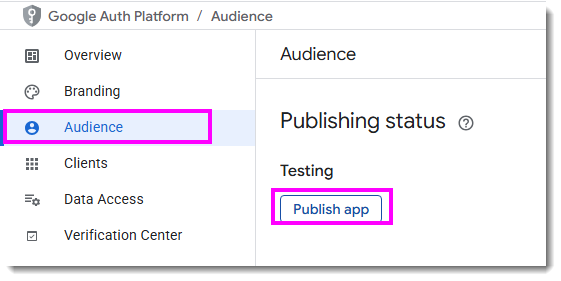
- Note: From this step on, Google requires domain information to publish an app. You need to fill in the App Domain (Application Homepage, Privacy Policy link) under "Branding", and any Authorized Domains must be verified via Google Search Console. If you do not own a verified domain, do not proceed - this workaround will not work for you.
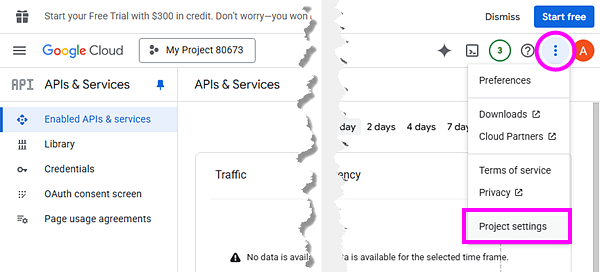
- Go back to "APIs & Services" page by top-left Navigation menu.
- Click "..." button on top-right corner and select "Project settings".
There is a project number(AppID). Make note of it.
- Make sure Origin is closed. Update
<Origin UFF>/OCloud.ini(create a new ini file if it does not exist).
The [GoogleDrive] section in the ini file should be as following:[GoogleDrive] AppID=USER_APP_IDD ClientID=USER_CLIENT_ID ApiKey=USER_API_KEY ClientSecret=USER_CLIENT_SECRET
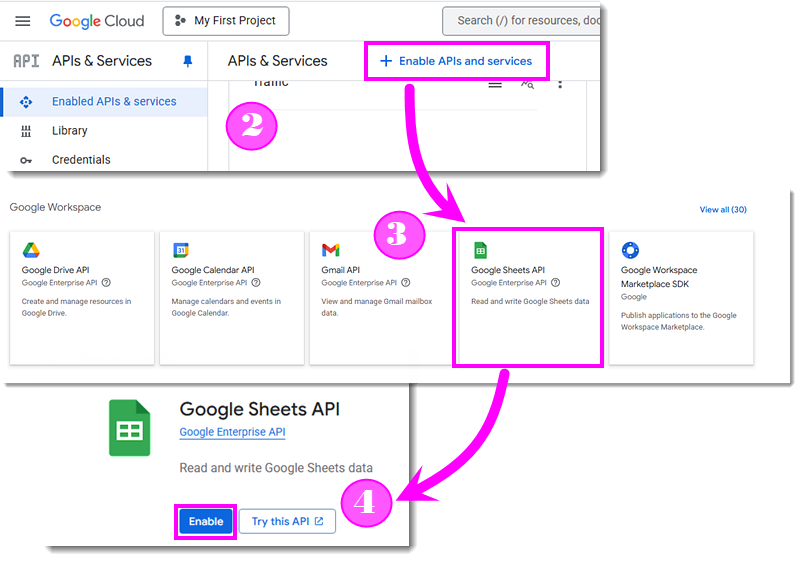
- If you want to connect to Googlesheet from cloud, the following additional steps are required:
- Go back to Google API Console.
- Select "Enabled APIs & services" on left-side panel and click on "Enable APls and services".
- Search for "Google Sheets API"
- Click "ENABLE".
- Start Origin to try connecting now.
Keywords:connect to Google, import from Google Drive, cloud connector, Google API Key, This app is blocked, tried to access sensitive info in Google Account, keep account safe, Google blocked this access