1.18.1.4.4 Splitter Dialog
This example shows how to create a splitter dialog, which provides a better display of tree view or grid view.
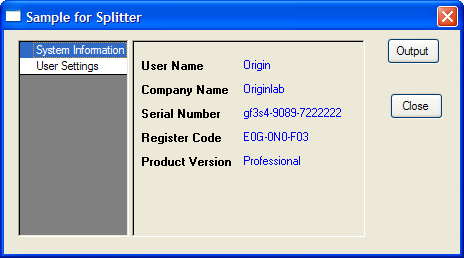
Contents
Prepare Dialog Resource
To create this dialog, you first must prepare a dialog resource with a Static control and two Button controls. Here we just use the existing resource IDD_SAMPLE_SPLITTER_DLG in the built-in OriginC\Originlab\ODlg8.dll file to simplify this example.
Prepare Source File
In Code Builder, click New button , type file name, and set Location as the same path of the above dialog resource dll oDlg8.dll - Origin install path OriginC\Originlab subfolder.
Including Header Files
The following header files will be used in the example. Copy the following to the above created source file.
#include <..\Originlab\DialogEx.h>
#include <..\Originlab\SplitterControl.h>
#include <..\Originlab\DynaSplitter.h>
Adding User Defined Splitter Class
We can derive a class from TreeDynaSplitter. Most dialog initialization and other event functions' code are done in a base class and make our splitter class a light class.
class MySplitter : public TreeDynaSplitter
{
public:
	MySplitter(){}
	~MySplitter(){}
	//init the splitter control
	int	Init(int nCtrlID, WndContainer& wndParent, LPCSTR lpcszDlgName = NULL)
	{
		TreeDynaSplitter::Init(nCtrlID, wndParent, 0, lpcszDlgName);
		return 0;
	}
	//output current settings
	void	Output()
	{
		out_tree(m_trSettings);
	}
protected:
	// Declare message map table and message handler
	DECLARE_MESSAGE_MAP
	BOOL	OnInitSplitter();
	BOOL	InitSettings();
	void	OnRowChange(Control ctrl);

private:
	BOOL	constructSettings();
	BOOL	initSystemInfo(TreeNode& trSys);//show system information
	BOOL	initUserInfo(TreeNode& trUser);//to collect user settings.

private:
	GridTreeControl	m_List; //grid control on left panel
	Tree	m_trSettings;//splitter tree on right panel
	bool	m_bIsInit;//indicate whether it is from init event

};

//map the control messages and events.
BEGIN_MESSAGE_MAP_DERIV(MySplitter, TreeDynaSplitter)

	ON_INIT(OnInitSplitter) //init splitter settings
	//save splitter size & position when destroy
	//this is done in base class.
	ON_DESTROY(OnDestroy)
	ON_SIZE(OnCtrlResize)
	//when control is ready, need to resize the splitter and its position
	ON_USER_MSG(WM_USER_RESIZE_CONTROLS, OnInitPaneSizs)

	//when user select different row on left panel
	ON_GRID_ROW_COL_CHANGE(GetMainPaneID(), OnRowChange)
END_MESSAGE_MAP_DERIV

BOOL	MySplitter::OnInitSplitter()
{
	TreeDynaSplitter::OnInitSplitter(&m_List);
	constructSettings();	//construct tree settings
	InitSettings(); //tree settings to splitter GUI
	SetReady();
	return TRUE;
}

//when user selects a different row, update right panel
void	MySplitter::OnRowChange(Control ctrl)
{
	if ( !m_bReady )
		return;
	//show sub nodes under current branch
	TreeNode trCurrent = ShowListContent(-1, true, m_bIsInit);
	if ( trCurrent )
	{
		//load settings from registry
		string strTag = trCurrent.tagName;
		LoadBranchSetting(GetDlgName(), strTag);
	}
	m_bIsInit = false;
	return;
}

//init splitter settings
BOOL	MySplitter::InitSettings()
{
	m_bIsInit = true;
	///set not ready, avoid flash and painting problem on GUI
	m_bReady = false;
	//set the splitter tree for display
	ShowList(m_trSettings, ATRN_STOP_LEVEL);
	m_bReady = true; //reset ready state.
	SelectRow(0); //select first row.
	return TRUE;
}

BOOL	MySplitter::constructSettings()
{
	TreeNode trSys = m_trSettings.AddNode("System");
	trSys.SetAttribute(STR_LABEL_ATTRIB, "System Information");
	initSystemInfo(trSys);

	TreeNode trUser = m_trSettings.AddNode("User");
	trUser.SetAttribute(STR_LABEL_ATTRIB, "User Settings");
	initUserInfo(trUser);
	return TRUE;
}

//display your Origin's basic information.
//you can also display OS related information here.
BOOL	MySplitter::initSystemInfo(TreeNode& trSys)
{
	if ( !trSys )
		return FALSE;

	char szUser[LIC_USERINFO_NAME_COMPANY_MAXLEN];
	char szCompany[LIC_USERINFO_NAME_COMPANY_MAXLEN];
	char szSerial[LIC_OTHER_INFO_MAXLEN];
	char szRegCode[LIC_OTHER_INFO_MAXLEN];
	DWORD dwProd = GetLicenseInfo(szUser, szCompany, szSerial, szRegCode);
	string strProduct;
	switch( dwProd & 0x000000FF )
	{
	case ORGPRODUCTTYPE_EVALUATION:
		strProduct = "Evaluation";
		break;
	case ORGPRODUCTTYPE_STUDENT:
		strProduct = "Student";
		break;
	case ORGPRODUCTTYPE_REGULAR:
		strProduct = "Regular";
		break;
	case ORGPRODUCTTYPE_PRO:
		strProduct = "Professional";
		break;
	default:
		strProduct = "Unknown";
		break;
	}

	GETN_USE(trSys)
	GETN_STR(UserName, "User Name", szUser)
	GETN_READ_ONLY_EX(2)
	GETN_STR(Company, "Company Name", szCompany)
	GETN_READ_ONLY_EX(2)
	GETN_STR(SeriNum, "Serial Number", szSerial)
	GETN_READ_ONLY_EX(2)
	GETN_STR(RegCode, "Register Code", szRegCode)
	GETN_READ_ONLY_EX(2)
	GETN_STR(Product, "Product Version", strProduct)
	GETN_READ_ONLY_EX(2)
	return TRUE;
}

//controls to collect user information and settings.
BOOL	MySplitter::initUserInfo(TreeNode& trUser)
{
	if ( !trUser )
		return FALSE;

	GETN_USE(trUser)
	GETN_STRLIST(Language, "Language", "English", "|English|German")
	GETN_STR(UserID, "User ID", "")
	GETN_PASSWORD(Password, "Password", "")
	GETN_STR(Email, "Email", "user@originlab.com")

	return TRUE;
}
Adding User Defined Splitter Dialog Class
The splitter dialog contains a splitter control object, so the dialog can initialize the splitter control and post messages to it on the proper events.
//dialog name, which will also be used to save settings in registry
#define	STR_DLG_NAME	"My Splitter Dialog"
class MySplitterDlg : public MultiPaneDlg
{
public:
	//resource ID and which DLL contains this dialog resource
	MySplitterDlg() : MultiPaneDlg(IDD_SAMPLE_SPLITTER_DLG, "ODlg8")
	{
	}
	~MySplitterDlg()
	{
	}
	//open dialog until user close it.
	int	DoModalEx(HWND hParent = NULL)
	{
		//set up message map
		InitMsgMap();
		return DoModal(hParent, DLG_NO_DEFAULT_REPOSITION);
	}
	//init controls and other settings before dialog open
	BOOL	OnInitDialog();
	//when dialog initialization finish
	BOOL	OnReady();
	//when user click 'Output' button
	BOOL	OnOutput(Control ctrl);
protected:
	DECLARE_MESSAGE_MAP
private:
	MySplitter	m_Splitter;

};

//map dialog message
BEGIN_MESSAGE_MAP(MySplitterDlg)
	ON_INIT(OnInitDialog)
	ON_READY(OnReady)
	ON_BN_CLICKED(IDC_LOAD, OnOutput)
END_MESSAGE_MAP

BOOL	MySplitterDlg::OnInitDialog()
{
	//rename buttons title to meaningful text
	GetDlgItem(IDC_LOAD).Text = "Output";
	GetDlgItem(IDCANCEL).Text = "Close";
	m_Splitter.Init(IDC_FB_BOX, *this, STR_DLG_NAME);
	return TRUE;
}

BOOL	MySplitterDlg::OnReady()
{
	//update dialog
	UpdateDlgShow();
	SetInitReady();
	//set splittercontrol ready as to init the position and size
	m_Splitter.OnReady();
	return TRUE;
}

BOOL	MySplitterDlg::OnOutput(Control ctrl)
{
	//dump current user settings.
	m_Splitter.Output();
	return TRUE;
}
Open Dialog
After the steps above, save all the code and build it, then execute the following function to open the splitter dialog.
void	test_MySplitterDlg()
{
	MySplitterDlg dlg;
	dlg.DoModalEx(GetWindow());
}