3.12.3 Open Customize Dialog in Origin C
The Origin Dialog Project Template (odialog.awx) is only compatible with Visual Studio 6. This article will walk you through the steps necessary to make a resource-only DLL using Visual Studio 2008 or 2010. It will then show you how to use your DLL in Origin C.
Creating a Resource-Only DLL
Here is an example of how to build a resource-only DLL that is accessible in Origin C. After following these steps you will have a Visual Studio solution for building a 32-bit DLL. The next section will then show you how to add 64-bit support to your solution.
- Start Microsoft Visual Studio 2008 or 2010.
- Select "File > New > Project..." to create a new project.
- In the "New Project" dialog:
- Select "Visual C++" templates.
- Select "Win32 Project".
- Enter a name for your project. For this example we will name our project "Welcome".
- Click the OK button.

- In the "Win32 Application Wizard" dialog:
- Click "Next" until you see "Application Settings".
- Set "Application type" to "DLL".
- Under "Additional options", check "Empty project".
- Click the Finish button.

- In "Solution Explorer", right-click on the project group and choose Properties.
- In the "Properties Pages" dialog:
- Set Configuration to "All Configurations".
- Expand "Configuration Properties".
- Expand "Linker".
- Select "Advanced".
- Set "No Entry Point" to "Yes".
- Click the OK button.
- In "Solution Explorer", right-click on the project group and choose "Add > Resource...".
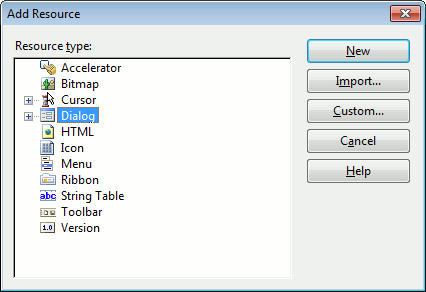
- In the "Add Resource" dialog:
- Select Dialog.
- Click the New button.
- In "Properties" Misc branch, set the dialog ID as "IDD_MY_DIALOG".
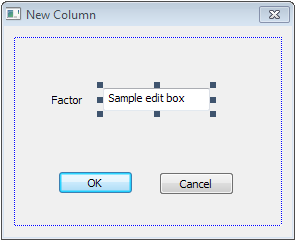
- In the dialog editor, add a Static Text control and an Edit Control to the dialog as below. Set the ID of the Edit Control as "IDC_EDIT1".
- Select "File > Save All".
- Select "Build > Rebuild Solution".
Creating a 64-Bit Resource-Only DLL
The above steps will create a 32-bit resource-only DLL. The following steps will show you how to create a 64-bit resource-only DLL by adding an x64 (64-bit) configuration to your Visual Studio project.
- Select "View > Property Pages".
- Click the "Configuration Manager" button in the top right corner to open the "Configuration Manager" dialog.
- In the "Active solution platform" drop-down, select New to open the "New Solution Platform" dialog.
- Set Type to x64
- Click the OK button.
- Back in the "Configuration Manager" dialog, click the Close button.
- Set Platform to x64.
- Change "Target Name" from "$(ProjectName)" to "$(ProjectName)_64".
- Click the OK button.
Now you can switch between making a 32-bit (Win32) and a 64-bit (x64) DLL using the "Solutions Platform" setting in the toolbar.
Using a Resource-Only DLL in Origin C
The following steps show you how to access the DLL created above, using Origin C.
- Copy Welcome.dll (or Welcome_64.dll) and the resource.h to your Origin "User Files\OriginC" folder.
- Start Origin and open Code Builder.
- In Code Builder select "File > New" to create a new C file.
- Copy the Origin C code below and paste it at the end of your new C file.
- Select "Build > Build".
- In Code Builder's Command & Results window type "DoMyDialog" and press Enter.
- When the Welcome dialog appears enter a message into the edit control and click OK.
#include <Origin.h>
#include <Dialog.h>
#include "resource.h"

// the file name of resource DLL
#ifdef _OWIN64
#define STR_DLG_RESOURCE_DLL  "Welcome_64" // 64 bit DLL
#else //!_OWIN64
#define STR_DLG_RESOURCE_DLL  "Welcome" // 32 bit DLL
#endif// _OWIN64

class MyDialog : public Dialog
{
public:
	MyDialog() : Dialog(IDD_MY_DIALOG, STR_DLG_RESOURCE_DLL)
	{
	}

	int DoModal(HWND hParent = NULL)
	{
		InitMsgMap();
		int nRet = Dialog::DoModal(hParent);
		return nRet;
	}

protected:
	EVENTS_BEGIN
		ON_INIT(OnInitDialog)
		ON_OK(OnOK)
		ON_CANCEL(OnCancel)
	EVENTS_END

	BOOL OnInitDialog()
	{
		this->Text = "Welcome";
		m_editCtrl = GetItem(IDC_EDIT1);
		m_editCtrl.Text = "Enter a message here.";
		return TRUE;
	}

	BOOL OnOK()
	{
		MessageBox(GetSafeHwnd(), m_editCtrl.Text, this->Text);
		return TRUE;
	}

	BOOL OnCancel()
	{
		return TRUE;
	}

	Edit m_editCtrl;
};


bool DoMyDialog()
{
	MyDialog myDlg;
	myDlg.DoModal( GetWindow() );
	return true;
}