4.8.3.5 The (Worksheet Properties) View tab
The Worksheet Properties View tab controls hiding or showing worksheet elements: row and column headers, grid lines, etc.
View
| Show Row Labels
|
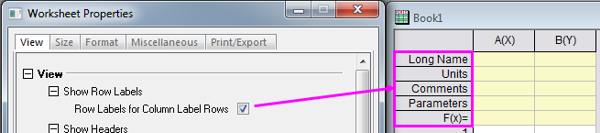
|
| Show Headers
|
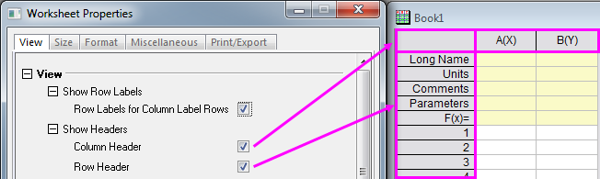
|
| Show Grid Lines
|
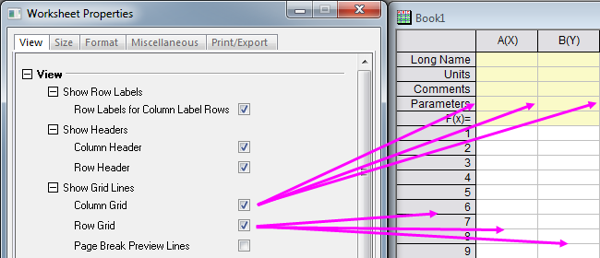
The Page Break Preview Lines check box turns on a solid blue line to indicate the print area, and a dashed blue line to indicate vertical and horizontal page breaks. Similar to what one sees with Print Preview, but without repeat of header information.
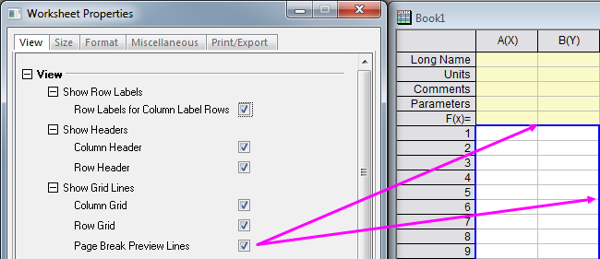
|
| Edit Column Label Rows...
|
Modify the appearance of the column label rows by clicking the Edit Column Label Rows button to open the Column Label Rows dialog box.
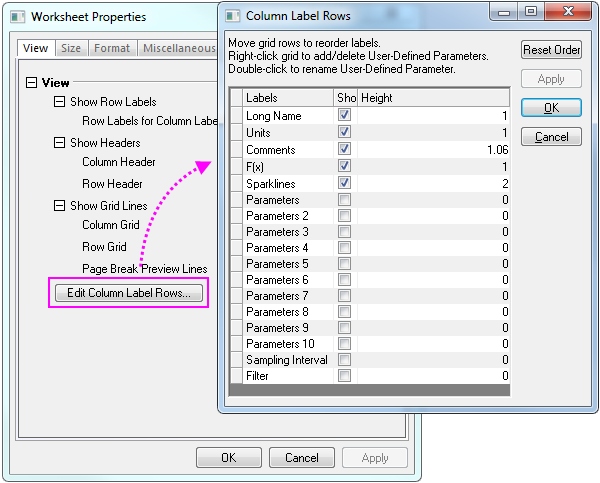
In the Column Label Rows dialog box, add, delete and reorder column label rows. Control the display of the column label rows and specify their heights.
- To add a custom column label row, right-click on the list and select Add User-Defined Parameter from the short-cut menu. Scroll to the bottom of the list and edit column label row name (by default, it is "UserDefinedn").
- To delete a column label row, right-click on it and select Delete from the short-cut menu. You cannot delete any built-in column label rows - only user-defined column label rows.
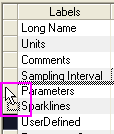
- To reorder the column label rows, drag the grid cells to the left side of the labels column to rearrange the label order in the worksheet header rows.
- To control the display of a column label row, use the Show column check box (select to display, clear to hide).
- Click inside the Height column to edit the height of the column label row. Height is relative to text height.
|