4.4.9.2 Unstacking Worksheet Columns
This function is used to unstack grouped data into multiple columns. During unstacking, the missing values can be placed in one group. Optionally, you can include columns that are not part of the group in the output.
To use this function:
- Create a new worksheet with input data.
- Select Restructure: Unstack Columns from the Origin menu to open the wunstackcol dialog box.
In fact, the wunstackcol X-Function is called to start this function.
Contents
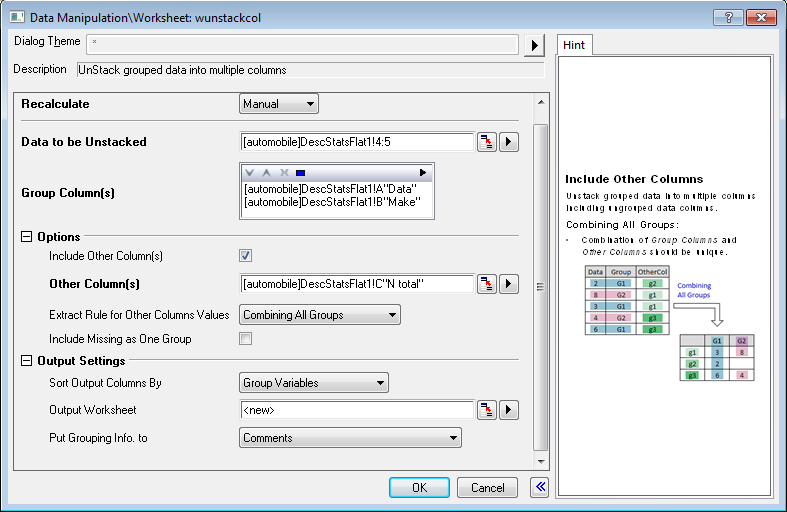
Dialog Controls
| Data to be Unstacked |
Specify the data to be unstacked. |
|---|---|
| Group Column(s) |
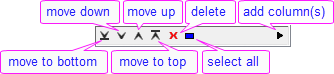
Specify column(s) containing grouping information by which Data to be Unstacked columns are unstacked. Multiple columns can be added into the Group Column(s) box by the Select button Note:Group columns are set as categorical if most of the column values are text. |
| Options |
Include Other Column(s)
Other Column(s)
Extract Rule for Other Columns Values
Include Missing as One Group
|
| Output |
Sort Output Columns By
Output Worksheet
Output to Data Table
Put Grouping Info. to
From Group Columns/Dataset Identifier
|

How to Unstack Columns
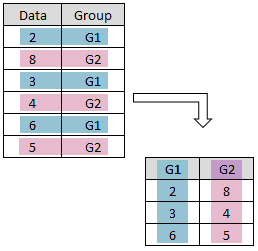
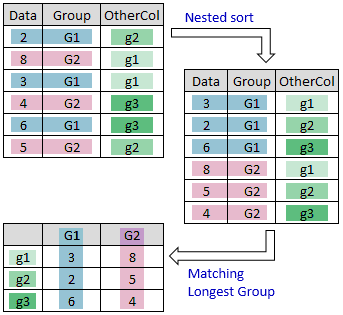
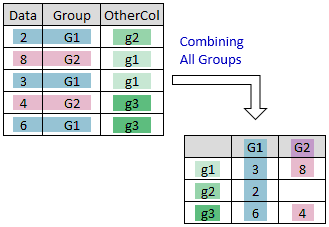
This function is the inverse operation of stack columns. During unstacking columns, it allows including other non-unstacked columns into the unstacked result.
- Unstack
- Unstack grouped data into multiple columns.
- Unstack and Include Other Columns
- Unstack grouped data into multiple columns including ungrouped data columns.
- Using the Matching Longest Group option
- Using the Combining All Groups option
- Using the Matching Longest Group option
- Unstack grouped data into multiple columns including ungrouped data columns.
Examples
Example 1: Basic Unstacking
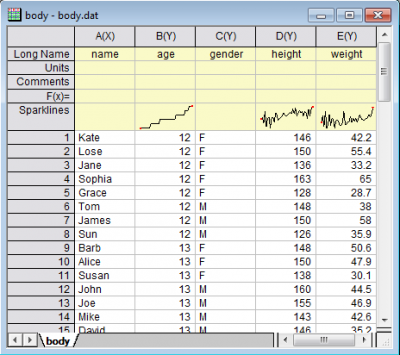
This example will unstack the grouped data (<Origin Program Directory>\Samples\Statistics\body.dat) into multiple columns.
- Import the file <Origin Program Directory>\Samples\Statistics\body.dat into a new workbook.
- Highlight column D, E, then select the menu Worksheet: Unstack Columns (or type
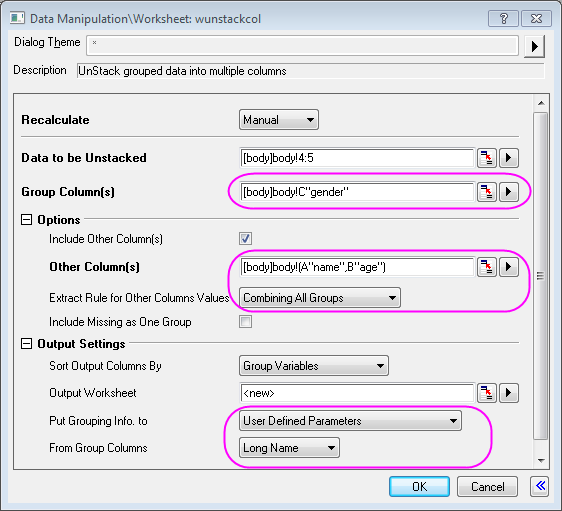
wunstackcol -d;in Command Window) to bring up the wunstackcol dialog. - Click the triangular button next to the Group Column(s) and choose C(Y): gender.
- In the Options tree, check the box next to the Include Other Column(s). Use the default range in the Other Column(s).
- Select Combining All Groups from the dropdown list of Extract Rule for Other Columns Values.
- In the Output Settings tree, select User Defined Parameters for Put Grouping Info. to, and then set From Group Columns as Long Name. Keep other settings as the default values.
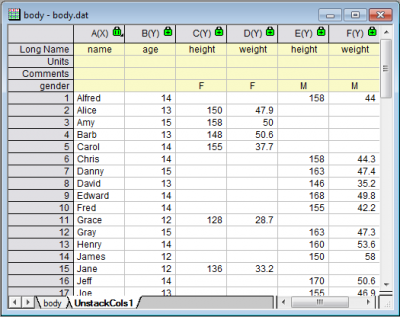
- Click the OK button to unstack columns. Results are shown below.
Example 2: Unstacking by Date or Time
This example groups data by keying on a single component of a complex date-time string.
- Start with a fresh workbook, choose Data: Import from File: Single ASCII and import <Origin Program Directory>\Samples\Import and Export\Custom Date and Time.dat.
- Click on the A(X) column heading to select the column, then right-click and choose Properties.
- On the Properties tab, set Format to Date, set Display to Custom Display and in the Custom Display combo box, enter the following and click OK.
dd.MM.yyyy HH:mm:ss.##
- What this does is to convert what Origin "sees" as a text string, to a date-time string that is treated internally as a numeric value that can be used for math operations, etc.
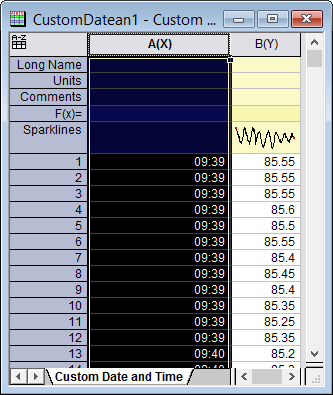
- Scroll the data sheet and note that the time portion of the string (HH:mm:ss.##) shows readings were taken at close intervals beginning at 09 hours. Suppose that we wanted to break B(Y) column data readings out into groups by hour and minute? The way to do this is to re-select column A(X), right-click and choose Properties and on the Properties tab, set Format to Time and select HH:mm for Display drop-down list.
Your worksheet should now look like this. - Highlight both columns in the worksheet and select Worksheet: Unstack Columns: Open Dialog.
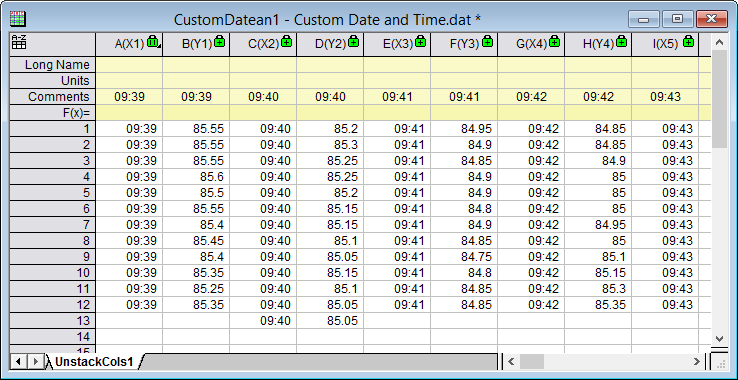
- Set Group Column(s) to A(X). Accept other defaults and click OK. Data are grouped by
HH:mmand grouping info is saved in the Comments label row of a new worksheet.
Example 3: Reorder Unstacked Columns
This example will unstack Power column of <Origin Program Directory>\Samples\Statistics\automobile.dat by Make, and reorder the output.
- Import the file <Origin Program Directory>\Samples\Statistics\automobile.dat into a new workbook.
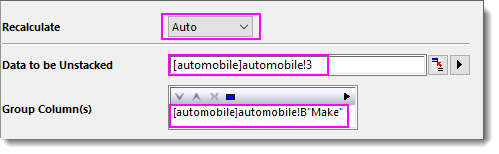
- Highlight column C, then select the menu Worksheet: Unstack Columns to bring up the wunstackcol dialog.
- Click the triangular button next to the Group Column(s) and choose B(Y): Make.
- Change Recalculate to Auto and accept the default settings.
- Click the OK button to unstack columns. Note that col(B) is set as categorical.
- Highlight all data in UnstackCols1 sheet and select from menu Plot> Multi-Panel/Axis: Multiple Panels by Label....
- Set Group by as Comments. Click OK to plot a multi-panel graph. Note that the panel order follows the column order in the UnstackCol1 sheet.
- If you want to adjust the panel order, e.g. the alphabetical order of the Makers, the best way is to adjust the categorical order in the source worksheet. Go back to the automobile sheet. Double click the header cell in the Categories row of col(B).
- In the Categories dialog, check Customize Categories(Add, Delete, Set Aribitrary Order). Click Category header in the table to sort it alphabetically. Click OK.
Both column order in UnstackCols1 and panels in the graph get updated.