4.4.9.1 Stacking Worksheet Columns
Contents
Stacking Columns by Column Label
The Stacking Worksheet Columns tool is for converting data from the raw mode into index mode. In the original dataset, samples belong to different groups is stored in different columns. After stacking, they will be in different rows in the same column, with an additional column in the worksheet providing the group information (the group from which the original sample is from).
To use this function:
- Create a new worksheet with input data.
- Highlight the selected data.
- Select Restructure: Stack Columns from the Origin menu to open the wstackcol dialog box.
In fact, the wstackcol X-Function is called to start this function.
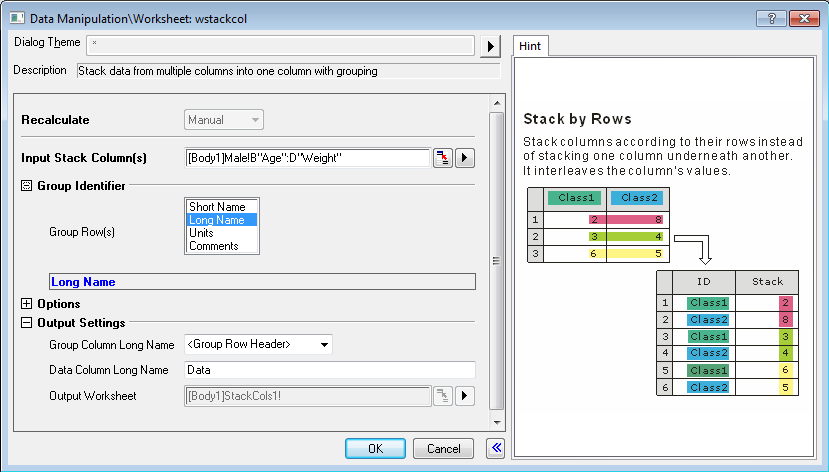
Dialog Controls
| Recalculate |
Specify how to recalculate the results. See details in Recalculating Analysis Results. |
|---|---|
| Input Stack Column(s) |
Specify the columns, from which the source data is. There should be at least two columns. |
| Group Identifier |
|
| Options |
The stacking options.
|
| Output Settings |
|
How to Stack Columns
This function can stack columns, stack columns by row. It also allow including other columns and specifying the number of subgroups. So, combined with each other, there are several ways of stacking columns as following.
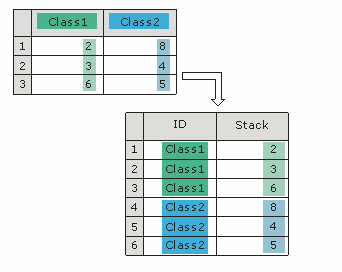
- Stack
- Stack values from several columns into several rows in a group.
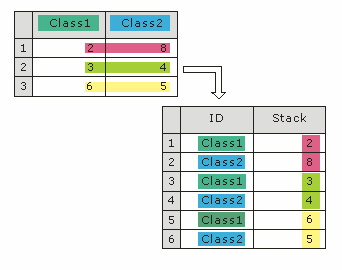
- Stack by Row
- Stack columns according to their rows instead of stacking one column underneath another. It interleaves the column's values.
- Stack and Include Other Column(s)
- This kind of stacking will Include Other Column(s) from the original worksheet plus the newly stacked columns in new worksheet.
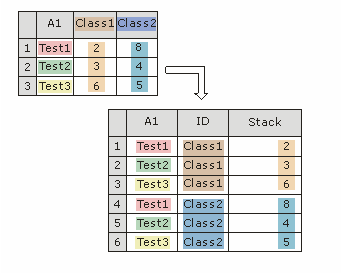
- Stack by Row and Include Other Column(s)
- Stack columns according to the rows and include non-stack columns from the original worksheet.
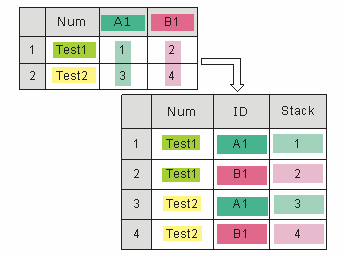
- Stack into Subgroups
- Stack multiple columns into two or more groups.
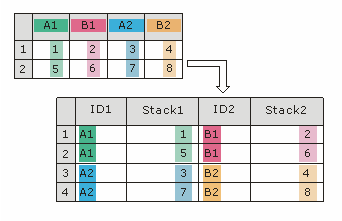
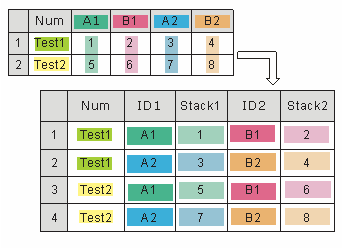
- Stack by Rows and Stack into Subgroups
- Stack multiple columns into two or more groups according to their rows.
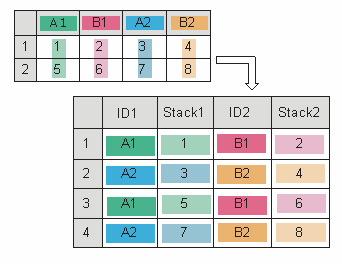
- Stack into Subgroups and Include Other Column(s)
- Stack multiple columns into two or more groups and include non-stack columns from the original worksheet.
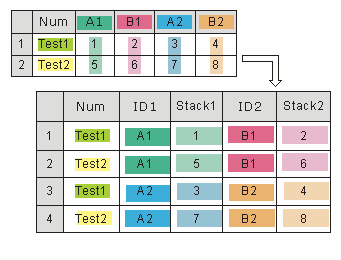
- Stack by Rows, Stack into Subgroups and Include Other Column(s)
- Stack multiple columns into two or more groups according to their rows and include non-stack columns from the original worksheet.
Example
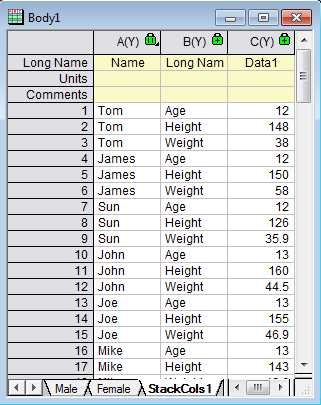
The following example will stack columns in a sample data file so that it is displayed in another form.
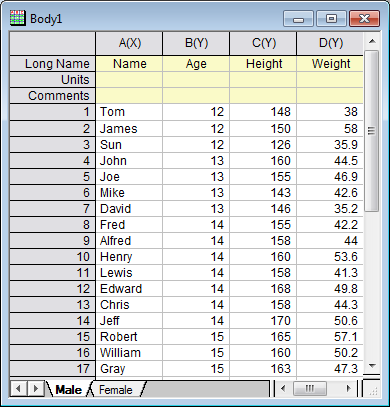
- Open the file \Samples\Statistics\Body.ogw.
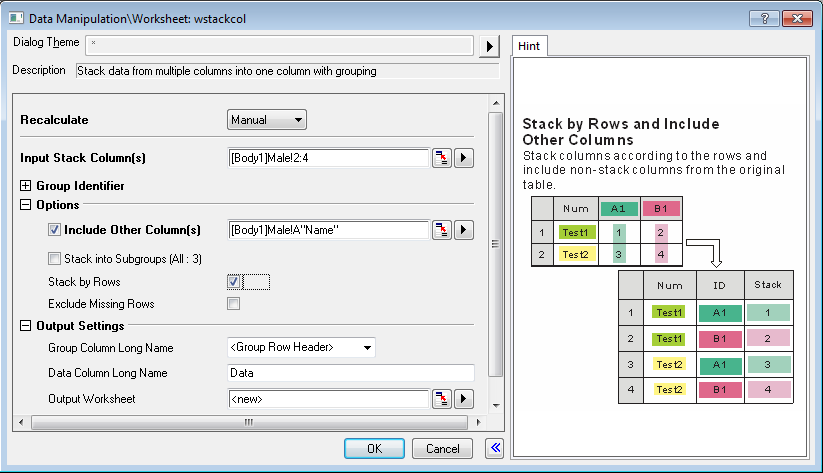
- Highlight column B, C and D in the Male worksheet and then select Worksheet: Stack Columns from the Origin menu to bring up the wstackcol dialog.
- Select Include Other Column(s) check-box and Stack by Rows check-box, other settings keep the default values.
- Click OK to execute. You will get the following result:
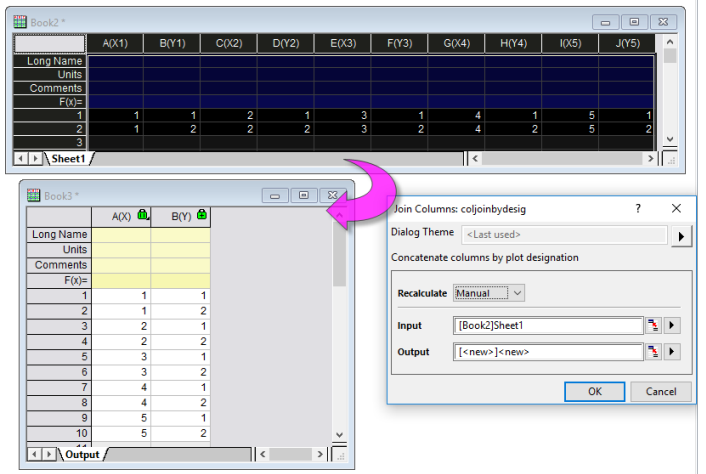
Stacking Columns by Column Designation
We can also stack worksheet columns by Column (Plot) Designation. The coljoinbydesig X-Function dialog is not available from the menu but it it can be opened in the user-interface:
- Click on the Window menu and open the Script Window or Command Window.
- At the prompt, copy and paste (or type) the following and press Enter:
coljoinbydesig -d
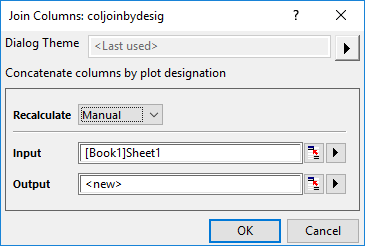
Use of the dialog controls is straightforward:
- Input is the worksheet data that you wish to stack by column designation.
- Output is where you wish to output the stacked data (new sheet, new book, etc.).