4.4.8 Sorting Worksheet Data
Wks-Sort-Data
You can sort individual columns, multiple columns, a range of worksheet data, or an entire worksheet. Origin offers simple sorting as well as nested sorting:
Simple Sorting
In simple sorting, the specified data is sorted using one "sort by" column and a selected sort order.
To perform a simple sort of the selected data:
- If you have highlighted one column, or a range from one column, select the menu Worksheet: Sort Columns: Ascending\Descending to sorts only the selected data.
- If you have highlighted a range of worksheet columns, or a range of values in multiple columns, select the menu Worksheet: Sort Columns: Each Column Ascending\Descending to sorts only the selected column individually.
- Notes: If you select Ascending or Descending sub-menu, Origin sorts only the selected data based on the leftmost selected data set and the chosen sort order.
- If the selected column or the left-most selected column, is Set As Categorical, you can sort by category order. If Sort = Ascending or Descending, column(s) will be sorted in that order; if Unsorted, the column will be sorted in the order in which categories first appear in the column (e.g. BBACB will be sorted as BAC).
Note that if you highlight a range of rows, and not the entire column(s), the sort menu command which is enabled will be Worksheet: Sort Range.
To perform a simple sort on the entire worksheet:
- Select Worksheet: Sort Worksheet.
- Specify Ascending or Descending.
- If the left-most column is text or numeric data, the entire worksheet is sorted on the leftmost selected column.
- If the left-most column is Set As Categorical, you can sort by category order. If Sort = Ascending or Descending, column(s) will be sorted in that order; if Unsorted, the column will be sorted in the order in which categories first appear in the column (e.g. BBACB will be sorted as BAC).
 | With the exception of Text/CSV and Excel, data imported using a Data Connector are, by default, locked to editing. To unlock, click on the Connector icon  and choose Unlock Imported Data. and choose Unlock Imported Data.
|
Nested Sorting
To perform a nested sort on the selected data:
- Select Worksheet: Sort Columns: Custom.
or
- Click the Sort button
 on the Worksheet Data toolbar.
To perform a nested sort on the entire worksheet:
- Select the entire worksheet and select Worksheet:Sort worksheet:Custom
or
- Select the entire worksheet and click the Sort button on the Worksheet Data toolbar.
The Nested Sort Dialog Box
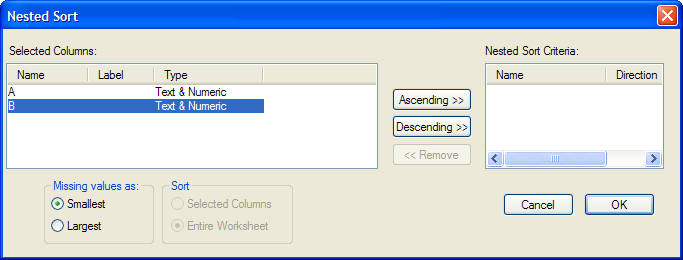
Select the column for the primary sort from the Selected Columns list box and click the Ascending or Descending button. Then select the column for the secondary sort from the Selected Columns list box and click the Ascending or Descending button. Select additional columns as needed.
After clicking OK, Origin sorts the selected data so that the primary column is in ascending or descending order, as specified. If there are multiple rows with the same value in the primary column, the values in the corresponding rows of the secondary column, and the sort order chosen for the secondary column, are used to determine the ordering. This nesting process is continued down to the last column in the Nested Sort Criteria list box.
Custom Sorting of Categorical Data
The Nested Sort dialog can also be used for Custom sorting of the worksheet on categorical data columns.
- With the worksheet active, click Worksheet: Sort Worksheet: Custom.
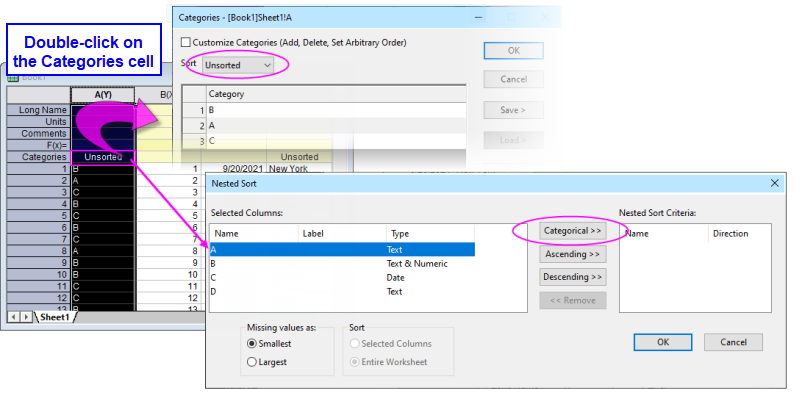
- In the left panel, under Selected Columns, highlight a column which has been Set As Categorical. A Categorical button is added to the center panel.
- Click the Categorical button to add the highlighted categorical column to Nested Sort Criteria:
- The Categorical column will be sorted by the method shown in the worksheet label row Categories cell.
- If the category is Unsorted, the column will be sorted in the order in which categories first appear in the worksheet column (hint: double-click on the worksheet label row cell to open the Categories dialog to view or change sort order).
- You can perform a nested sort on multiple categorical columns with sorting precedence determined by order of columns in the right panel.