- Select Edit: Find in Sheet...
- Press Ctrl + F key
- Click the Find button
 in the Mini toolbar for worksheet
 button in Simple Find dialog to open the Find and Replace dialog with the Find tab active.
Finding and replacing worksheet data can be done with the Find and Replace tool.
in the Mini toolbar for worksheet button in Simple Find dialog to open the Find and Replace dialog with the Find tab active.
This tool works with both numeric and string data.
 | You can also use the wreplace X-Function to replace numeric or string characters in worksheets. |
Use this dialog search numeric or string data in a worksheet.
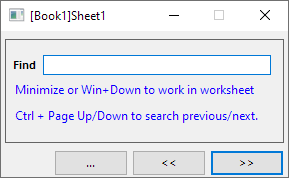
 or
or  , you can press Ctrl + Page Up/Down key to search previous/next in the selected range.
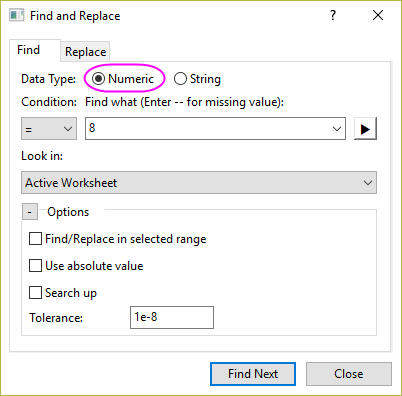
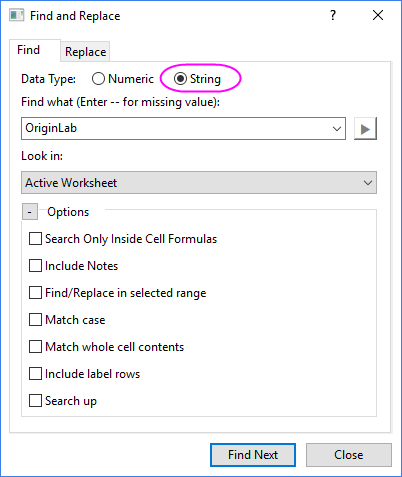
Use the Find tab to search numeric or string data in worksheet(s).
|
|
| Data Type |
Specify the type of the data to be searched.
|
|---|---|
| Condition |
This is only available when Data Type is Numeric. With it, you can specify the operator used to build the condition. For example, if you choose > with the Condition drop-down list and enter 3 in the Find What edit box, the tool will search for data values that are greater than 3.
|
| Find what |
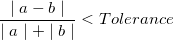
Specify the value to be found. When the Numeric radio button is selected in the Data Type group, click the Right Triangle button
When the String radio button is selected in the Data Type group, the following wildcards can be used for searching:
Note that when wildcards "?" or "*" is used in the Find What string, the search must match the whole cell contents (no matter Match whole cell contents is checked or not). |
| Look in |
Specify where to look for the Find What value. It is available only when Find/Replace in selected range is unchecked in the Options group.
|
| Options |
|
| Find Next |
Find the next occurrence of the value that meets the search condition. |
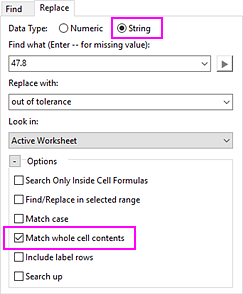
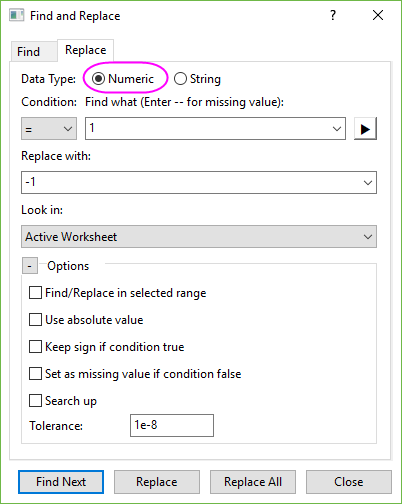
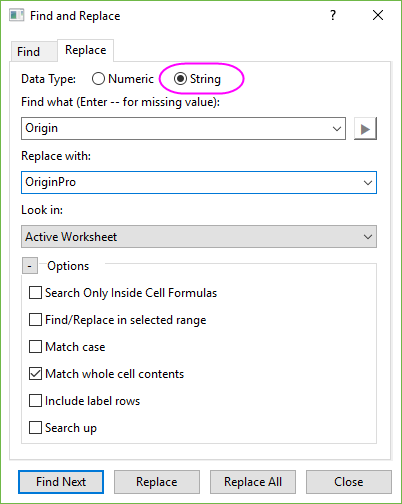
Use the Replace tab to replace a numeric or string value with another value.
| To replace a numeric with a string, select String and check the Match whole cell contents box. |
|
|
| Data Type |
Specify the type of the data to be replaced.
|
|---|---|
| Condition |
This is only available when Data Type is Numeric. With it, you can specify the operator used to build the condition. For example, if you choose > with the Condition drop-down list and enter 3 in the Find What edit box, the tool will search for data values that are greater than 3.
|
| Find what |
Specify the value to be replaced. When the Numeric radio button is selected in the Data Type group, click the Right Triangle button
When the String radio button is selected in the Data Type group, the following wildcards can be used for searching:
Note that when wildcards "?" or "*" is used in the Find What string, the search must match the whole cell contents (no matter Match whole cell contents is checked or not). |
| Replace with |
Specify the new value used to replace the found values. |
| Look in |
Specify where to look for the value to be replaced. It is available only when Find/Replace in selected range is unchecked in the Options group.
|
| Options |
|
| Find Next |
Find the next occurrence of the Find What value. |
| Replace |
Replace the current found value. |
| Replace All |
Replace all occurrences of the Find What value. |