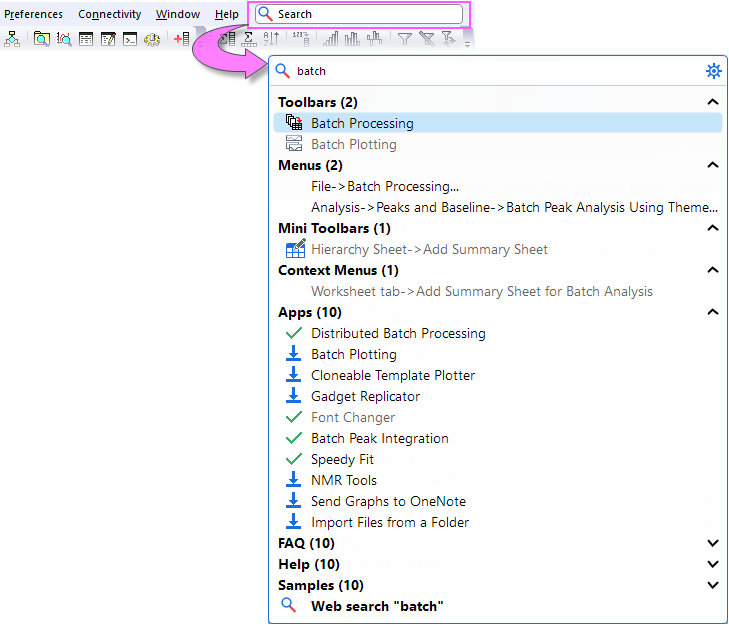
There is a search box with magnifying-glass icon at last of main menu.
When you first click the box, the search tool will index with progress bar scrolling. Once the indexing is finished, you can enter the keyword(s) to search available resources. Press the F1 button on your keyboard will also expand the search panel. If you don't need use this search tool and want to hide it, you can set the system variable "@DSNB=1" to hide it.
Then all Origin resources related to the keyword(s) will be listed in these categories:
All these categories will be shown as collapsible sections with number of items displayed. If no result is found under the categories, the sections will be hidden.
For Toolbars, Menus and Apps listed in the result panel, unavailable ones for current activated windows will show as grey and are not able to be called out. Hover your mouse over it and a red marker will appear in the tooltip letting you know which window is required for this result.
For the listed Apps and Templates, the marks ahead of the apps show the situation of the apps: 1) Download icon for available to download; 2) Hook icon for already been installed.
Without entering any keyword, only Useful New Tools are listed in the panel. Click the Settings button beside the Search box to open the Settings dialog to customize the searching mechanism and the results display.
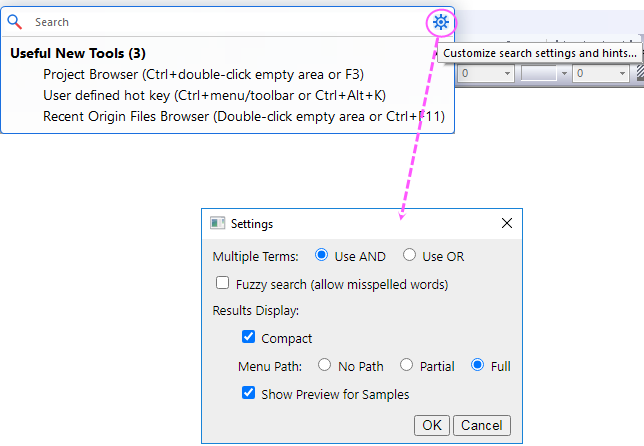
In this dialog, you can:
In the Start menu, Origin applies a search tool for Origin recent files.
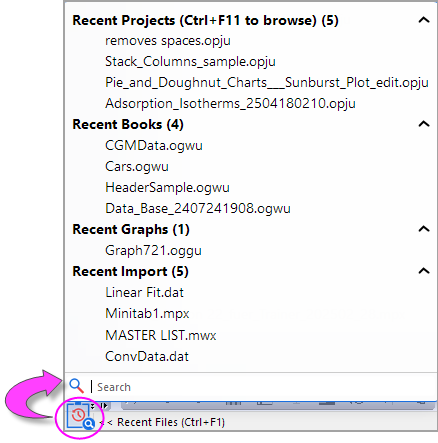
or
It contains 4 sections:
Also, type in the edit box, you can search the recent items.