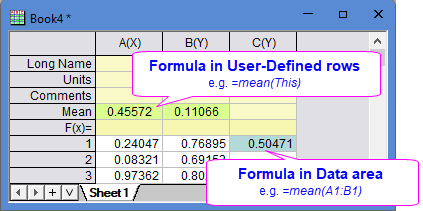
Origin supports cell formula in both data cells and user-defined column label cells in worksheet since Origin 2018.
 | To distinguish formula cells at first glance, select View: Highlight Formula/Linked Cells so that the cells will be highlighted with a different background color. |
Spreadsheet Cell Notation (SCN) must be enabled in the workbook so that user can refer column and cell with similar notation as Excel.
| Column | Cell | Range | Label Row |
|---|---|---|---|
|
|
|
|
|
|
The examples only show relative reference. Add $ before column or row part for absolute reference. See Extending Formulas Across Rows or Columns section below.
| Origin | Excel | Description |
|---|---|---|
| =B1 - C1 | =B1-C1 | Difference between B1 and C1. |
| =B - B0 | N/A | Difference between the current row of column B and last row of column B. |
| =B1-mean(B) | =B1-average(B:B) | Difference beween B1 and average of column B |
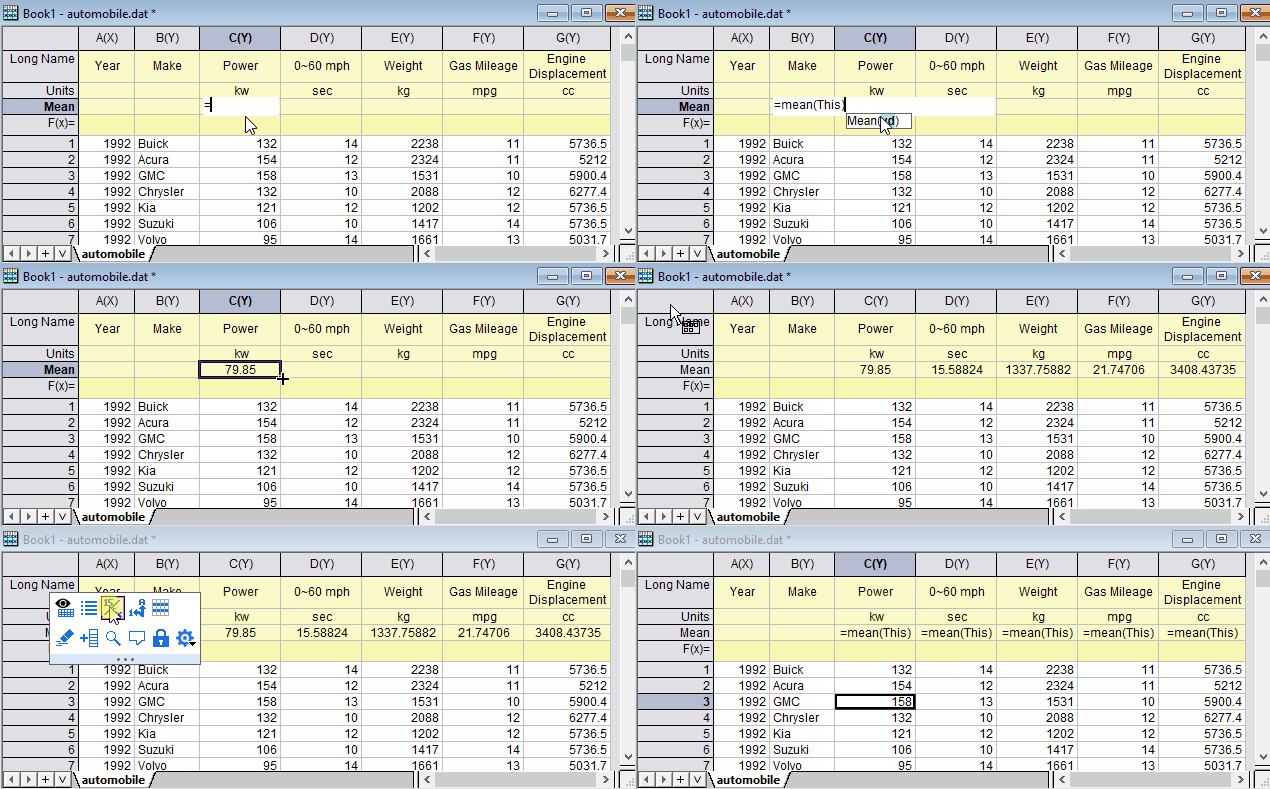
| =mean(This) | NA | Average of current column |
| =B1$ + C1$ | =B1 & C1 | Concatenate strings in B1 and C1. |
| =IF(A1<98.6, A1-98.6, NA()) | =IF(A1<98.6, A1-98.6, NA()) | if A1 <= 98.6, return A1-98.6, otherwise return a missing value (see LabTalk Utility Function, Na()). |
| =col(A)[D1]*A1 | N/A | The value of column A User-parameter 1 multiplied by value in column A, row 1 |
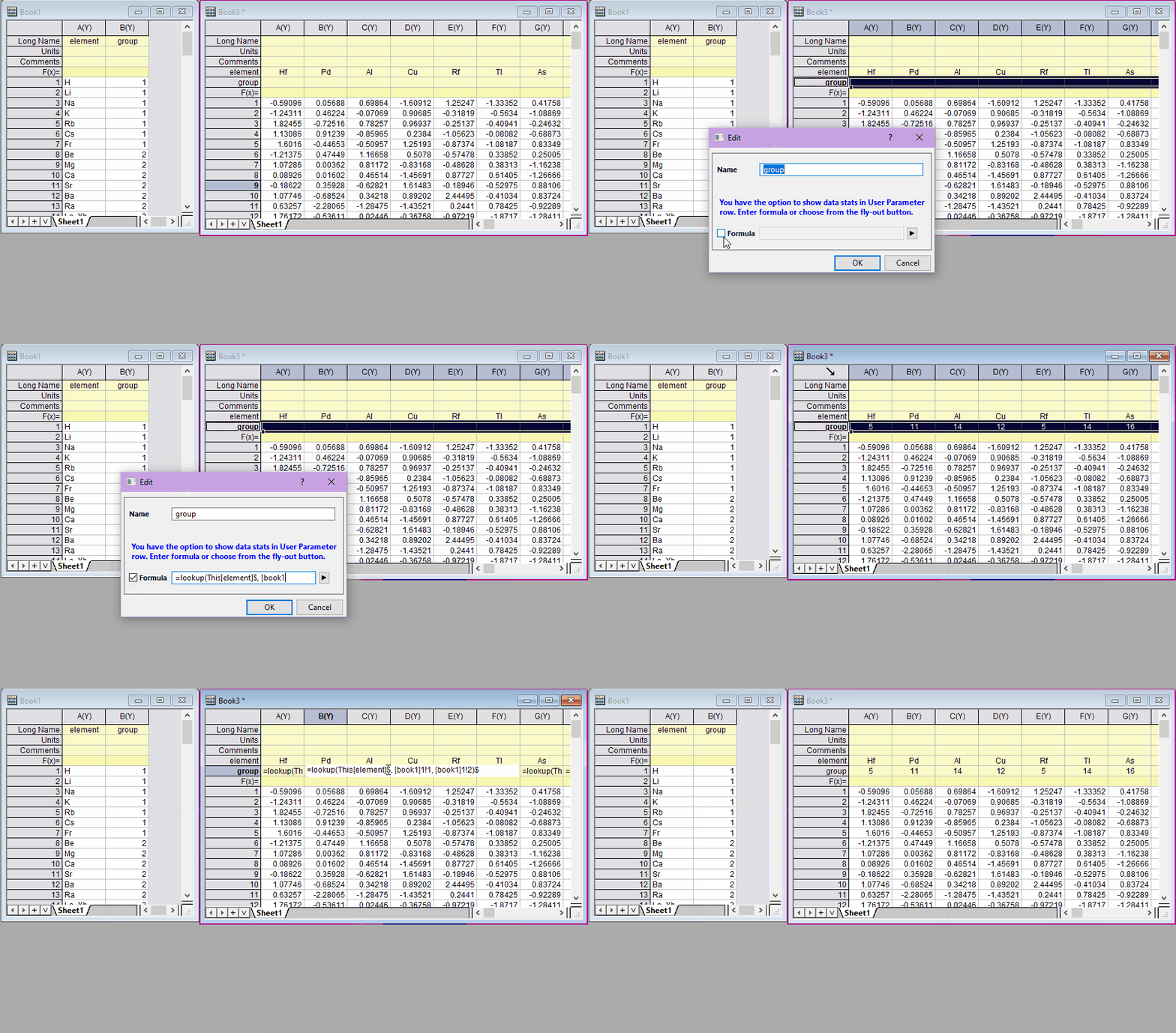
| =lookup(This[element]$, [book1]1!1, [book1]1!2)$ | N/A | Search the value of the element column label in a column and return the value of another column with the same index of the found element. (see the video under section User Parameter Row) |
| =page.v1*B1 | N/A | The value of system variable v1 (stored with page) multiplied by value in column B, row 1 |
| =A1-page.info.File1.Info.FileDate | N/A | A1 - minus the file date information of the imported file stored in page, suppose A1 is also a date |
| =date(A1, "dd.MM.yyyy HH:mm:ss.##") | -- † | Julian day value of A1 in specified date-time format. Note differences in Origin and Excel behavior. |
| =total(A[1:3]) | =SUM(A1:A3) | Sum of A1 to A3. |
| =Total(wcol(j-1)[1:3]) | N/A | Sum of row 1 to 3 in the immediate left of current column. |
| =total(Sheet2!A1:J10)+total(Sheet1!A1:J10) | =SUM(Sheet2!A1:J10)+SUM(Sheet1!A1:J10) | Sum of A1 to J10 on both sheet1 and sheet2 |
| =Sheet2!B1 - Sheet3!B1 | =Sheet2!B1 - Sheet3!B1 | Difference of B1 on two sheets |
| =[Book2]Sheet1!A1 - [Book3]Sheet1!A1 | =[Book2]Sheet1!A1 - [Book3]Sheet1!A1 | Difference between A1 on different books |
| =[Book2]Sheet1!col(A)[1] - [Book3]Sheet1!col(A)[1] | N/A | Difference between A1 on different books with the old col(name)[row] syntax |
| =[Book1]Sheet1!col(A)[1] + StartTime | N/A | Adds the named range "StartTime" value to A1 of sheet1 on Book1 |
| =text(mean(B1:B10),".2")+" ± "+text(stddev(B1:B10),".4") | =(TEXT(AVERAGE(B1:B10),"0.00") & " ± " & TEXT(STDEV(B1:B10),"0.0000")) | Calculate mean and standard deviation of a range, then round to specified number of decimal places and convert to text. Concatenate, inserting string " ± " (e.g. 0.56 ± 0.2740). |
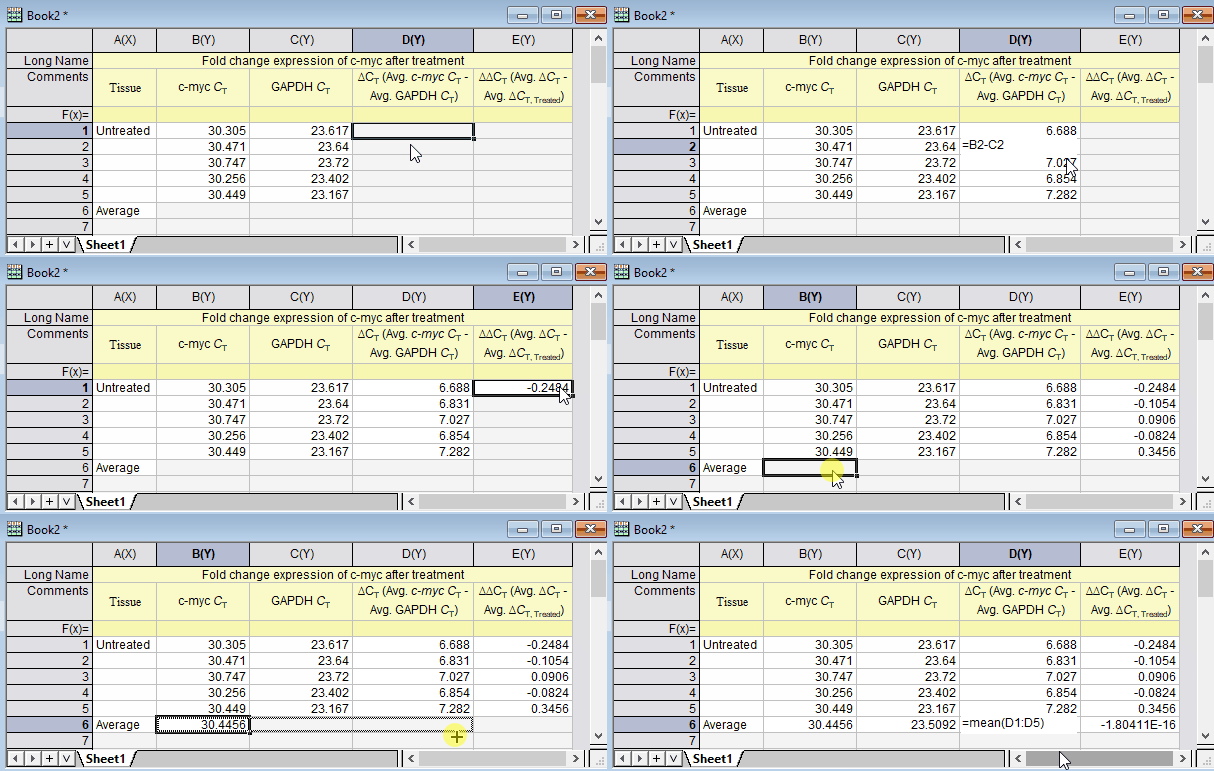
Select the cell with formula and mouse over the lower right corner of it, when the cursor becomes a +, drag it to extend down, across or diagonally
Column and row reference in formula extends in relative fashion:
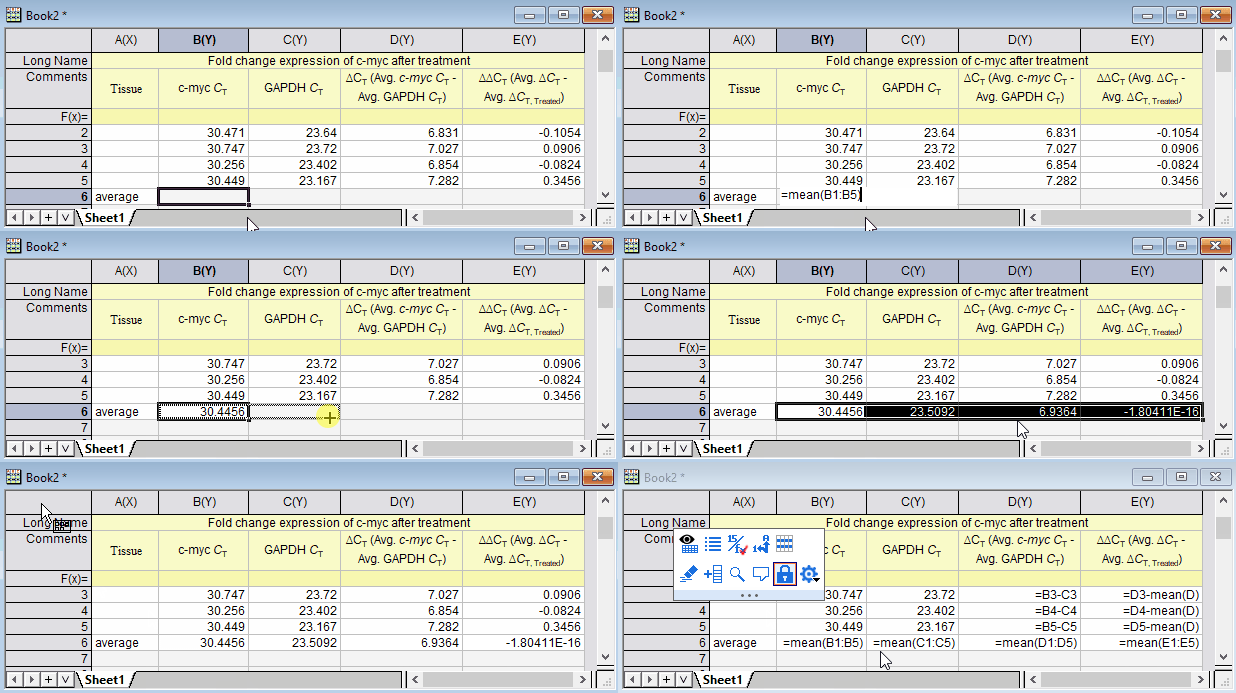
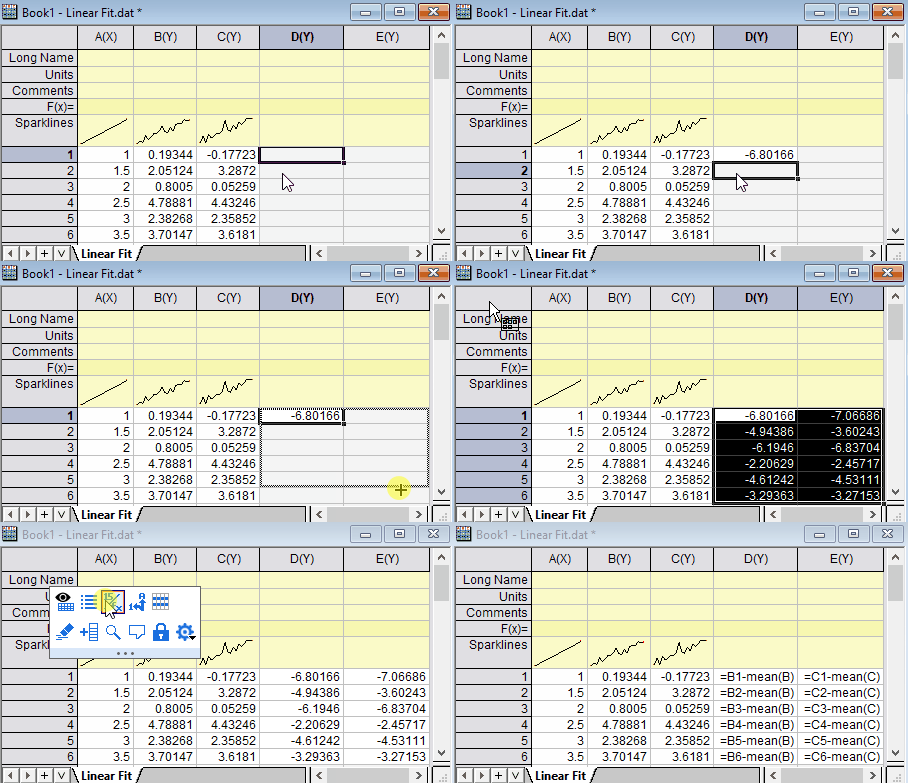
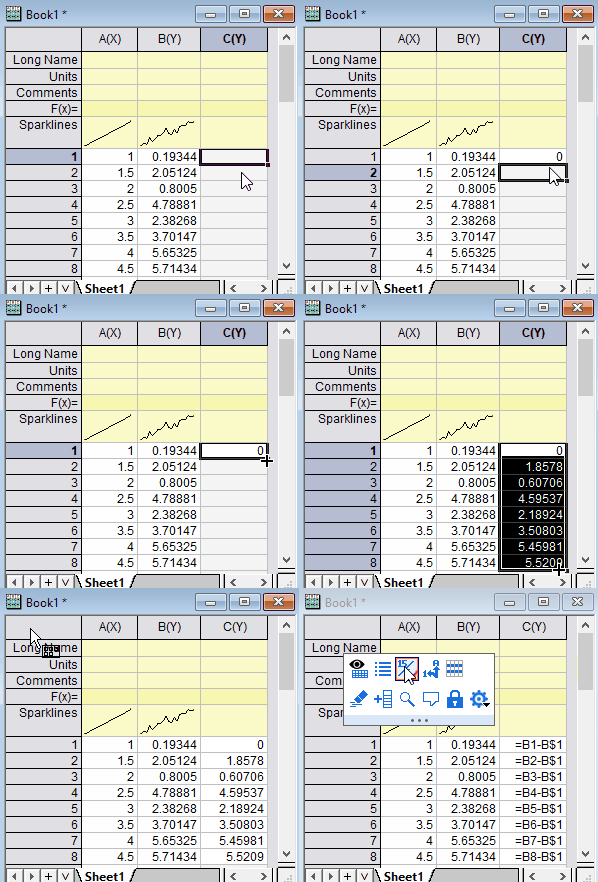
Place $ before the part to make absolute reference. E.g. to fix the row part, add $ before row part e.g. B$1. To fix both the column and cell, place a $ character before both the column and row parts, e.g. $B$1.
Double click the + is also supported. For data area, it will auto fill to bottom of the column. For label area, it will auto fill to the end of the row.
For row references in square brackets, e.g. sum(A)[1] or A[1], press Ctrl key when dragging to keep relative reference
Origin doesn't support relative sheet reference when extending formula. E.g. how to put B1 cell of all Sensor sheets to a new sheet? User may enter =Sensor01!B$1 or =1!B$1 and then expect to drag the formula to get =Sensor02!B$1, =Sensor03!B$1, ..., or =2!B$1, =3!B$1, ....
Workarounds:
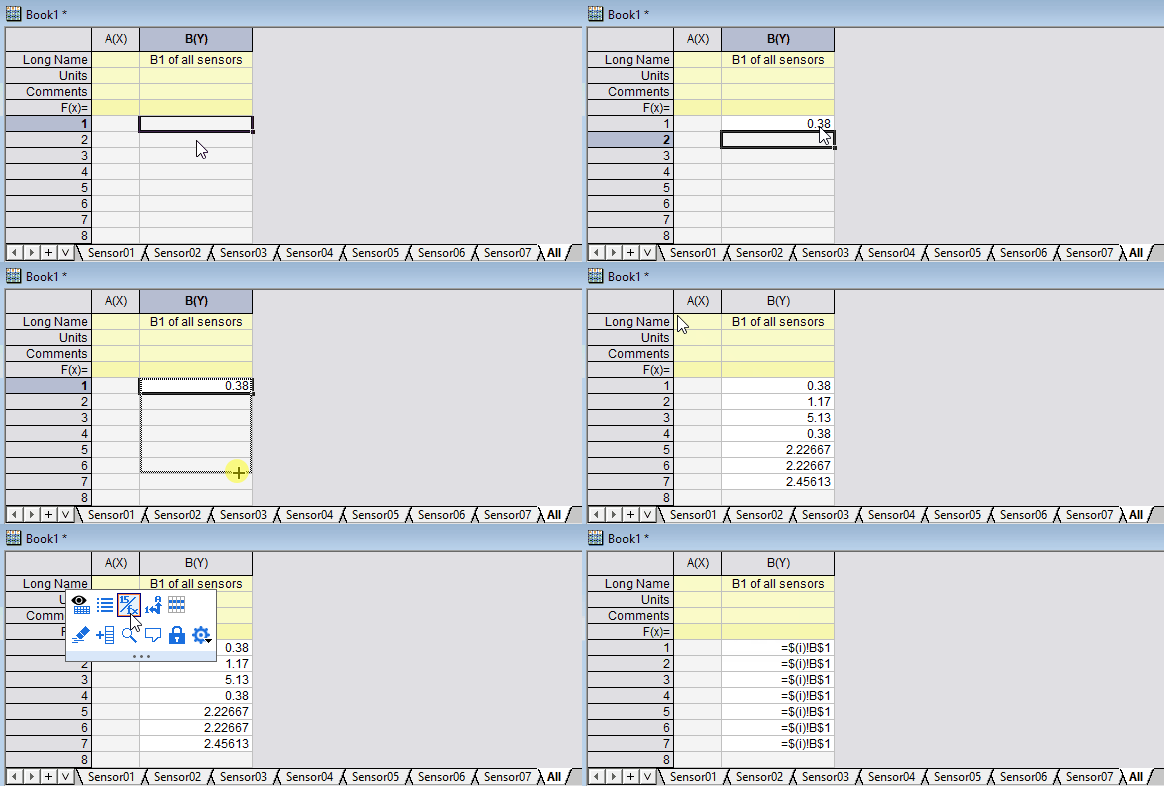
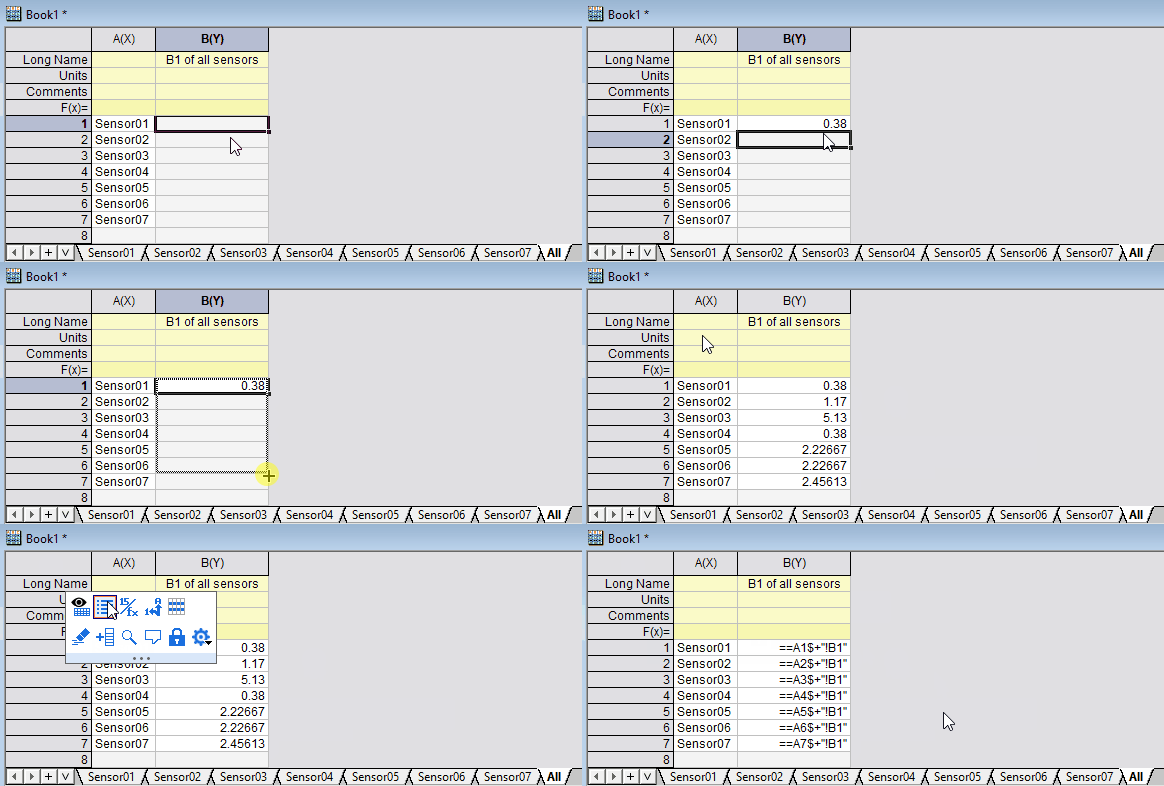
== syntax also works to concatenate book, sheet, column and row part to form a complete cell reference.
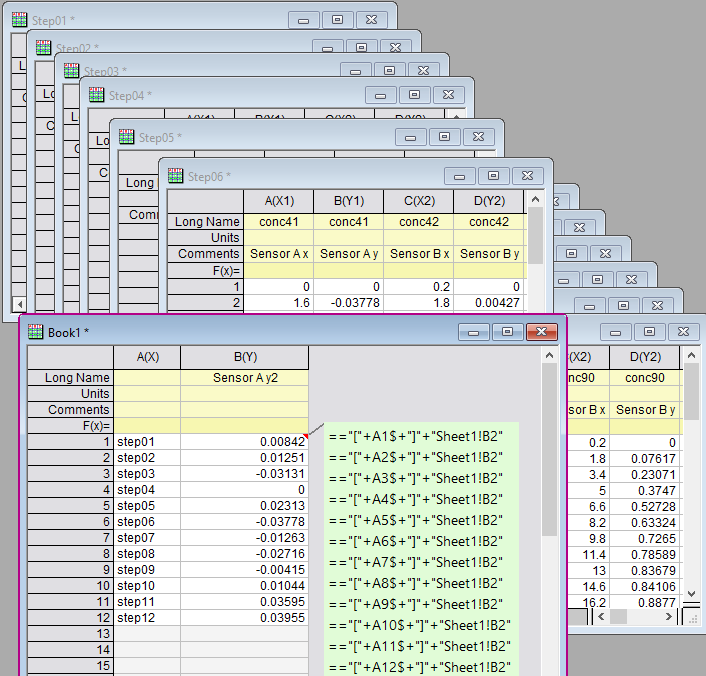
In the following example Book short names are put to column A and how to use cell formula to fill column B with B2 values in each book.
In B1 cell, put =="["+A1$+"]"+"Sheet1!B2". Drag the bottom-right corner of B1 cell and drag down to 12th row so B2 in 12 books are filled.
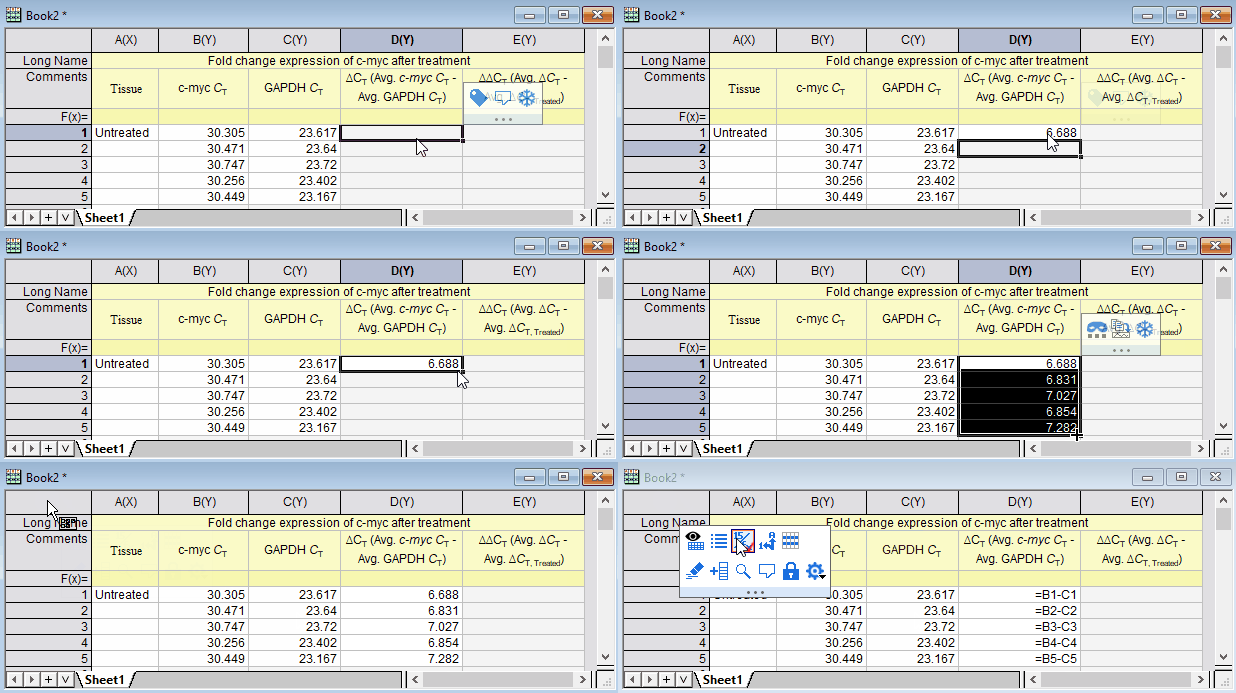
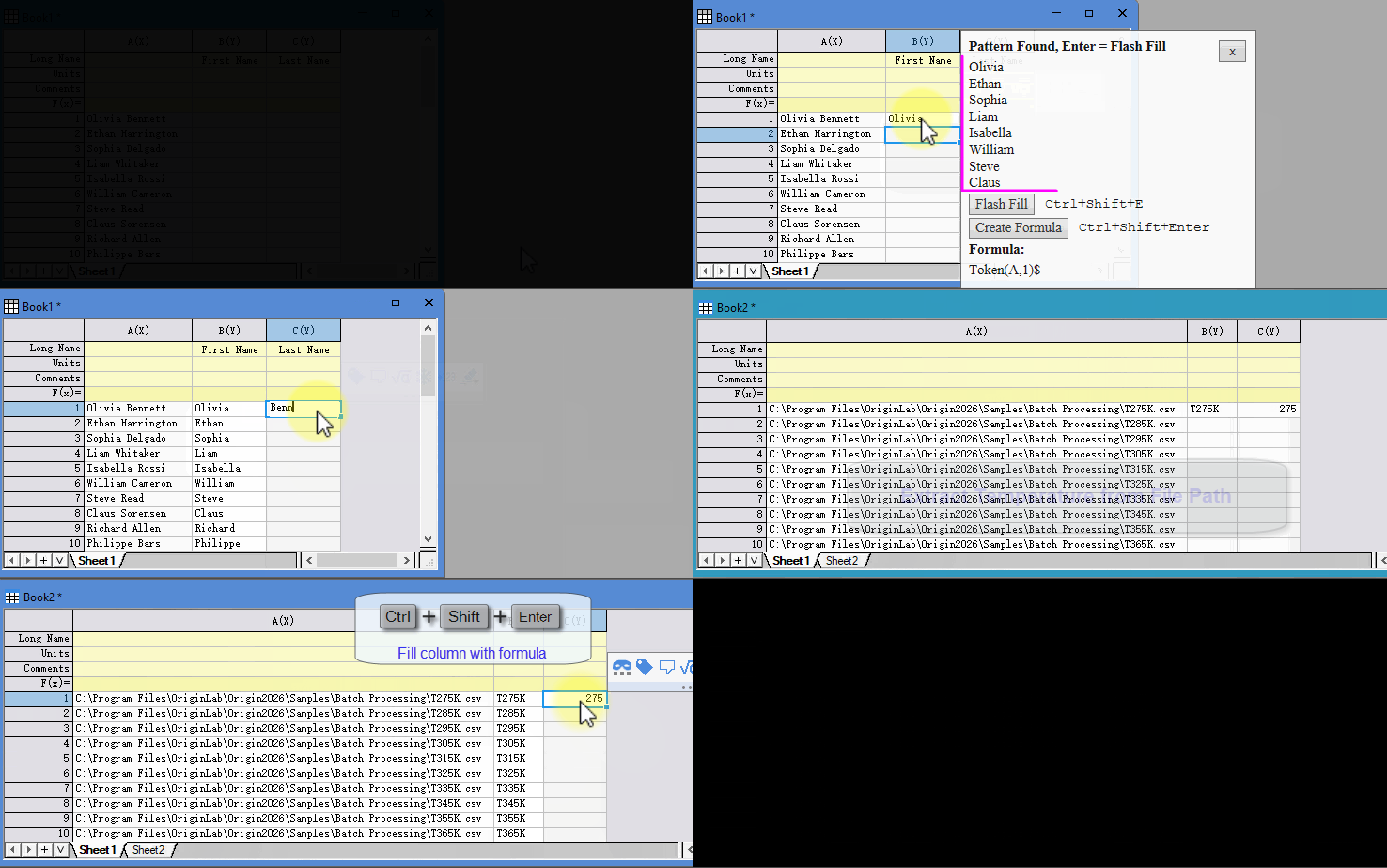
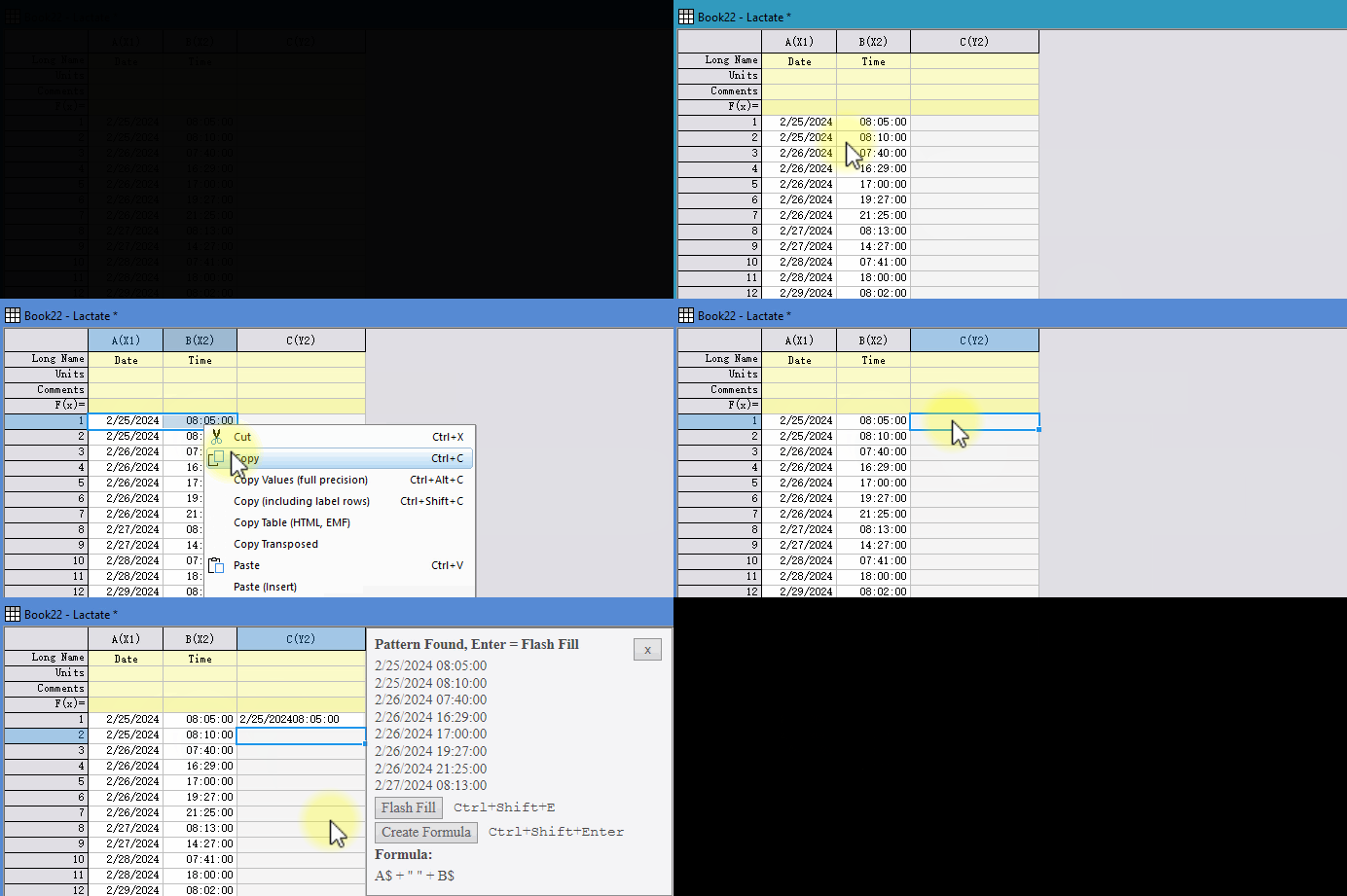
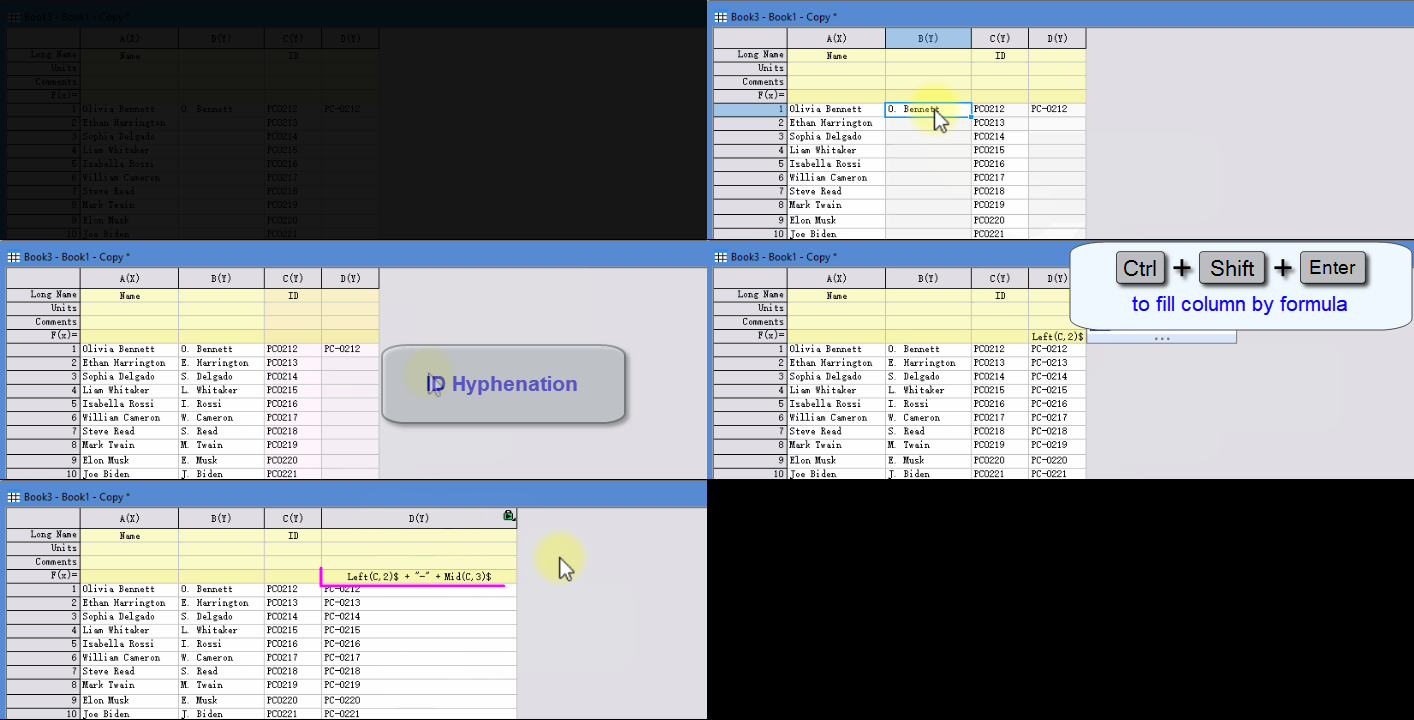
If the column(s) to the left shows a clear pattern, and you type in the expected result in the first cell of the target column, Origin will auto-detect the pattern, guess how you want to extract, combine, or reconstruct the string and number, and suggest the possible functions and formula in a pop-up preview. You can then populate the column with:
With "Flash Fill", you can:
For example, you can split first name and last name from one column, or extract desired string from file path.
|
Note: Make sure [Short Name Restriction] is on to use flash fill. |
Here are some known issues when using cell formula
The View: Formula Bar introduced in Origin 2021 is an Excel-like bar allowing you to enter or view formula or on cell or column formula/expressions. While it is not necessary to use the Formula Bar to enter cell expressions, it does offer the advantages
 button to open the Search and Insert Functions dialog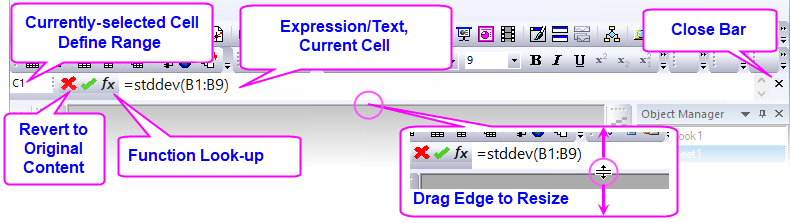
Note: Change the font size by changing the value of system variable @FBFS (default is "130").
Beginning with Origin 2019, you can right-click on the column label row headings, Add User Parameters and name and define a formula for the entire row. This is handy for calculating key statistics (e.g. mean, std. deviation) for each column of numbers in a worksheet.
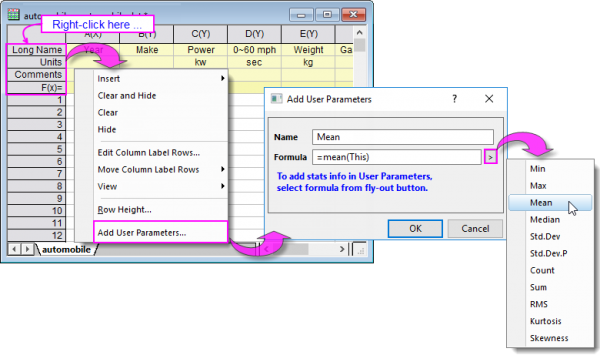
The column formula uses the placeholder "This" as a wildcard reference to each column in the worksheet (see next section).
Once a row formula has been created, you can edit the Name and Formula by right-clicking on your User Parameter row heading and choosing Edit from the shortcut menu. You can edit cell formulas individually by double-clicking directly into a User Parameter row cell.
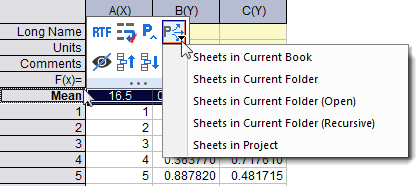
| You can copy a formula-defined user-parameter row to multiple worksheets by Apply User Parameters to mini toolbar button |
Enable or disable worksheet cell formula. 1 - enable, 0 - disable
Controls use of Excel-style multi-cell references incorporating the colon character ":", in worksheet cell formulas (e.g. "=total(A1:A10)" or "=total(A1:C1)"
1 - enable, 0 - disable
Note: Origin-style references such as "=total(A[1:10]) are not affected. However, there is no multi-column support with this notation. For multi-column range specification you must use Excel-style notation (e.g. "=total(A1:D10)").
Controls autocomplete support in column formulas (Set Values) and cell formulas
0 - disable for both, 1 - enable for cell formula, 2 - enable for column formula, 3 - enable for both