Origin supports Time Series Pivot tool to create a pivot table to visualize data summarization (of statistics) based on a date-time column
To open this tool, with a workbook window activated,
Or
wtspivot -d; in Script Window or Command Window.This tool utilizes the Wtspivot X-Function.
Specify the Recalculate Mode.
| Source Time | Select one column with date/time dataset |
|---|---|
| Source Data | Select the dataset(s) will be aggregated in the result sheet. |
| Aggregation Interval | Specify the aggregation interval of time in the rows of the pivot table. This time interval is shown in first column of the pivot table.
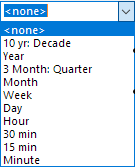
You can select this options in this drop-down list: |
|---|---|
| Time Period | Specify the time group of the aggregation interval.
According to the selected Aggregation Interval, you can select the corresponding time period.
|
| Remove Empty | Check this check box to remove the empty rows. |
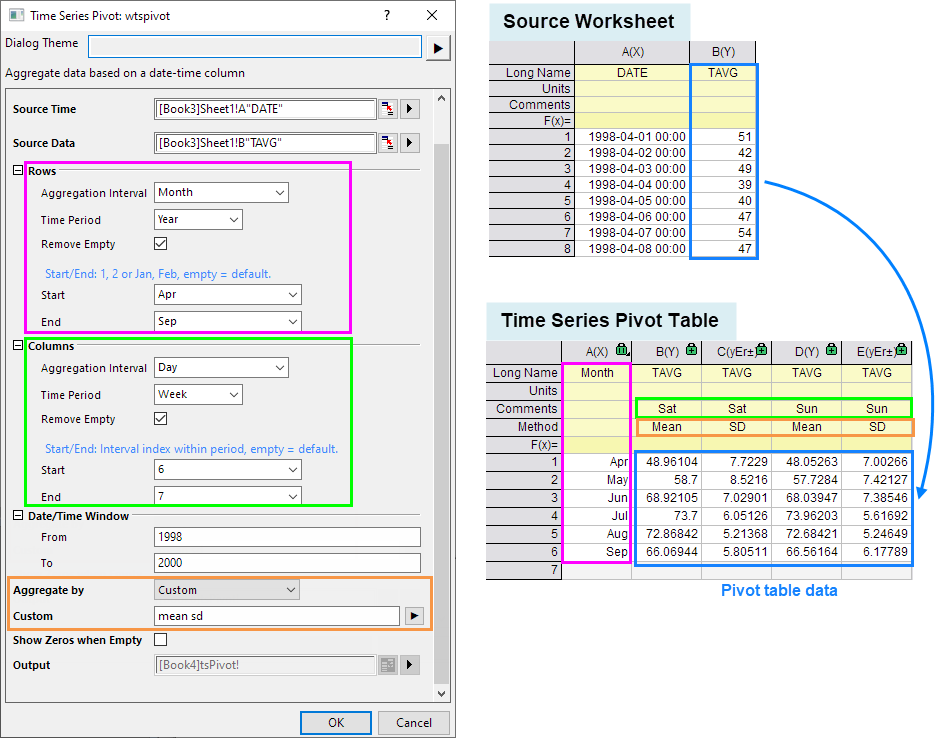
| Start / End | Enter the start or end time of the rows of the pivot table. The time format of the Start and End is based on the selected Aggregation Interval. You can refer to the blue hint showing above this edit box. If keeps the edit box empty, the start or end time is default time of the table.
|
| Custom Format | Custom the time format showing in the first column except some combinations of Aggregation Interval and Time Period.
For example: when Aggregation Interval=Month and Time Period=Year, this the format can not be customized. |
| Aggregation Interval | Specify the aggregation interval of time in the columns of the pivot table. This time interval is shown in Comment label row of the pivot table.
You can select this options in this drop-down list: |
|---|---|
| Time Period | Specify the time group of the aggregation interval.
According to the selected Aggregation Interval, you can select the corresponding time period.
|
| Remove Empty | Check this check box to remove the empty columns. |
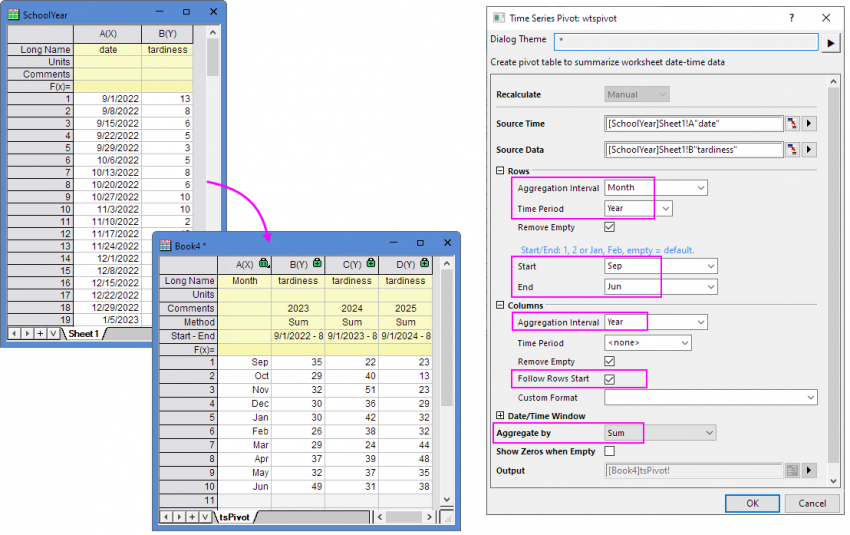
| Follow Rows Start | When the Start Value of Rows is bigger than End value and the Column’s Aggregation Interval is same as the Rows Time Period. The option is shown in the dialog.
If the Row Time Period is set to Year or Week, etc. but it doesn’t start from the traditional start of the year or week, you can check this option to summarize data by Fiscal Year. If unchecked, all data of same calendar year/week will instead be put in one column. |
| Start / End | Enter the start or end time of the columns of the pivot table. The time format of the Start and End is based on the selected Aggregation Interval. You can refer to the blue hint showing above this edit box. If keeps the edit box empty, the start or end time is default time of the table.
|
| Custom Format | Custom the time format showing in the Comment label row except some combinations of Aggregation Interval and Time Period.
For example: when Aggregation Interval=Month and Time Period=Year, this the format can not be customized. |
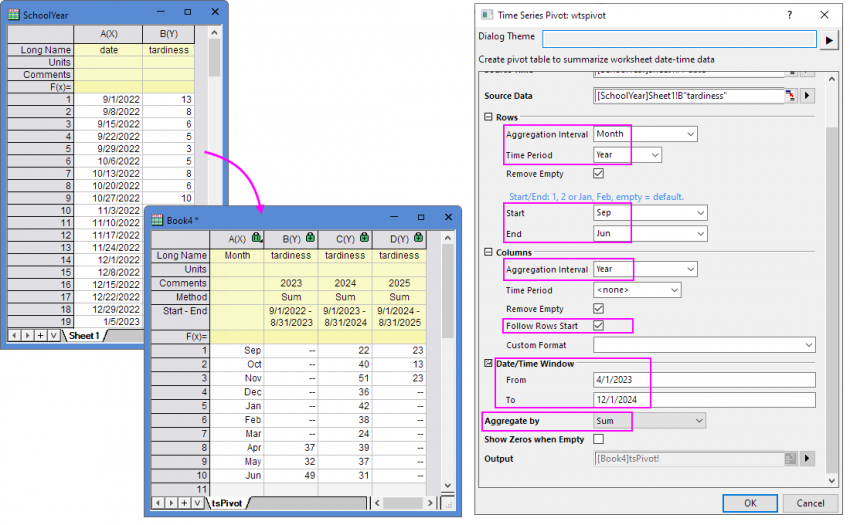
Specify the date/time range to control the source date range that used to be aggregated.
Select the aggregation method to summarize the Source Data, including
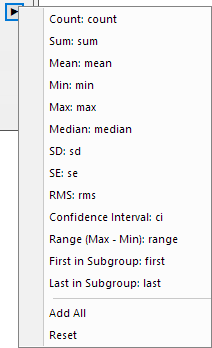
Available only when Aggregate by is set to Custom. Specify the summarized method in the combo edit box. The triangle button next to the edit box provides some frequently-used statistics quantities. You can mix them and construct your own summarized method. You also can add all methods or reset the selection by this menu.
Specify whether to show missing values in the pivot table as zeros.
Specify where to output the result time series pivot table tsPivot. Click the triangle button to specify output method.
[<input>]<input>: Input the time series pivot table into the current worksheet.
<new>: Put time series pivot table into a new sheet of the current workbook.
[<new>]<new>: Put time series pivot table into a new workbook.
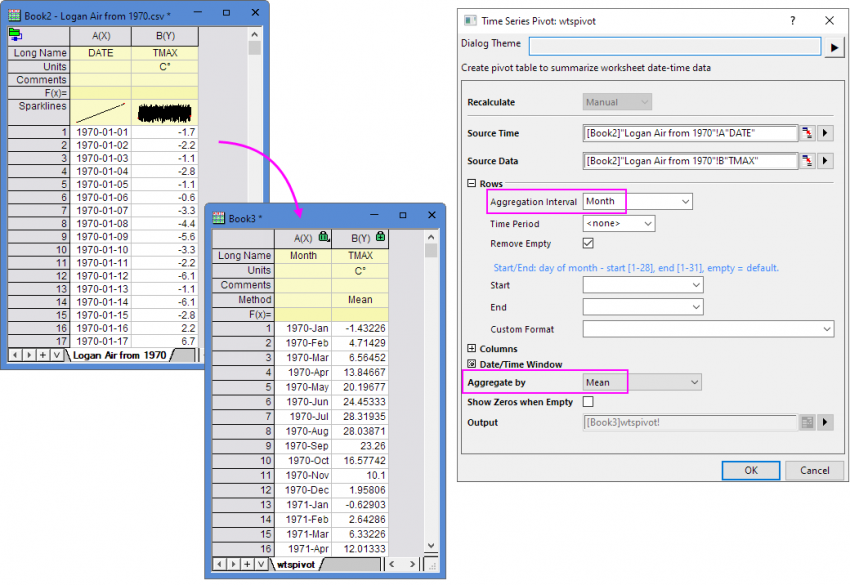
Here, We have a daily max temperature data from 1970-01-01 to 2023-12-31.
Sample1: To summarize the mean value of max temperature in each month during 1970 to 2023.
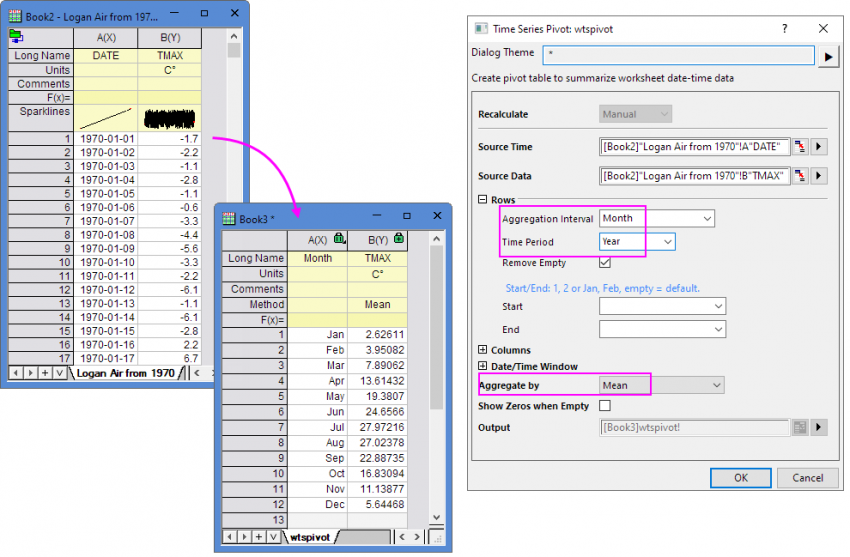
We go on using a daily max temperature data from 1970-01-01 to 2023-12-31.
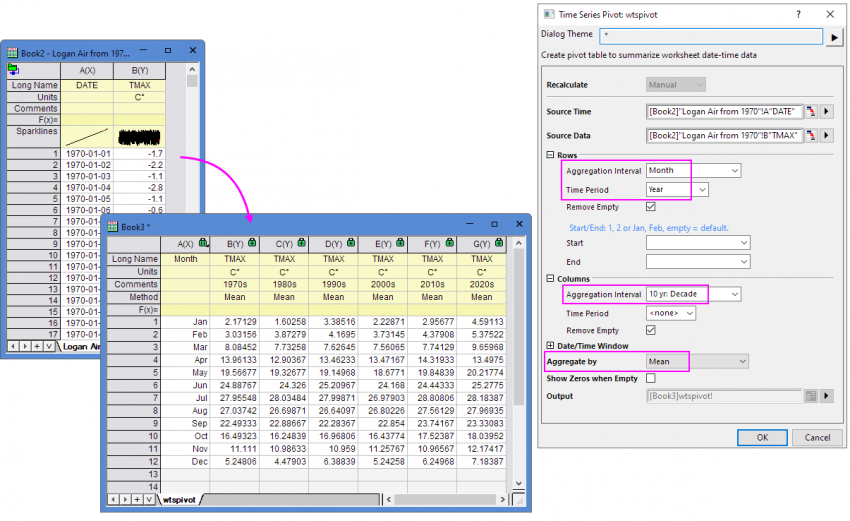
Sample2: To summarize the mean value of max temperature of each month for each decade.
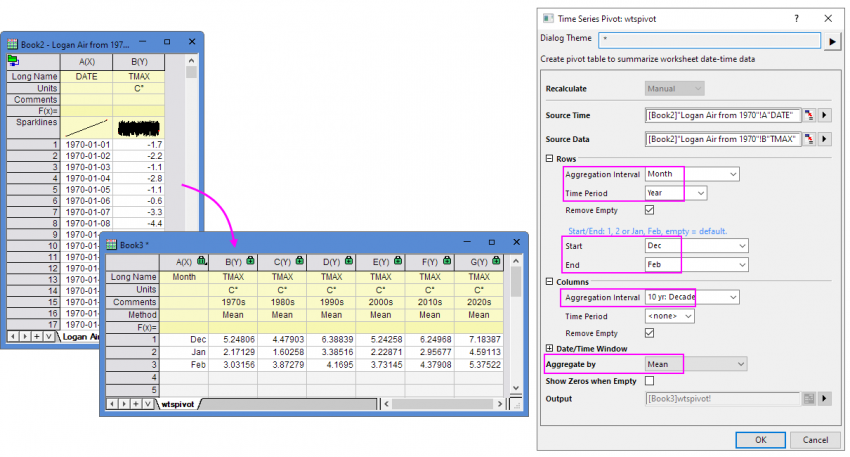
When the summarized data doesn’t start from the traditional start of the year or week, and the Row Time Period is set to Year or Week, etc, you can use Follow Rows Start to summarize data for Fiscal Year.
Here, we use a sample data of the tardiness of School Year from 9/1/2022 to 6/25/2025. This fiscal year starts from Sep. 1st and ends on Jun. 30th next year
Sample3: To summarize the sum value of the tardiness in each month for Fiscal Year.