2.4 Sticky Notes
Besides Notes windows, you can use Sticky Notes to collect and organize ideas, tasks, or piece of information at a time for Origin's child windows.
Contents
Add a Stick Note
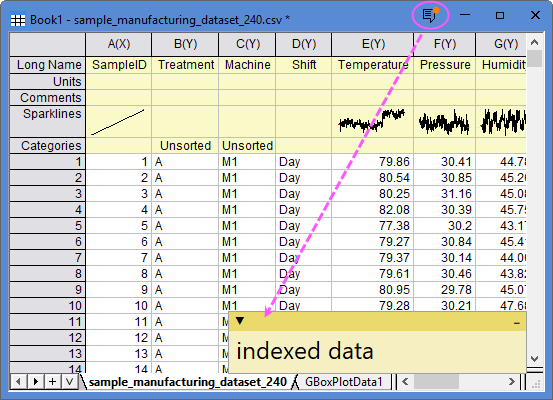
To add a note onto current window or sheet, you can click the New Sticky Note button on the window title bar; Once a stciky note existed, a red dot will show on the New Sticky Note button.
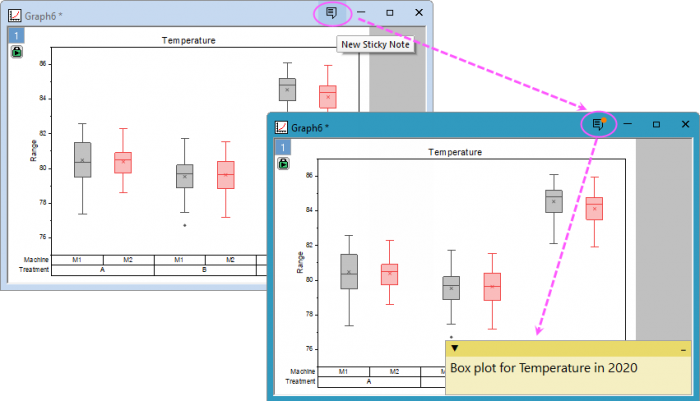
There is a system variable "@PSN" which can be used to hide the sticky note icon on title bar. By default, it is set to 1 which means showing the icon.
To add a sticky note by LabTalk comand, please check below:
page -sn;  //Add a sticky note to current page
del -sn;  // delete all sticky notes in current project.
Show or Hide the Notes
By default, the menu View: Show Sticky Notes has been chosen. You can select it again to hide all sticky notes for current project; and the dot on the New Sticky Note buttons will turn to gray.
Click the New Sticky Note button on any window title bar again to show the notes back in current project. Or, you can use the system variable "@SSN" to show and hide the notes. By default, @SSN is set to 1 which means showing the notes.
Sticky Note Options
Select the menu Preferences: Sticky Note Options to open the Sticky Note Options dialog:
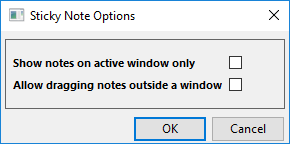
- Show notes on active window only: Choose this to show the sticky note for active window only.
- Allow dragging notes outside a window: Choose this to allow dragging the note outside its parent window.
There is a system variable "@SSNI" which can be set to 0, 1, 2, 3 for different combination of there two check boxes.
Controls on Sticky Notes bar
Click on the down-arrow button at the top-left area, you will get the menu below to control the note:
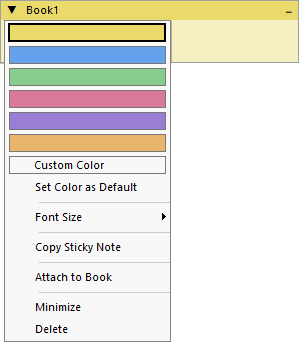
Background Color
You can choose a color for the note, and if you want a custom color you can choose Custom Color from this menu to choose a desired color.
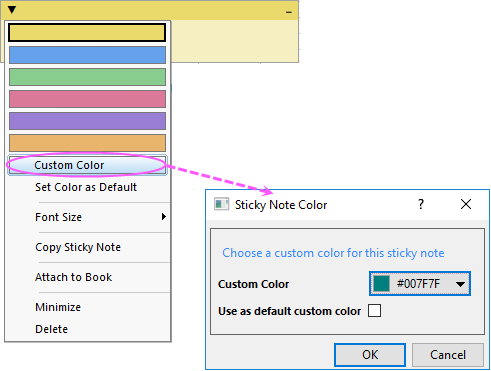
Choosing Set Default Color to set the current color as default.
Font Size
You can change the font size for the note.
Copy and Paste Sticky Note
You can choose Copy Sticky Note to copy the note and then right-click on the area in a window to paste the note to another window.
Attach to Book
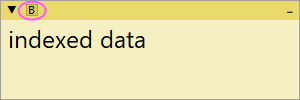
For the sticky note on a workbook/Matrix window, you can choose Attach to Book to attach this note to book level. By default, the note is attached to the sheet level.
Once Attack to Book is selectted, there would be a target "B" at the titlte bar of the sticky note.
Minimize or Delete the Note
You can choose Minimize to minimize the note; and choose Delete to delete the note.
How Sticky Notes Work with Other Tools
With Project Explorer
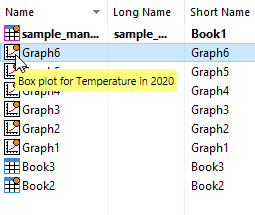
In Project Explorer, all windows with sticky notes will show a red dot on the window icon. Hovering over the icon and dot area displays a tooltip; hovering over other areas shows the preview as usual.
With Project Browser
In Project Browser, there is a column to show the sticky notes for windows/graphs/books/sheets.
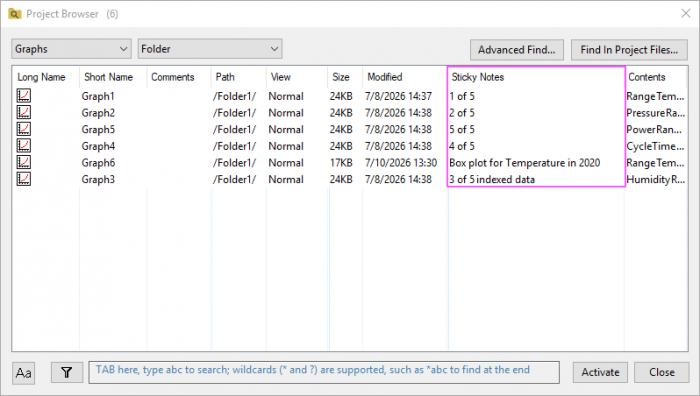
When searching for keywords, all notes are included in the search scope.
With Window Switcher
When you preview all windows with Window Switcher, the first sticky note of current window/sheet will show.