Note:
|
When Origin is started from command-line of an external console (such as Windows cmd window) or the Target text box of the Origin program icon's Properties dialog box, a predictable and orderly sequence of start up events takes place. Changing this sequence by the use of command line switches or by altering the contents of the ORIGIN.INI file can have complex interactions with Origin and is intended for advanced users. This section outlines the default start up sequence followed by Origin.
File#=Macros filename1 filename2 filename3 etc...
in the ORIGIN.INI file where File is literal, # equals number (the menu level), Macros is literal, and filename1, filename2, filename3, etc... are the menu level CNF files located in the Origin software folder. Menu level CNF files create different Origin menu arrangements depending on the value of the menu level setting. An example taken from the ORIGIN.INI file is:
File1=Macros FullMenu
To open a graph window template, an Origin window, or a project when starting Origin, you can specify the path and file name of any supported file type in the Command Line or Target text box of the Origin program icon's Properties dialog box. The supported file types include: graph templates (*.OTP), graphs (*.OGG), worksheets (*.OGW), matrices (*.OGM), projects (*.OPJ and *.ORG) and Excel files (*.XLS). No extension to the file name is required if it is a *.OPJ file.
For example, to open a project named MYPROJECTFILE.OPJ that is located in the Origin software folder, type the following in the Command Line or Target text box:
DriveLetter:\Origin9InstallationPath\ORIGIN9.EXE MYPROJECTFILE
To open a graph window named MY GRAPH.OGG that is located in the folder D:\MY OGGs, type the following in the Command Line or Target text box:
DriveLetter:\Origin9InstallationPath\ORIGIN9.EXE "D:\MY OGGs\MY GRAPH.OGG"
Note that, unlike files specified with the command line switches, you can specify files not located in the same directory as the Origin executable file. However, if the specified file is not in the Origin software folder, you must specify the complete path and file name. Long path and file names with spaces must be enclosed in double quotation marks. In general, the file name should be the last command line option listed when using more than one switch.
By default, when Origin starts it opens a new project displaying a single worksheet created from the ORIGIN.OTW worksheet template. To start Origin displaying a worksheet created from a different template, use the -tw templateName switch. In addition, templateName will become the default worksheet template used by the New Worksheet button on the Origin Standard toolbar.
For example, to start Origin and create a worksheet based on the CONVANALYSIS.OTW worksheet template, type the following in the Command Line or Target text box:
DriveLetter:\Origin9InstallationPath\ORIGIN9.EXE -tw CONVANALYSIS.OTW
Note that the specified template must be in the Origin program folder or the User Files Folder that you specified when you first ran Origin.
Origin's default initialization file, ORIGIN.INI, presets a number of Origin options that remain active until you close the Origin session. These options include the menu configuration and some display settings. Because Origin automatically uses ORIGIN.INI as the default initialization file, no Command Line or Target text box switch is needed to specify it.
To use an initialization file other than ORIGIN.INI, specify the replacement initialization file by using the -i filename switch. If ORIGIN.INI is not found and no replacement INI file is specified, default values are used for initialization.
The following command line with the -i switch specifies that Origin use the MYINIT.INI file to preset Origin options:
DriveLetter:\Origin9InstallationPath\ORIGIN9.EXE -i MYINIT
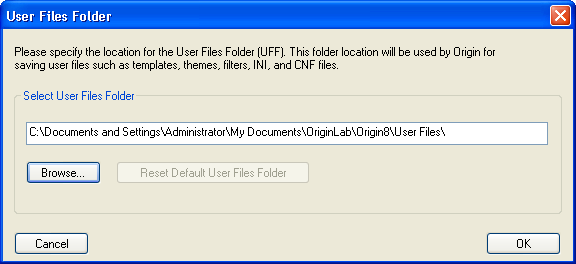
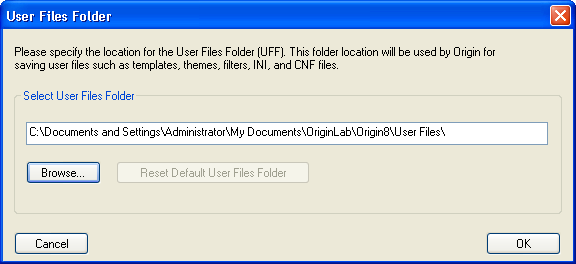
Note that the INI file must be in the User Files Folder (see the picture below) that you specified when you first ran Origin.
The menu level determines which menus are available when Origin is open. To specify the menu level at which Origin starts, use the -l number switch. The number must be valid for the lists of menus contained in the ORIGIN.INI file. If a -l switch is not included in the Command Line or Target text box, then a default menu level of 1 is used unless overridden by assignment within the INI file.
The following command line with the -l switch specifies that Origin use menu level 2 when starting Origin:
DriveLetter:\Origin9InstallationPath\ORIGIN9.EXE -l 2
Configuration files are text files that contain LabTalk script commands. The configuration files define variables, menus, macros, and functions that remain active until you close the Origin session. Configuration files execute when Origin starts as specified by the menu level in the ORIGIN.INI file.
Use the -c filename switch to specify a new configuration file to override the configuration files that are specified by the menu level in the INI file.
Use the -a filename switch to specify a configuration file to add to the list of configuration files that are specified by the menu level in the INI file.
The following command line with the -c switch specifies that Origin use a new configuration file, MYCONFIG.CNF, to override the current configuration files specified in the ORIGIN.INI file:
DriveLetter:\Origin9InstallationPath\ORIGIN9.EXE -c MYCONFIG
Note that the configuration file must be in the Origin program folder or the "User Files Folder" that you specified when you first ran Origin.