| Recalculate
|
Specify the Recalculate Mode.
|
| Input Worksheet
|
The worksheet to be split. Note that starting with Origin 2017b, you can CTRL + select a column range to be split (no need to split the entire sheet).
For help with range controls, see: Specifying Your Input Data
|
| Split Mode
|
Determine how the worksheet is to be split:
- By Number of Columns
- Every n columns will be split into a new worksheet. Specify n in the By Number of Columns box.
- By Number of Rows
- Every n rows will be split into a new worksheet. Specify n in the By Number of Rows box.
- By Column Label
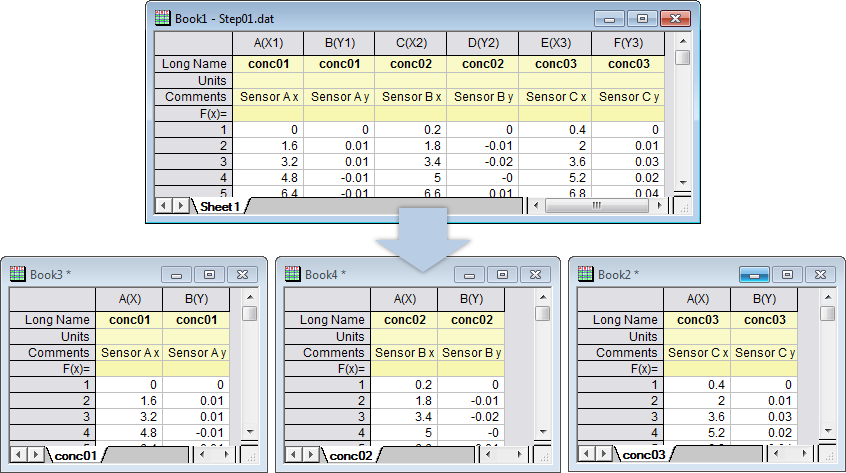
- Columns sharing a specified header row label will be split into a new worksheet. Specify the label-containing header row in the By Column Label box.
- By Reference Columns
- Columns will be split into new worksheets by values or conditions in Reference Columns. Note that list order is important when splitting by values in multiple reference columns.
|
| Number of Columns
|
Available when Split Mode = By Number of Columns. Specify every n columns to create a new worksheet (not available for By Reference Columns).
|
| Retain 1st N Columns
|
Available when Split Mode = By Number of Columns or By Column Label. Specify first n columns of the source Worksheet to keep them in all split result sheet. And these first n columns are excluded from splitting By Number of Columns or By Column Label.
|
| Number of Rows
|
Available when Split Mode = By Number of Rows. Specify every n rows to create a new worksheet (not available for By Reference Columns).
|
| Column Label
|
Available when Split Mode = By Column Label. Specify the column label row for grouping columns into new worksheets.
|
| Reference Columns
|
Available when Split Mode = Reference Columns. Specify column(s) containing grouping variable(s).
When multiple columns are chosen, list order determines how data are split.
When single column is chosen, a further control Split drop-down list will show up to let you decide whether split the columns by values or other conditions(such as reference values jumping or turning).
|
| Split
|
This control is only available for single reference column selected. Specify how to split the worksheet according to the selected reference column:
- By Value
- Split the worksheet rows according to the values in reference column. The rows with same value in reference column will be split and extracted into a new worksheet. Tolerance is allowed for numeric values. This is the default selection for the Split control of selected single reference column.
- By Direction Change
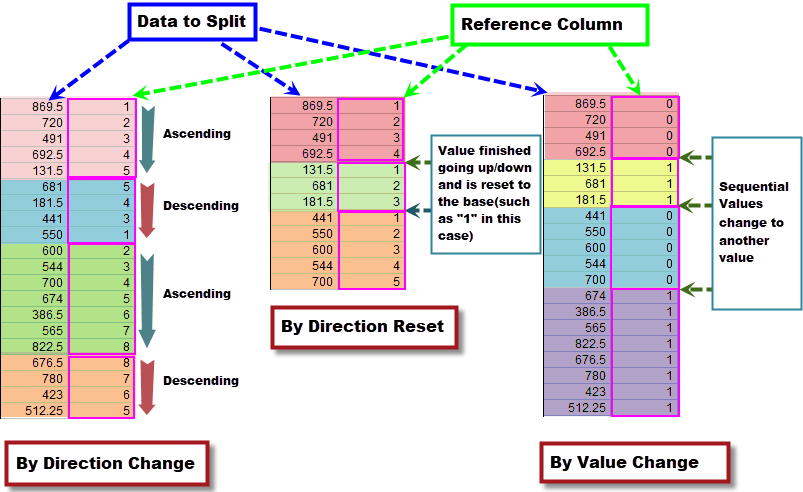
- Split the worksheet rows when the direction of the values in reference column changed, from ascending to descending, or vice versa.
- By Direction Reset
- Split the worksheet rows when the reference values finished going up/down and have been reset to the base.
- By Value Change
- Split the worksheet rows when the reference value changes. Tolerance is allowed for numeric values. Reference values will be used as identifier and set as sheet label of each result sheet.
|
| Tolerance
|
When you selected Split Mode = Reference Columns and Split = By Value/By Value Change, you can use this drop box to consider a tolerance when determine when determine if the numeric values change.
|
| Include Turning Point in
|
When you selected By Direction Change for the Split control, you can use this drop box to decide how to deal with the turning points, to include them in the previous group or next group.
|
| Keep Reference Columns in Result
|
Output Reference Column data with split results (applies to By Reference Columns only).
|
| Sort Result by Reference Columns
|
Specify whether sort the split results rows by the reference values when you checked Keep Reference Columns in Result.
This check box is only available for the Split control set to By Direction Change or By Direction Reset.
|
| Exclude Missing Value
|
Exclude empty cells or cells containing Origin's missing value character ("--"), from split result (applies to By Reference Columns only).
|
| Copy Column Formula to Result
|
If the source worksheet contains column formjula, control how to deal with the formula.
- None
- Do not copy the column formula
- Copy and Execute
- Copy column formula to the result sheets and execute it.
- Copy Formula Text
- Copy the text of column formula to the result sheets but not execute it. You will need to manually execute it later.
|
| Keep Source Worksheet
|
Keep the source worksheet intact. Otherwise the source worksheet is deleted.
|
| Show Sparklines
|
Show Sparklines for the columns in the output worksheets.
|
| Output Worksheet
|
Specify output worksheet.
For help with the range controls, see: Output Results
|
| Preset Result Sheet Name
|
Available when Split Mode = By Reference Columns and Split = By Value:
%N: Long Name or Short Name of Reference Column (e.g. LongName, LongName1, etc.)
%C: Dataset Name of Reference Column (e.g. Book1_A, Book1_A1, etc.)
%M: Comment of Reference Column (e.g. Comments, Comments1, etc.)
%U: Units of Reference Column (e.g. Units, Units1, etc.)
%V: Cell Value of Reference Column (e.g. Group 1, Group 2, etc.)
Note that names can be comprised of concatenated variables and include arbitrary text (e.g. "%N=%V" will produce sheets named as "Column Name=Cell Value").
Since Origin 2019b, this option has been set to %V by default to output each subgroup to a new sheet with the group-info sheet name.
|