4.4.16 Split Columns
Split-Columns
If you want to split a or multiple columns into multiple columns, you can use the Split Columns:colsplit tool.
To open the Split Columns tool, you can
- Select Restructure: Split Columns with the workbook window activated.
or
- Run
colsplit -d; in the Command Window.
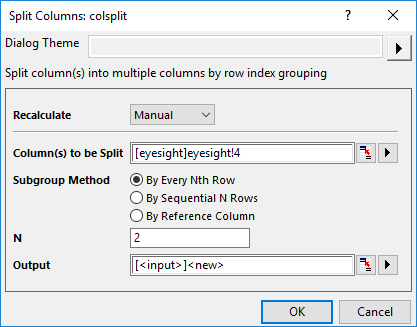
This tool will split the specified columns by subgrouping. Here, we have three subgrouping methods:
- By Every Nth Row
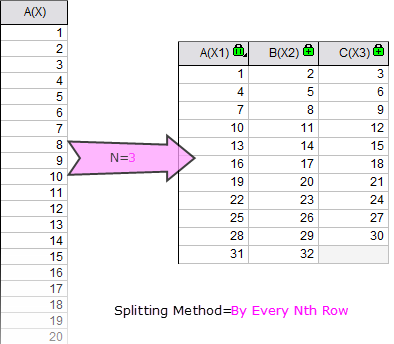
- Every Nth row will be considered as a group. For example, if N is 3, there would be 3 groups, the first group has the data from rows 1, 4, 7 ... 1 + 3 * M, the second group has the data from rows 2, 5, 8, ... 2 + 3 * M, and so on.
- By Sequential N Rows
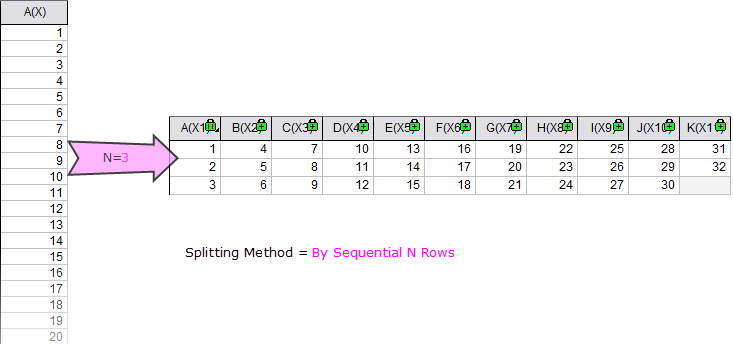
- The sequential N rows will be considered as a group. For example, if N is 5, the data from row 1 to row 5 will be the first group, from row 6 to 10 will be second group, and so on.
- By Reference Column
- Specify a reference column to split the source column. You can split the source column according to the values in reference column:
- By Separator
- You can specify a value(include <Blank or Missing> or <Text>) as separator to divide the source column into multiple column.
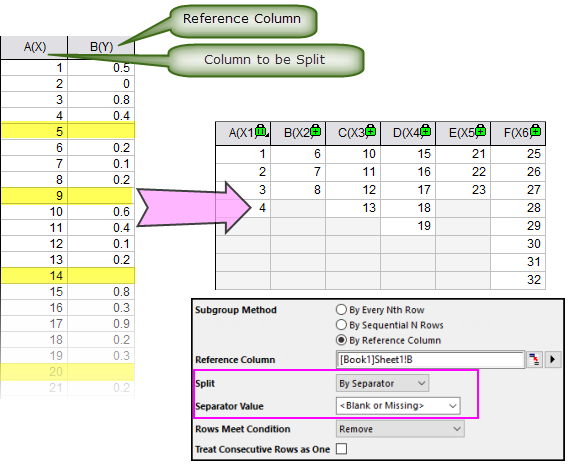
- Once you have specified the Separator Value, you can decide how to handle the rows meet the conditions with the Rows Meet Condition option: 1) Remove the rows(Just like the one in the screenshot above shows); 2) Use the row as begin of the new block; 3) Use the row as end of the current block.
- You can also decide whether to treat the consecutive rows(meet the separator condition) as one separator with the Treat Consecutive Rows as One check box.
- By Interval
- You can specify the interval and start value to define multiple ranges in reference column to split the source column.
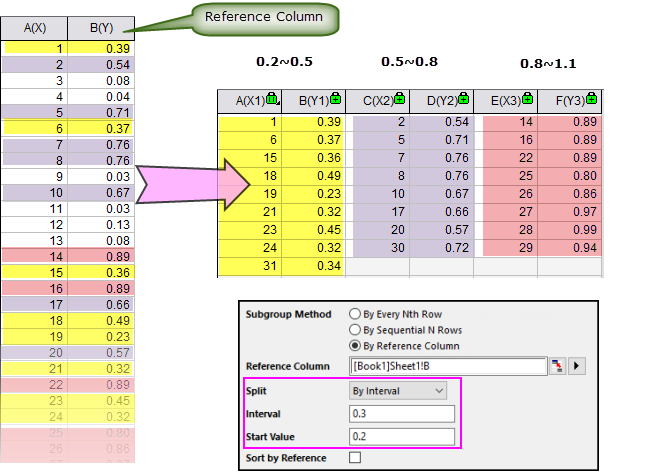
- In this sample, the data points in the specified ranges(0.2~0.5, 0.5~0.8 and 0.8~1.1 and so on) have been picked up and stored in different subgroups. To specify the range, you just need set start value and interval.
- You can sort the result subgroups by the values in the reference column by checking the Sort by Reference check box.